
For Location Shop Manager Role:
To enable this functionality, please follow these steps:
1. Enable location shop manager :- In the Multilocation Inventory plugin, navigate to the Settings tab. You will see the Location Settings tab. There is an option to enable “Set users as a location shop manager“. Don’t forget to save the changes.
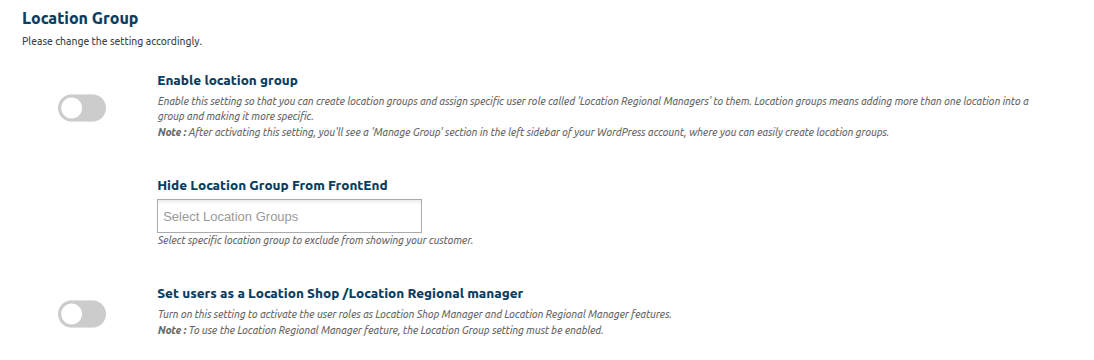
Image no 1:- Enable location shop manager
2. Adding shop manager :- After enabling the Set users as a location shop manager setting in Location settings, go to the “Users” section. Here, you can add new shop managers, administrators, customers, etc. Once you have added the user, click on the “Save” button.
2.1 Click on ‘Users’:-
Click on the ‘Users’ option from the menu on the left-hand side.
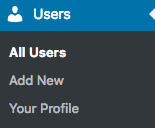
Image no 2.1:-clicking on users
2.2 Click on Add users’:-
Click ‘Add New’.
Across the top, click the ‘Add New’ button.
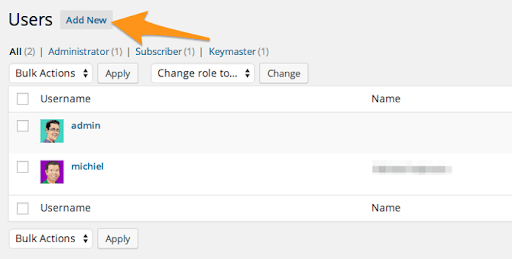
Image no 2.2:-Adding new users.
2.3 Fill out the form and set the role to Location shop manager
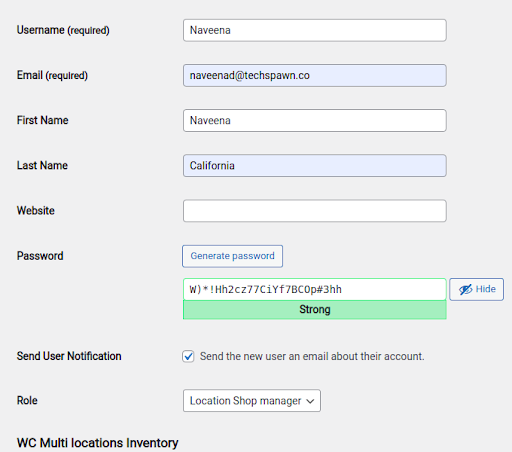
Image no 2.3:- filling the location shop manager details
3. Selecting shop manager :- Navigate to the “Manage Locations” page where you created locations for your store. Select the location where you want to assign a shop manager. In that location, you will find an option labeled “Location Shop Manager”. Choose the name of the shop manager you previously added in the “Users” section and click on “Save”.
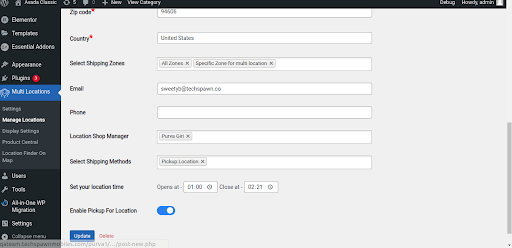
Image no 3:- selecting shop manager
For Location Regional Manager Role:
To enable this functionality, please follow these steps:
1. Go to Plugins Settings > Location, and enable the setting “Set users as a Location Shop / Location Regional Manager” as well as “Enable Location Group,” then save the changes.
2. In the WordPress sidebar, navigate to Users and create a new user with the role of Location Regional Manager. Please fill in all necessary details and save the changes.
3. Within the Multiloca plugin, go to Manage Groups. On the manage group page, you can create location groups. After editing any group, you can assign locations and the Location Regional Manager to it.
4. After logging in with the Location Regional Manager credentials, the dashboard will display the products assigned to your location group, allowing you to update stock levels and manage orders for your assigned location group.