
Woocommerce Multi Locations Inventory Management is compatible with Table Rate Shipping for WooCommerce.
WooCommerce’s table rate method provides an option to add numerous shipping rates for a single customer, depending on the admin’s predefined criteria. These criteria may include the shipping location, cart subtotal, item shipping class, product price, weight, and many other factors
- To access the shipping settings, navigate to the WooCommerce dashboard and click on “Settings” followed by “Shipping.
- To add Table Rate Shipping as a shipping method in your new shipping zone, follow these steps:
- Go to WooCommerce → Settings → Shipping.
- Click on “Add shipping zone”.
- Provide a name for your zone.
- Select the “Table Rate” shipping method from the dropdown menu.
- Click “Add shipping method” to add it to your zone, as shown in the image below.

3. To assign the Table Rate Shipping method to a specific location, navigate to Multilocation → Manage Location and edit the desired location. From the dropdown, select the Table Rate Shipping method as shown in the image below, and then save the changes.

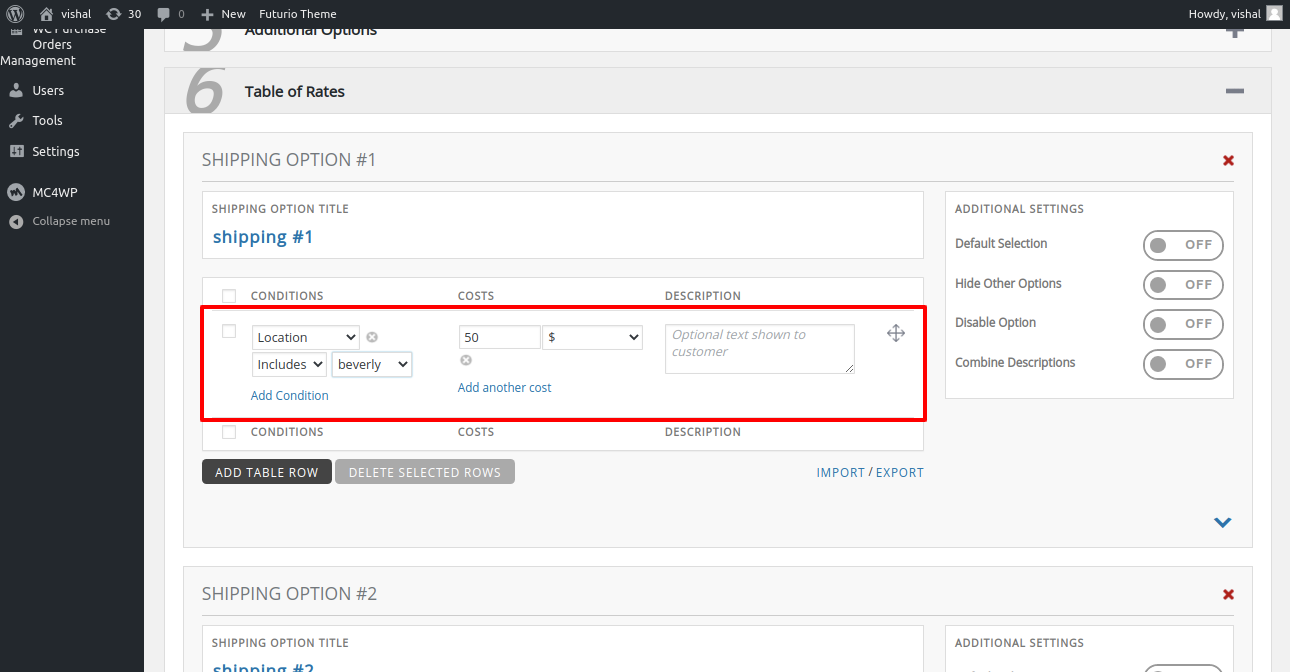
4. Location has been added as a condition in the Table of Rates, enabling the setting of distinct shipping rates based on different locations
5. On the cart/checkout page, the user will be able to view the shipping rates offered by the Table Rate Shipping method.