
In this section, we will examine the plugin settings in detail, including the effects of enabling or disabling certain settings. Let’s explore the plugin!
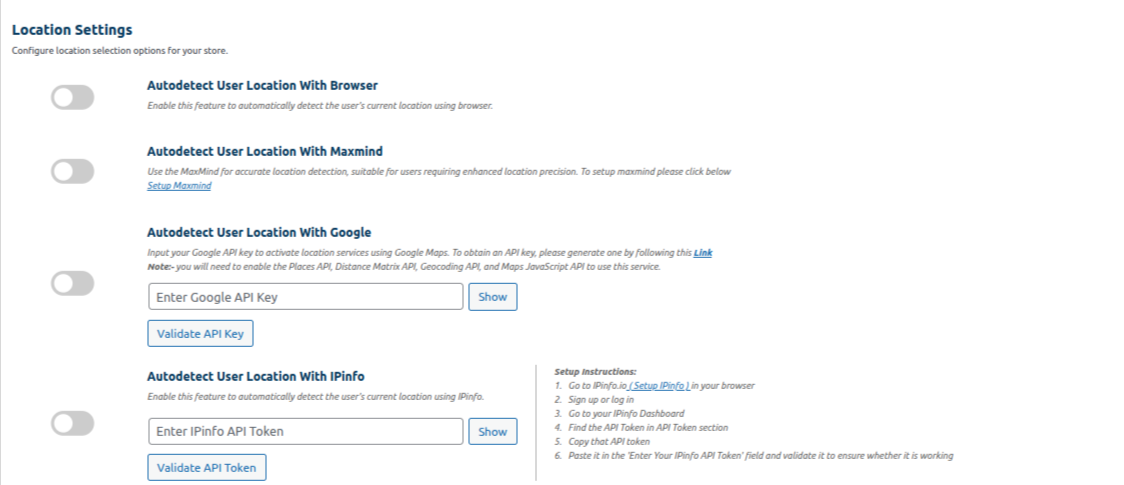
1. Autodetect User Location With Browser :- Enable this feature to determine the user’s current location using HTML geocode API. Ideal for quick setup without requiring additional services.
2. Autodetect User Location with Maxmind :- Use the MaxMind service for accurate location detection, suitable for users requiring enhanced location precision. To setup maxmind please click below.
3. Autodetect User Location with Google :- Enable this feature to automatically detect the user’s location using Google services API. Which requires a working Google API key.
4. Enter your Google API key:-Please enter your generated Google Maps API key in the input box provided below. To use this feature, you must activate the following APIs: Places API, Distance Matrix API, Geocoding API, and Maps JavaScript API. Please ensure that you have enabled these APIs and enter the corresponding API key in the input box.
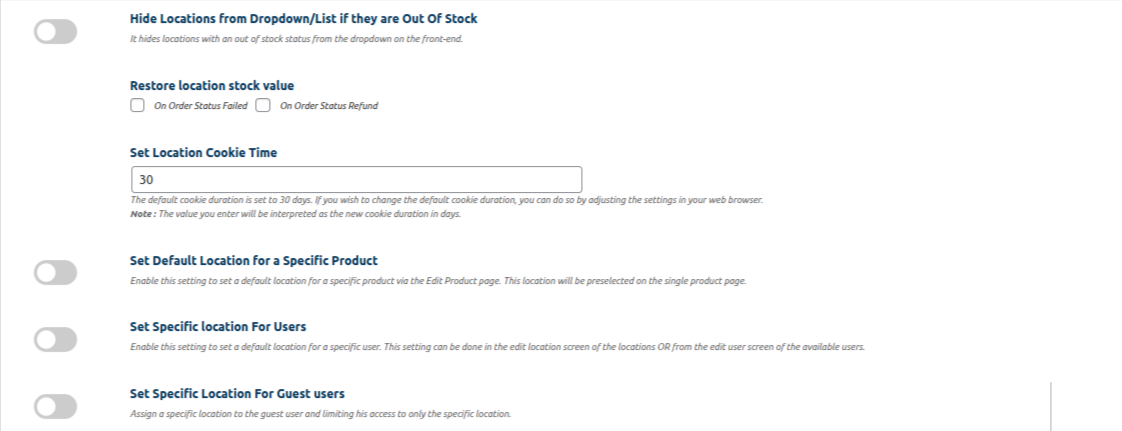
5. Hide Locations from Dropdown/List if they are Out Of Stock :- it hides locations with an out of stock status from the dropdown on the front-end.
6. Restore location Stock Value:- 1. On Order Status Failed 2. On Order Status Refund
7. Set Location Cookie Time :- Note:- The value you enter will be interpreted as the new cookie duration in days.
8. Set default location for specific Product:- Enable this setting to set a default location for a specific product via the Edit Product page. This location will be preselected on the single product page.
9. Set Specific location for Users:- Enable this setting to set a default location for a specific user. This setting can be done in the edit location screen of the locations OR from the edit user screen of the available users.
10. Set Specific location for Guest Users:- Assign a specific location to the guest user and limiting his access to only the specific location.
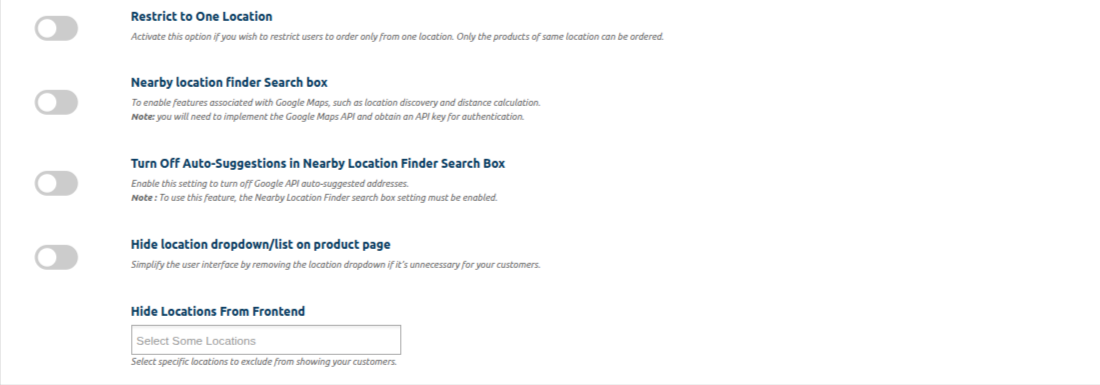
11. Restrict to one Location:- Activate this option if you wish to restrict users to order only from one location. Only the products of same location can be ordered.
12. Nearby location finder Search Box:-If you are utilizing the geolocation functionality provided by the Google Maps API key, you can enable the nearby location finder feature.
(Note: You need first google map API key then, it will work)
13.Turn off Auto Suggestion in Nearby location finder Search box –
Enable this setting to hide Google API auto-suggested addresses when “Nearby Location Finder” is active.
14. Hide location dropdown/list on product page – Simplify teh user interface by removing the location dropdown if its unnecessary for your customers.
15. Hide Locations From Frontend– Select specific location to exclude from showing your customers.
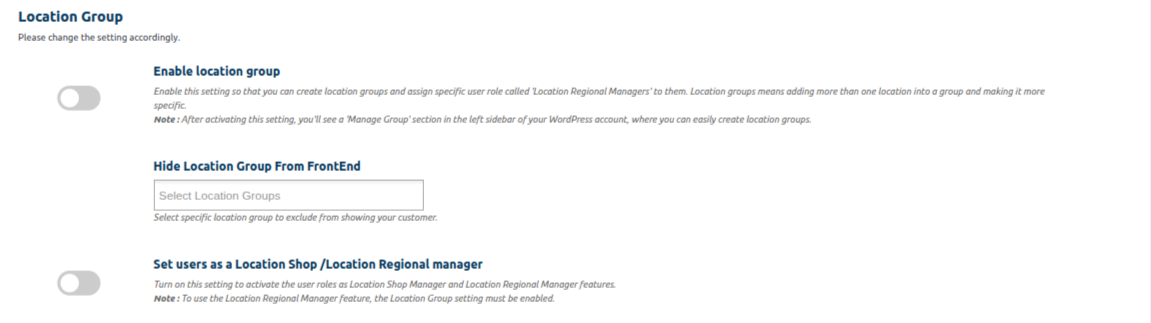
1. Set users as a Location Shop /Location Regional manager:-By assigning the Location shop manager to a particular location or warehouse, they can be kept informed about the orders related to their assigned location.
To make use of the Location Regional Manager feature, you need to activate the location group setting located below
To know more about this setting we have made a separate section for this, kindly visit here – Location Shop Manager
2. Hide Location Group From FrontEnd:- Select specific location group to exclude from showing your customer.
3. Enable location group :- If you wish to display multiple sub-locations under a main location in the front-end, you can use this option. Once you enable it, you need to create a group for the main location and then create sub-locations within that group.
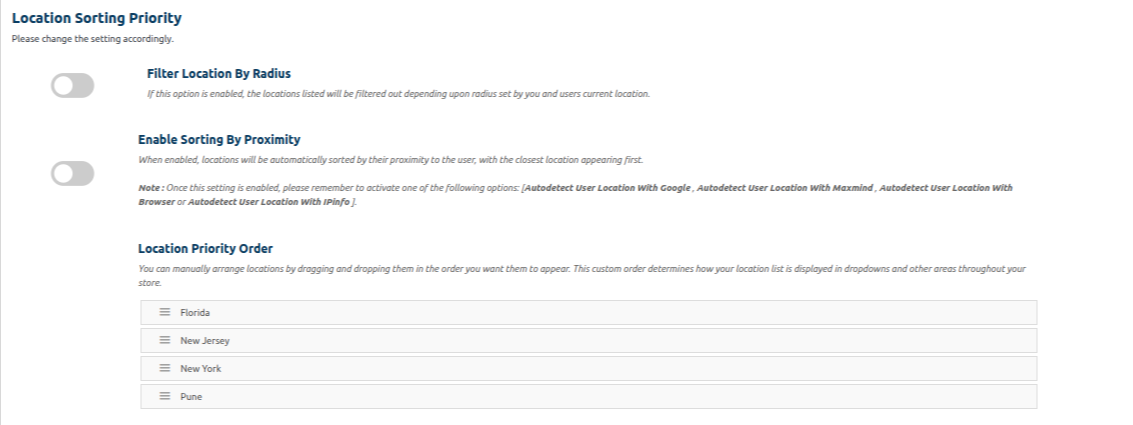
1.Filter Location By Radius:- If this option is enabled, locations will be filtered based on the radius set in each individual location’s edit screen. To use this feature, you must also enable the “Autodetect User Location with Browser” setting.
Additionally, if you want to display the distance on individual product pages, navigate to Display Settings > Display Field Settings and enable the “Distance” checkbox.
Once everything is configured, if a user’s current location falls within the defined radius of a selected location, that location will be displayed on the cart page accordingly.
2. Enable Sorting By Proximity:– If this option is enabled, the locations listed below will be sorted based on their proximity, with the closest location appearing first.
Note:- Once this setting is enabled, please remember to activate one of the following options:
[Autodetect User Location With Google , Autodetect User Location With Maxmind , or Autodetect User Location With Browser ].
3. Location Priority Order :- In this based on the priority the location are getting set .For Example :- If i set the goa is at first position then in frontend the goa is display at 1st position . According to the user requirement the location can be set by orders.
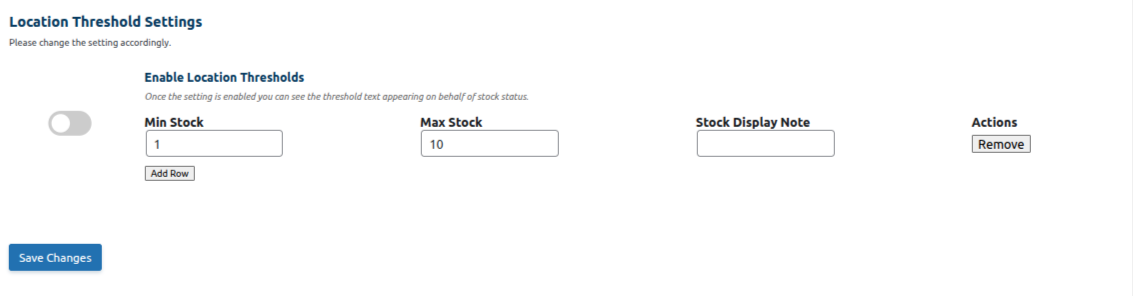
1. Enable Location Thresholds :- In this Once the location are enabled the Threshold settings will appear below.
2. Set The Text You Want To Appear Stock Wise :- In this we enter the min and max stock along with the display notes that should be appeared in the frontend .