
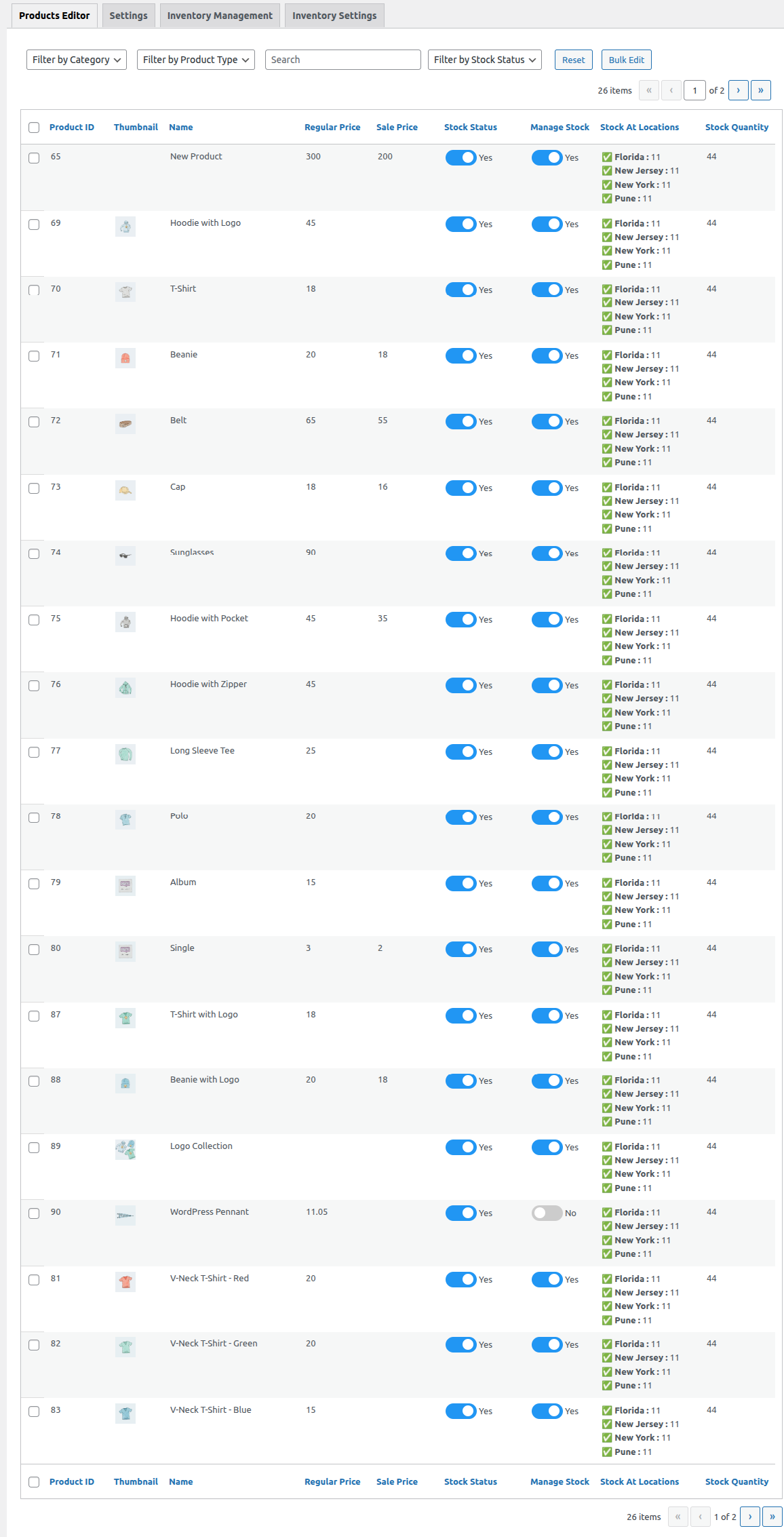
Image no 6:- product central
Product Central is organized into four tabs:
- Products Editor
- Settings
- Inventory Management
- Inventory Settings
1) Products Editor
- View all products in a single list.
- Update stock status.
- Manage stock for all locations.
2) Settings
- Configure column visibility settings for the product list of Product editors tab.
3) Inventory Management
- Modify stock levels for selected locations (as defined in Inventory Settings).
4) Inventory Settings
- Choose one or more locations.
The locations you select here determine which locations’ stock can be edited in Inventory Management.
Here are the steps to utilize the Bulk Edit functionality:
- In the Product Editor tab, select multiple products using the multiselect checkbox.
- Click on the “Bulk Edit” button.
- Enter the stock quantities for the respective locations.
- Click on the “Apply Changes” button.
- The stocks will be assigned to the locations.