
In the shortcode and documentation, you can insert the shortcode that was obtained with your Google API key. There are various functions available such as location pop-up, location switch, control settings, and other details about the shortcodes.
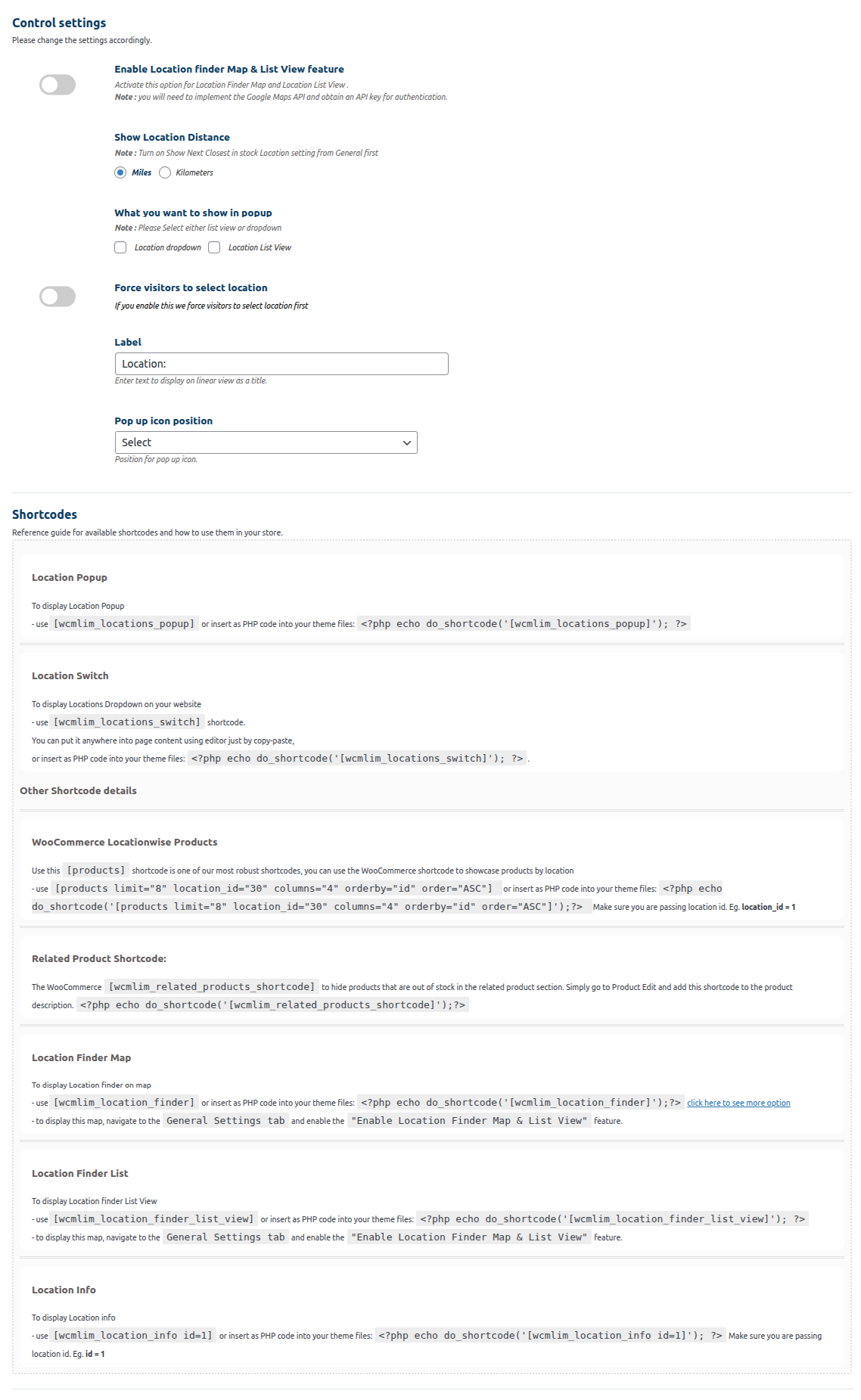
Enable Location finder Map & List View Feature:– Note:- you will need to implement the Google Maps API and obtain an API key for authentication.
Show location distance – 1. Miles 2. Kilometer
Note:- Turn on Show Next Closest in stock Location setting from General first
What you want to show in popup:- 1. Location dropdown 2. Location list View
Note:- Please Select either list view or dropdown

Shortcode Functionality
To enable the location dropdown to appear in the location popup, you need to check the “location dropdown” checkbox. This will display the location dropdown on the frontend as shown in the image below, when a user clicks on the location popup

Location Dropdown view in popup
Enabling the “Nearby Location Finder” option on the location popup allows users to search for nearby locations by entering a zip code or location name in the field provided, as shown in the image below

Nearby location finder view in popup
Force visitors to select a location – Enabling this option will make it mandatory for users to select a location or warehouse.
Label– Provide the label that you want to be displayed beside the warehouse or location selection.

Label Name on Frontend
Pop up icon position: Select the position of the pop-up icon on the front-end using the dropdown menu.
List View on Location Popup: Enabling this option will display the location in a linear format on the listing page. Once activated, the location pop-up will show a list view in a linear format, as shown in the image below
 List View on Location Popup
Multilocation Blocks for woocommerce
We have integrated new features into Woocommerce named “Multilocations for Woocommerce” blocks. These blocks include “Location Switch,” “Location Popup,” “Location Finder Map,” “Location Finder List View,” “Location Info,” and “Products by Location.
To enable this, you need to activate the ‘Allow users to set location’ and ‘Allow users to set location popup’ options.
To activate this feature, navigate to the “Shortcodes and Documentation” tab within the “Multilocation” menu.
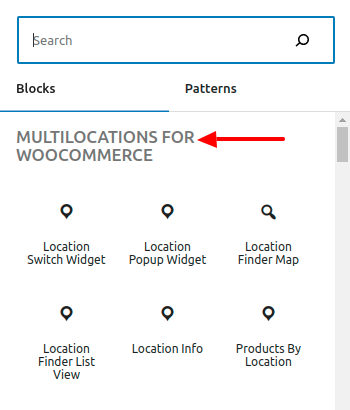
By adding the block to the page with a simple click, it will appear on the front end, just like the short codes mentioned above.
