
Stock Transfer Feature:
The Stock Transfer feature within the Multiloca Premium Plugin enables seamless inventory management by allowing the transfer of stock between different locations.
Steps to Use the Stock Transfer Feature :
1. Access the Stock Transfer Section
- Navigate to the Multiloca Premium Plugin.
- Select the Stock Transfers section from the menu. (refer below attached screenshot)


2. Initiate a New Transfer
- In the Stock Transfers section, click the Create Transfer button.
- Select the Origin Location, Destination Location, and the Transfer Date. (Refer to the attached screenshot)
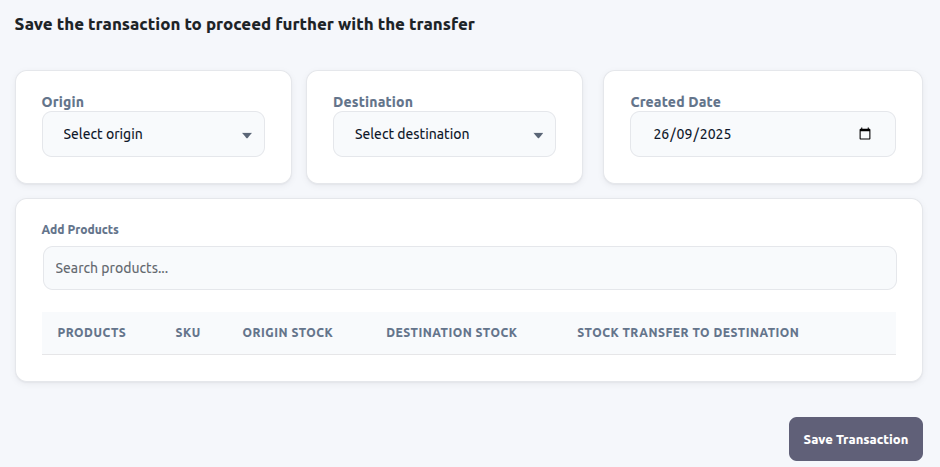
- Choose the Product from the Add Products field.
3. Specify Transfer Quantity
- In the Stock Transfer to Destination field, enter the quantity of stock you wish to transfer.
- Click on the Save Transaction button to save the details.
4. Transaction Status: Pending
- After saving the transaction, the status will be set to Pending.
5. Transaction Status: In Progress
- When the status updates to In Progress, the stock will be deducted from the origin location but will not be added to the destination location.
6. Transaction Status: Transferred
- Once the status updates to Transferred, the stock will be added to the destination location.