-
Sign up for a ShipStation account.
- Upon beginning your ShipStation trial, you will be directed to a screen where you can link your selling channel.

3. Choose the e-commerce platform you wish to connect with from the given options
4. To filter the options you see, you can type the name of the store platform into the search bar.

5. Search for Woocommerce.
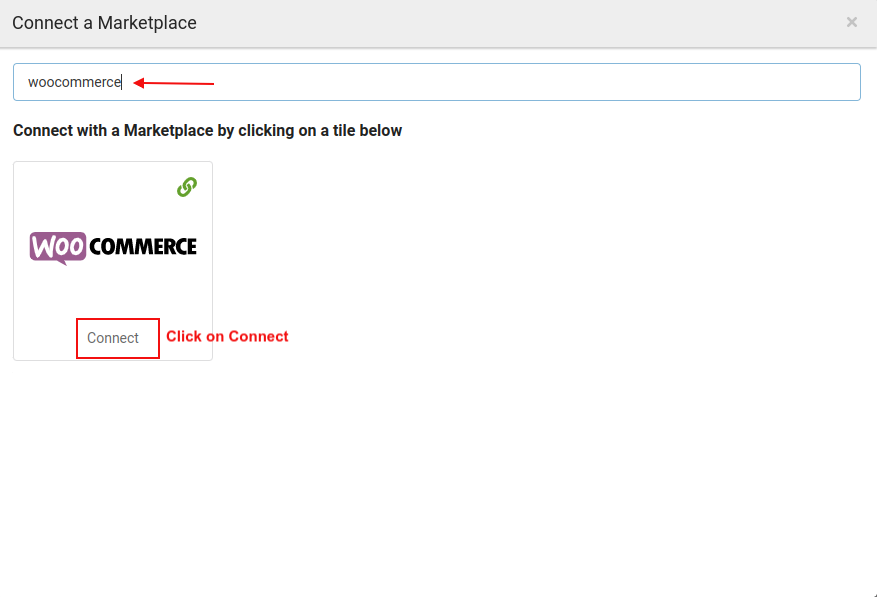
6. After clicking “Connect,” the following screen will be displayed.

7. Provide the authentication key and your website URL as prompted.
8.After clicking on the Test Connection button, you will see a message saying “Test Connection Successful!“

9.Click the Connect button as shown below

10. Now that WooCommerce is connected to Shipstation, you can place an order from the front end which will appear on the WooCommerce order page.

11.Navigate to the “Orders” section in Shipstation.

12. Click on “Awaiting Payment” followed by “New Woocommerce Store” in Shipstation

13. After clicking on Update All Store one pop will appear
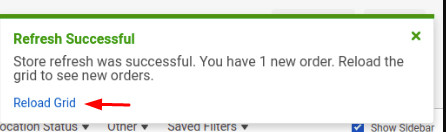
14.Click on Reload Grid –> Click on order status. You will see all orders –> Open one order.