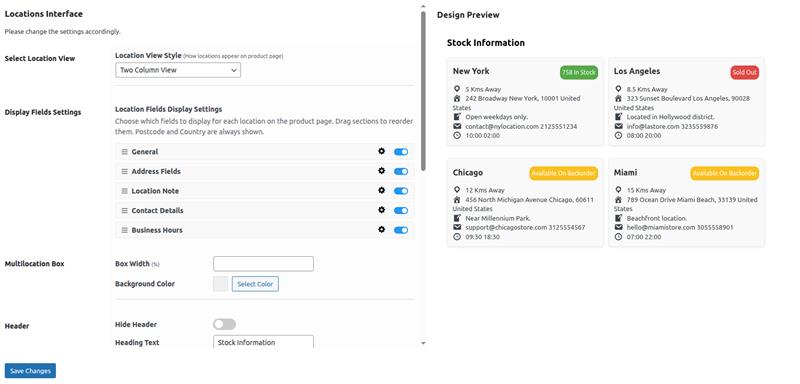
Display Setting
1.Set Location display text:- The text will be seen above the locations displayed in the single product page.
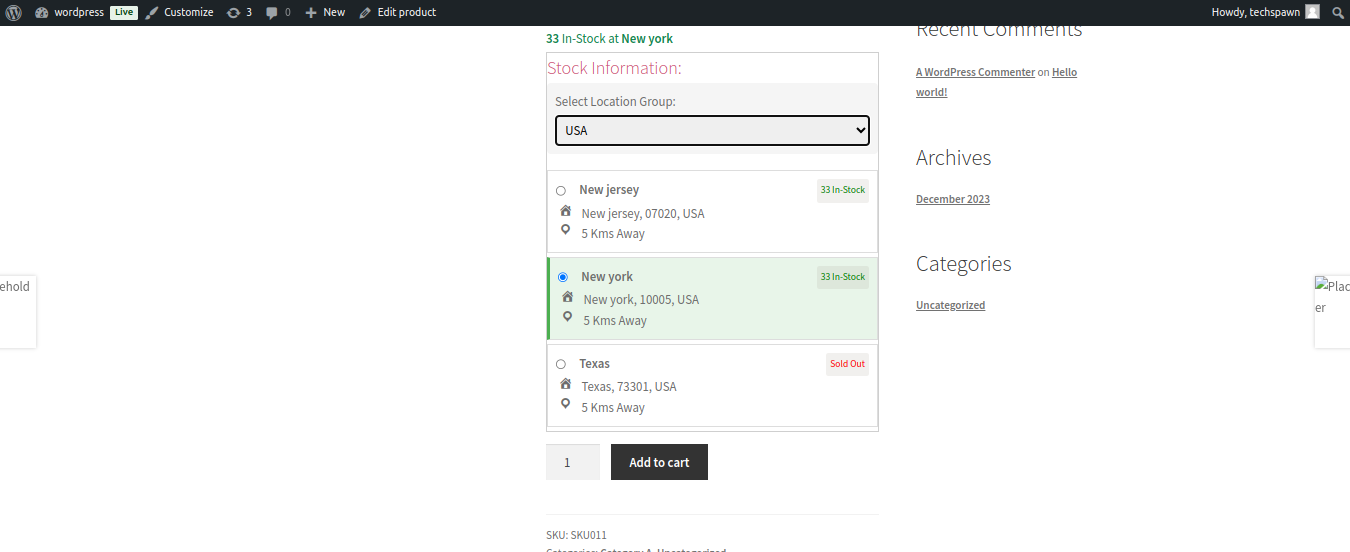
2. Location List View on Product Detail Page :- Enabling this setting will display a radio listing of locations or warehouses on the product detail page.
When this option is enabled, the product detail page will display a radio listing of locations/warehouses as depicted in the following image

Image : Location List View on Product Detail Page
3. Display Fields Settings:-Activate this setting to display detailed address information on the listing options. When enabled, the product detail page will show the location’s detailed address information, as shown in the image below.
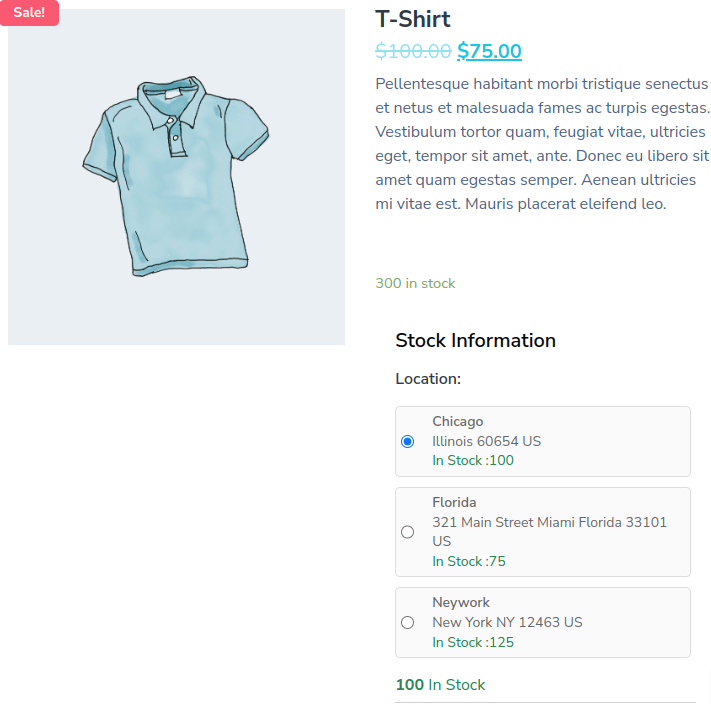
Image : Show address details on Product Detail Page
4. Show Location Distance : Enabling the “Show next closest in-stock location” setting allows you to choose the unit of measurement displayed on the product detail page. You can select None, Miles, or Kilometers.
5. Disable Multilocation CSS :- If you want to use custom CSS and disable the front-end CSS for the plugins, you can turn on this setting.
6. Multilocation Box :- You can set the box width and background color for the Multilocation box here.
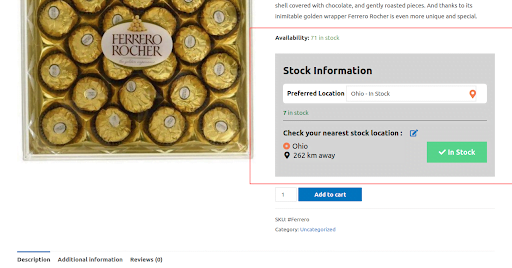
Product detail page – Stock Information
7. Multilocation Box Border Setting : – Here, you have the option to specify the Border Style, Border Width, Border Color, and Border Radius.
8. Separator :- You have the ability to eliminate the Separator line and choose a color for it.
9. Header :- In this section, you can provide a title for the stock information box and also pick the text color for the title.
10. Select Box :- This is where you can establish the design standards for the selection box, including properties such as radius, color, and others.
Likewise, you can define design standards for the Output Box, Input Field, and Button.
11. You have the option to assign label names for different product statuses such as Instock, Out of stock, or On backorder. These labels will be replaced accordingly with the given names. Additionally, you can also set background color and text for each label.
12. Out of Stock:- Consist of label, backgorund color, text are shown when any of the quantity are of out of stock.
13. In Stock:- Consist of label, backgorund color, text are shown when any of the quantity are of In stock.
14. Available on Backorder:- Available on backorder button text to appear.
Views:
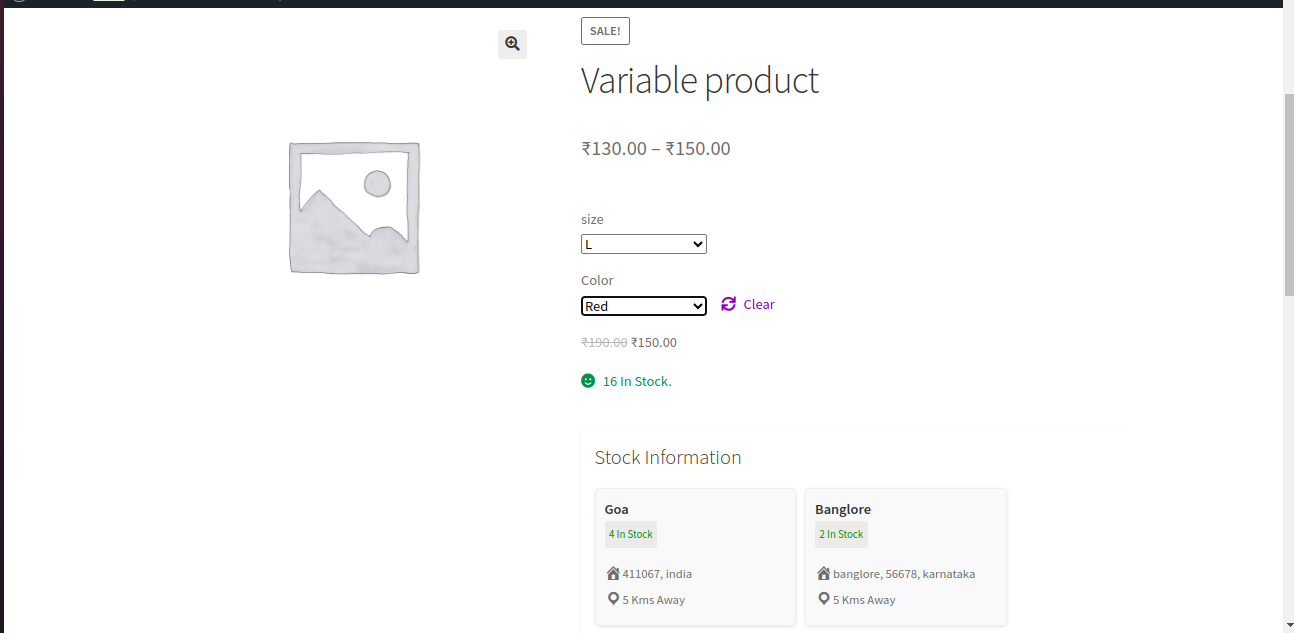
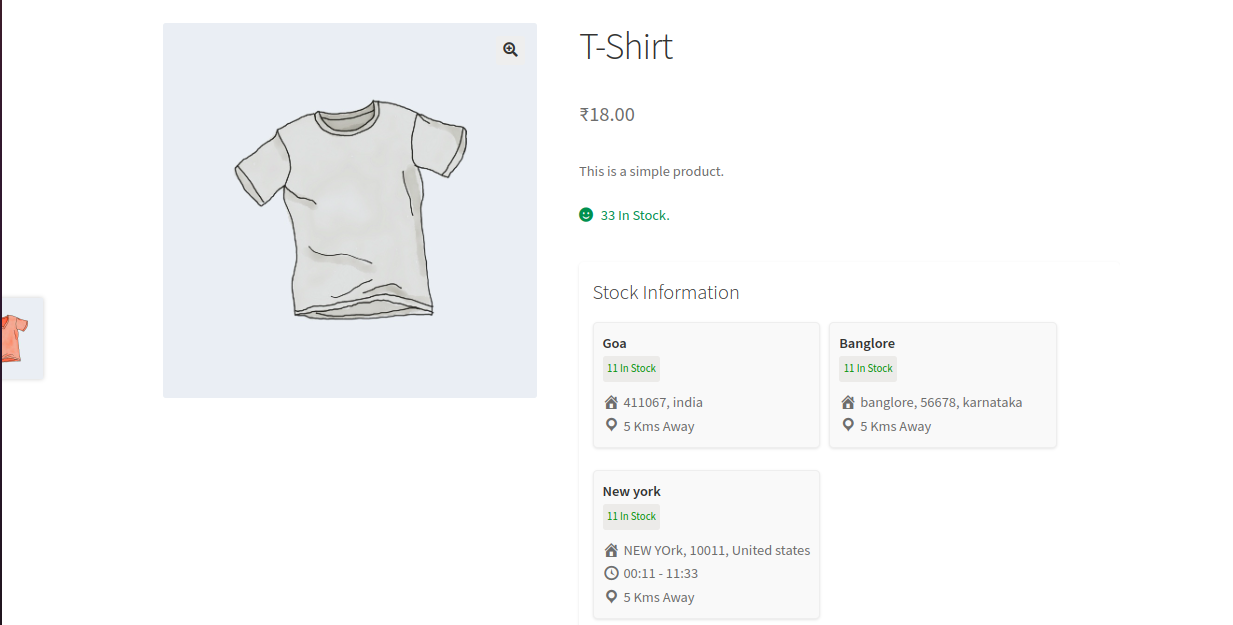
When the location group setting are disable then 2 column view looks like as below.
For Variable Product:
For Simple Product:
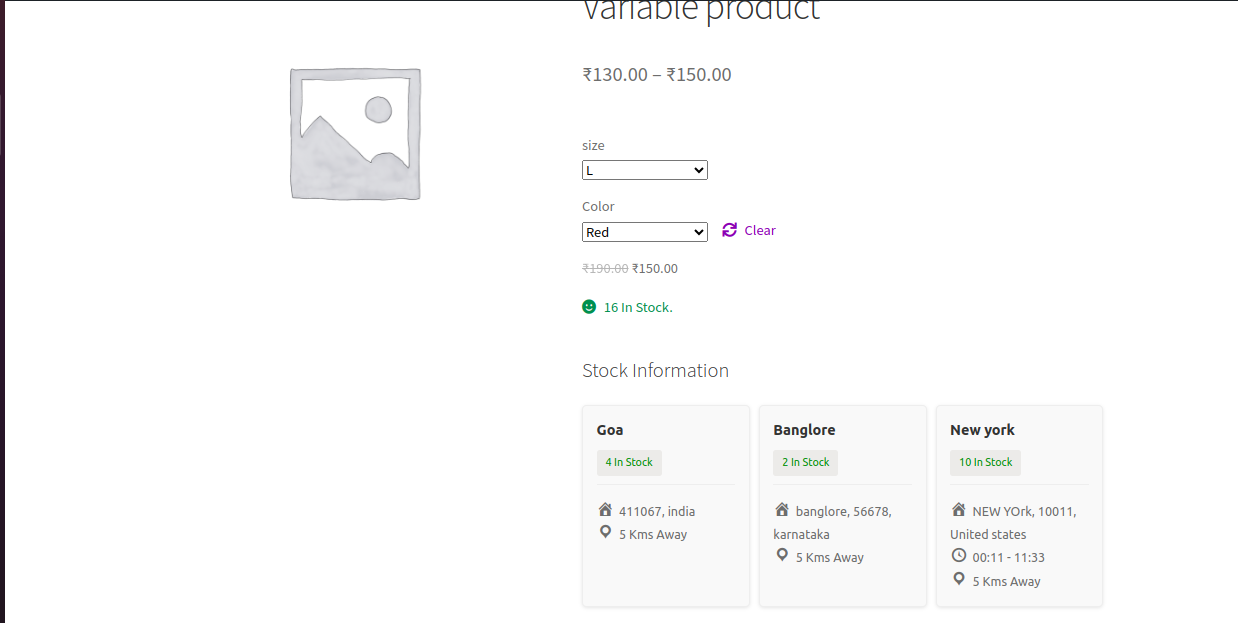
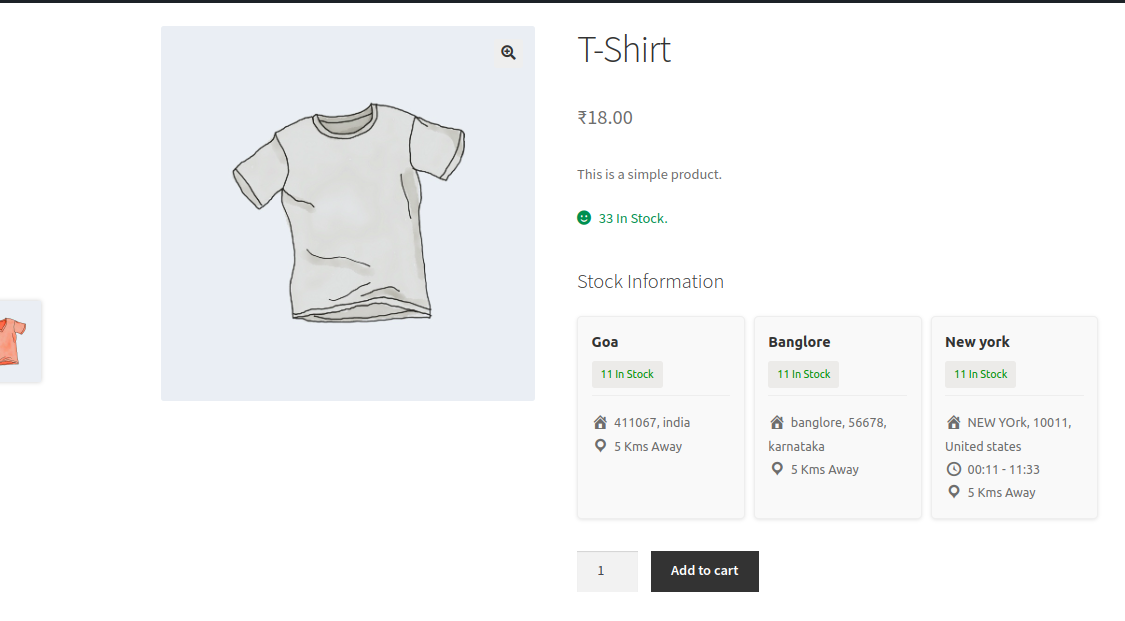
3 Column View:
For variable product:
For Simple Product:
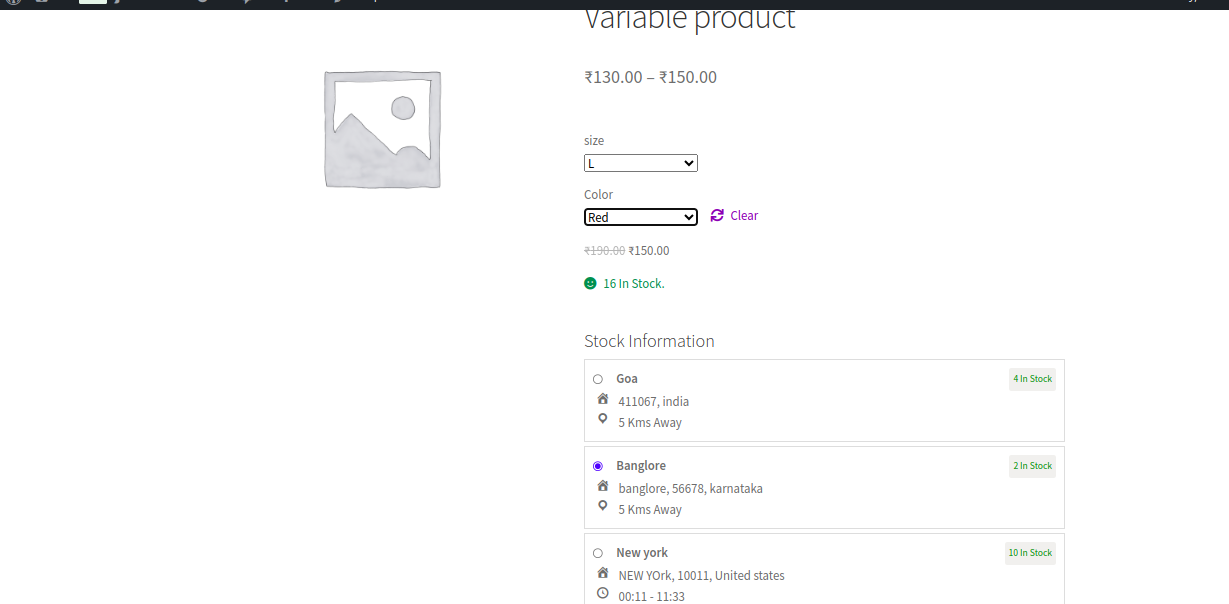
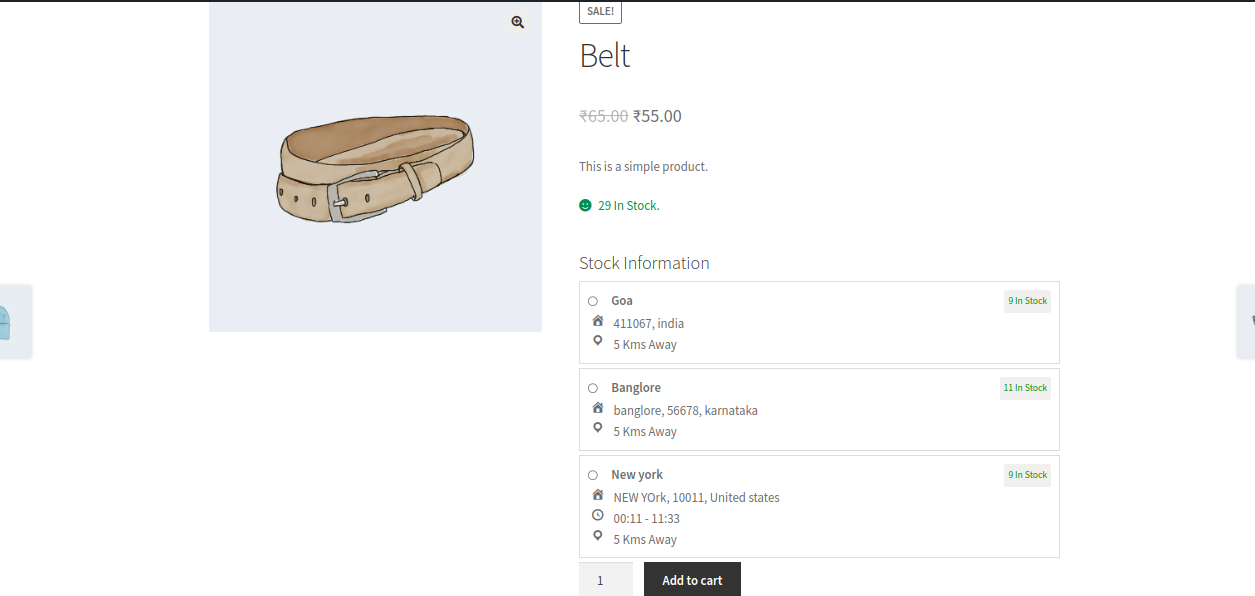
List View:
For Variable Product:
For Simple Product:
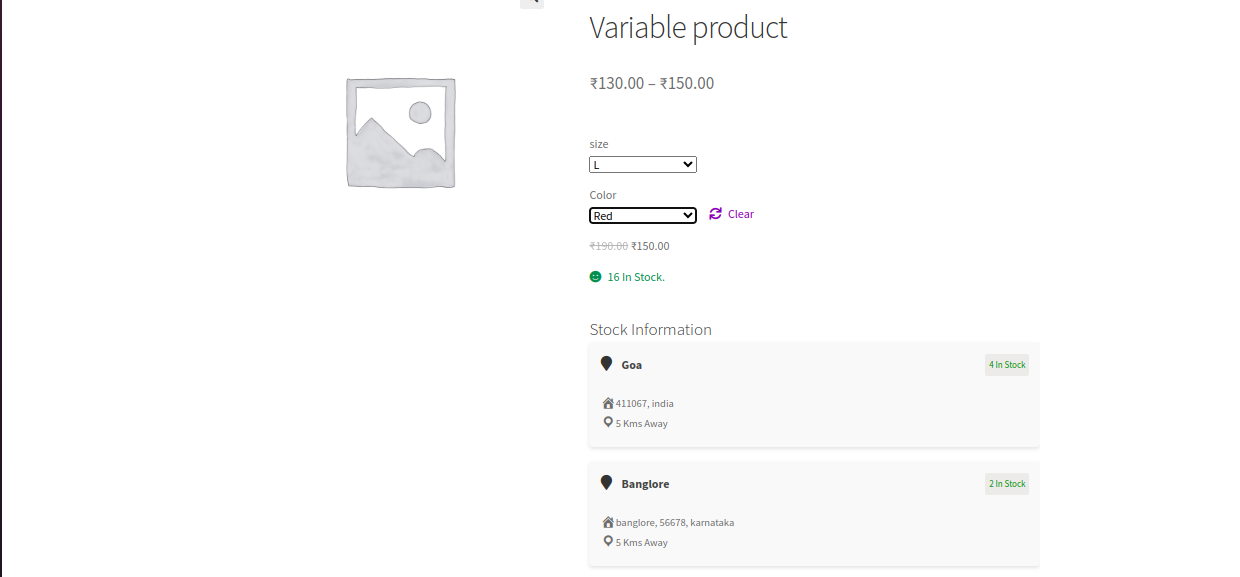
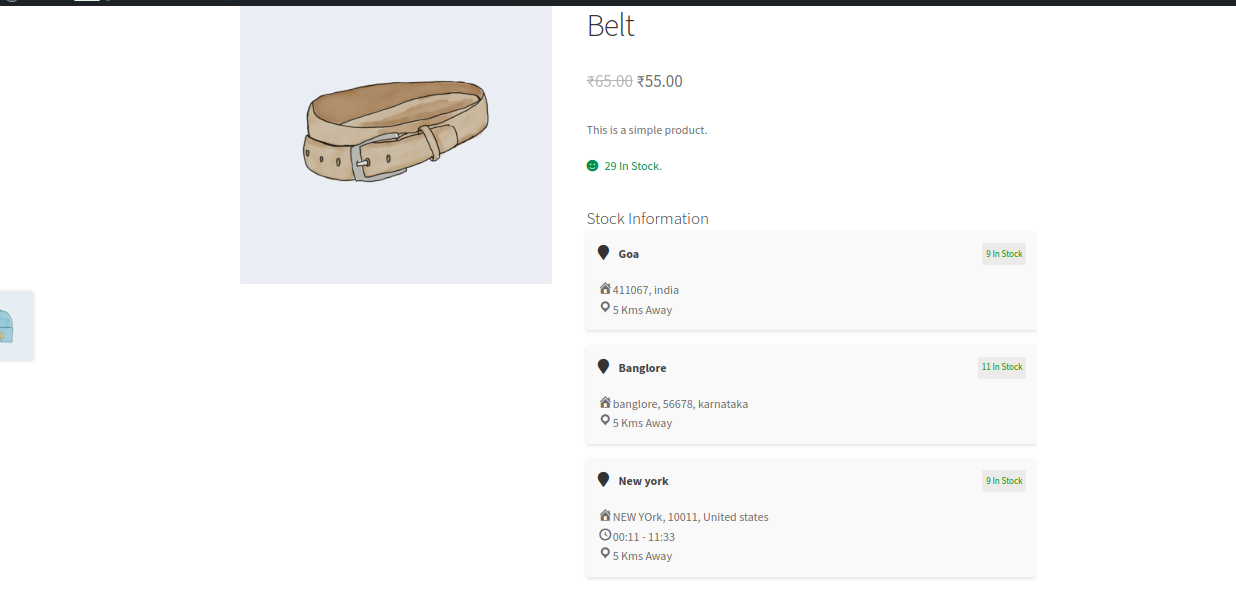
Card View:
For Variable Product:
For Simple Product:
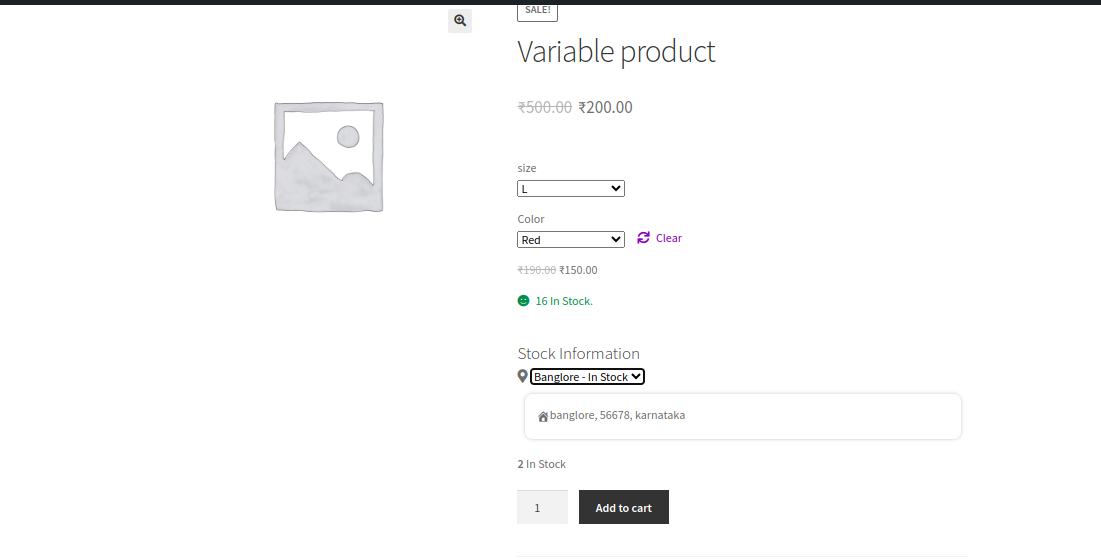
Select View:
For Variable Product:
For Simple Product:
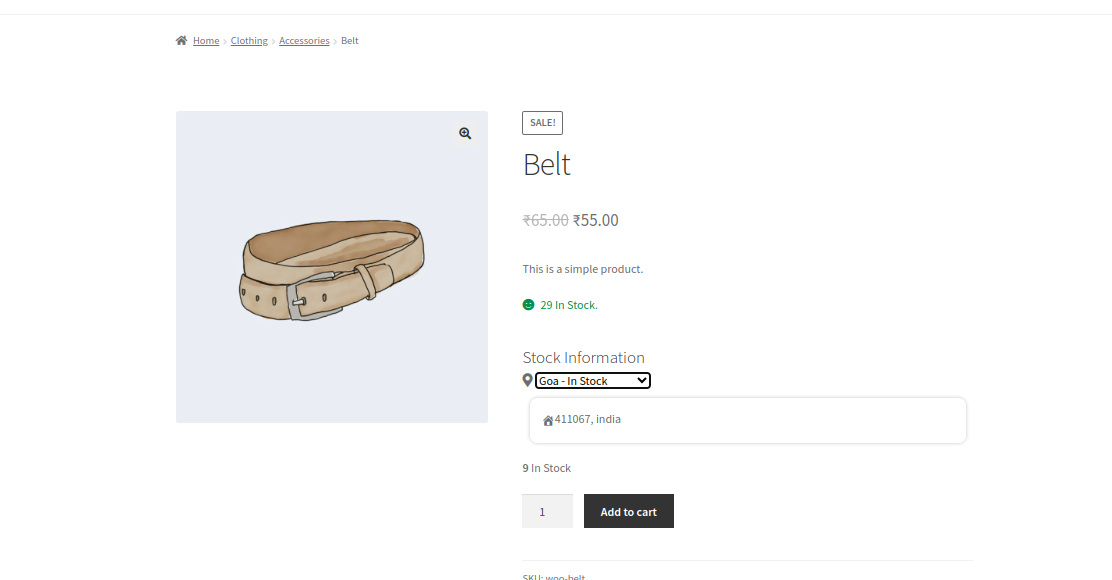
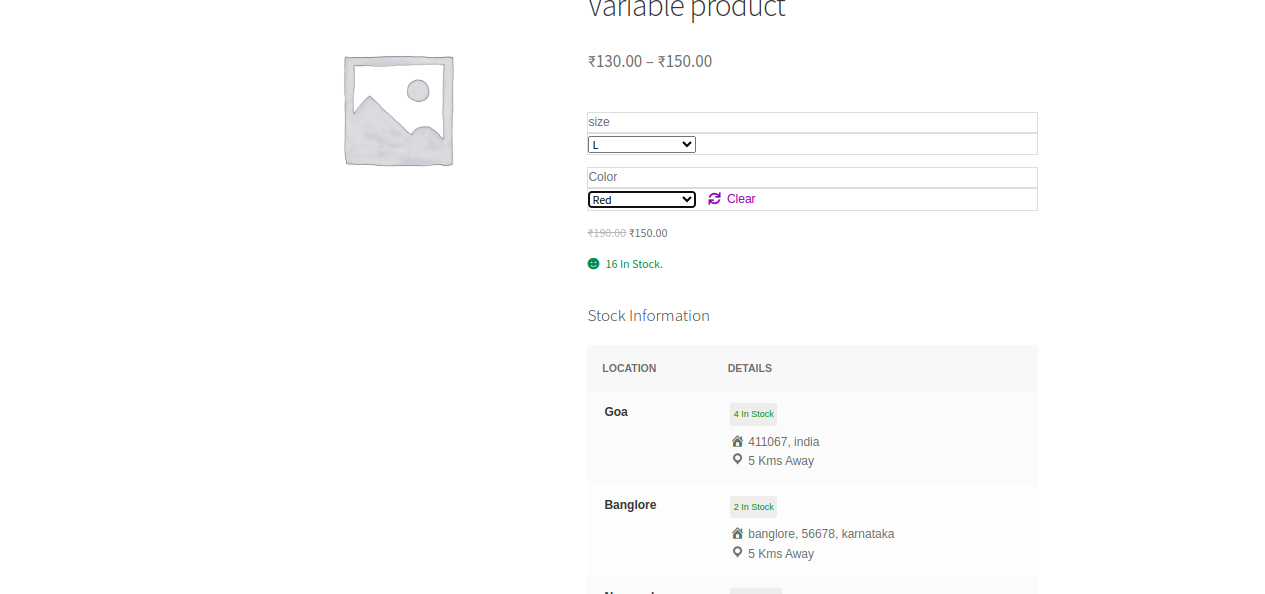
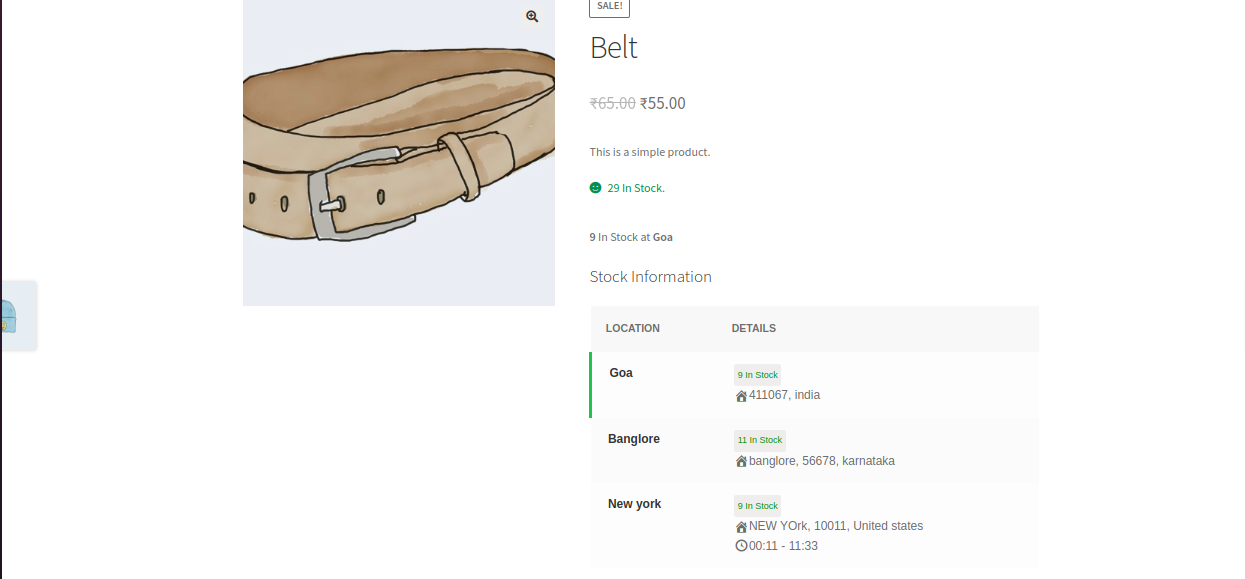
Table View:
For Variable Product:
For Simple Product:
Expanded View:
For Variable Product:
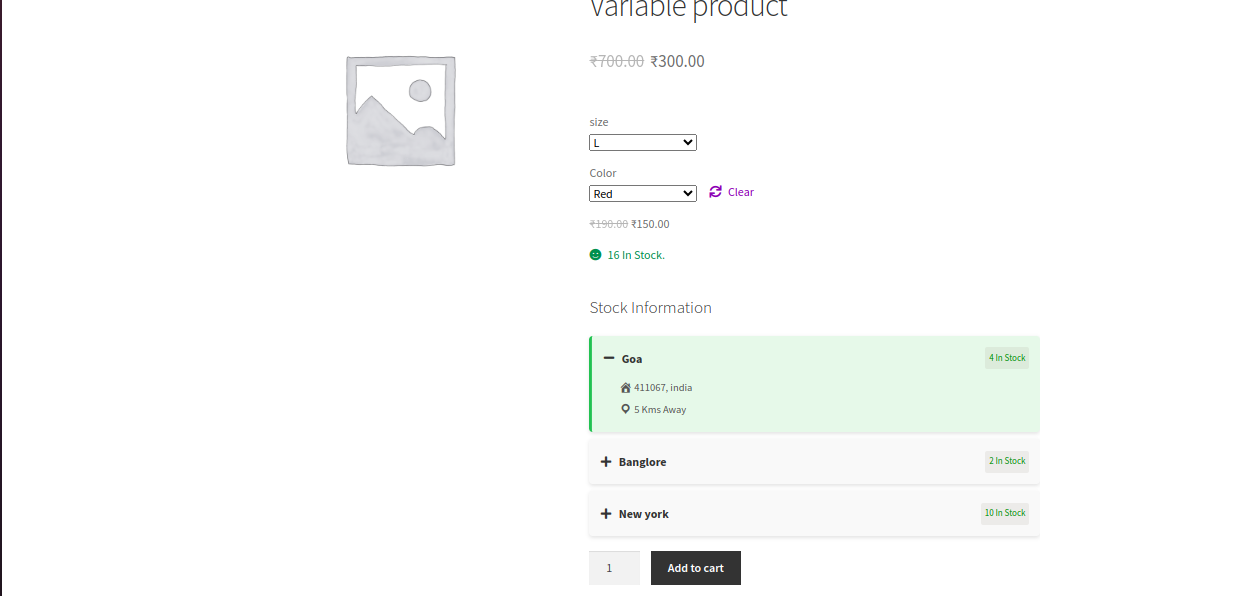
For Variable Product:
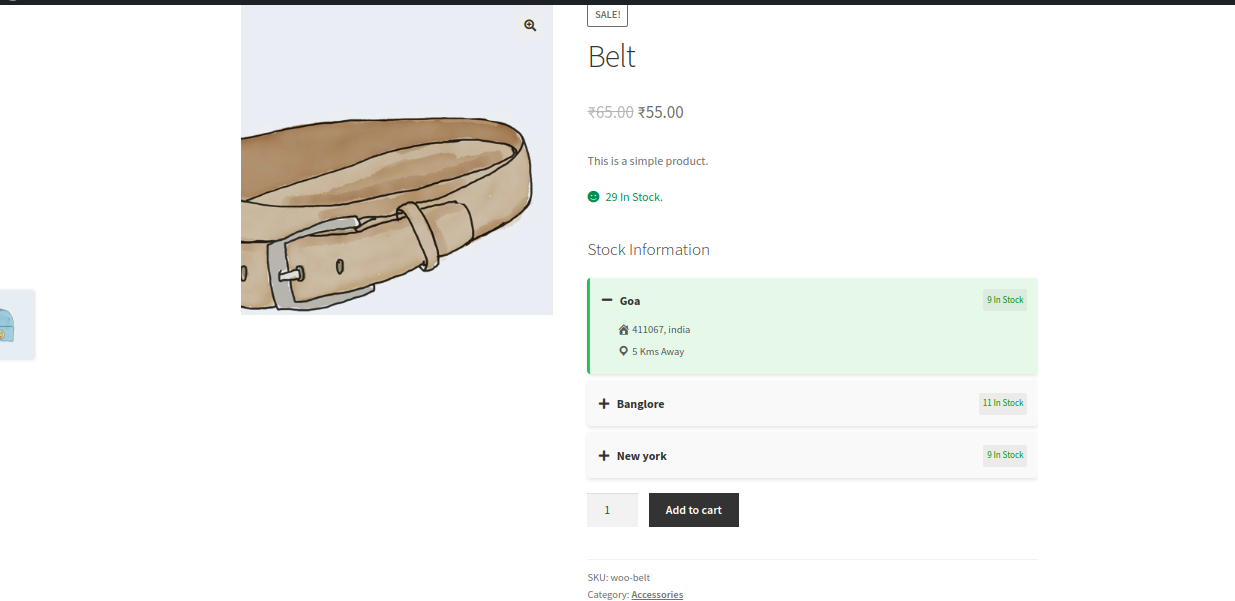
Simple View:
For Variable Product:
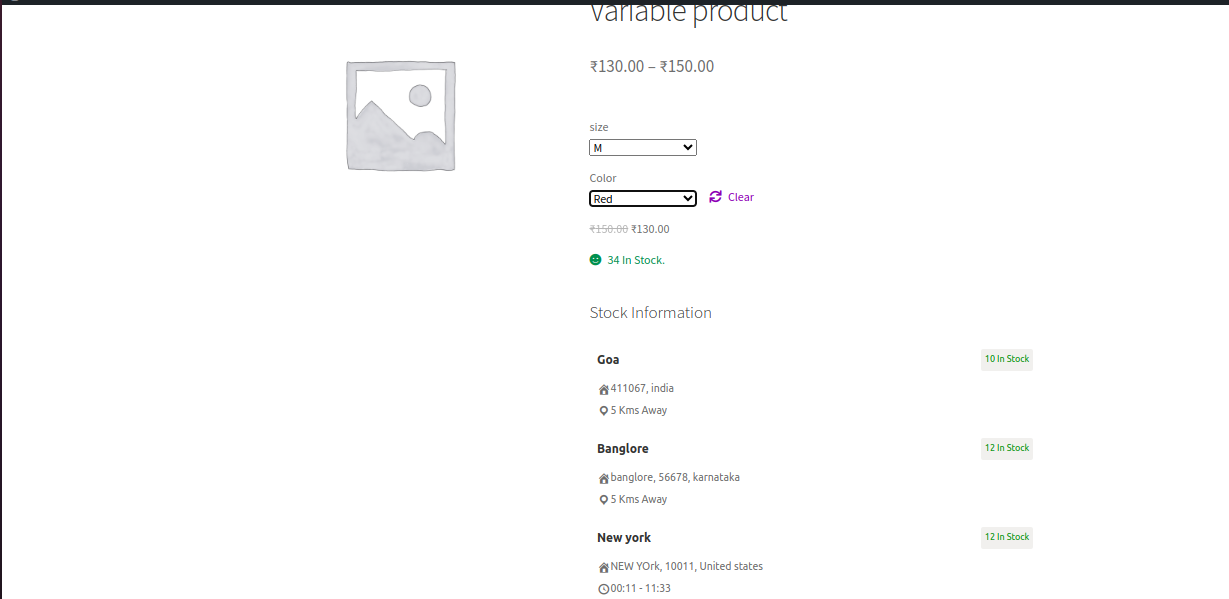
For Simple Product:
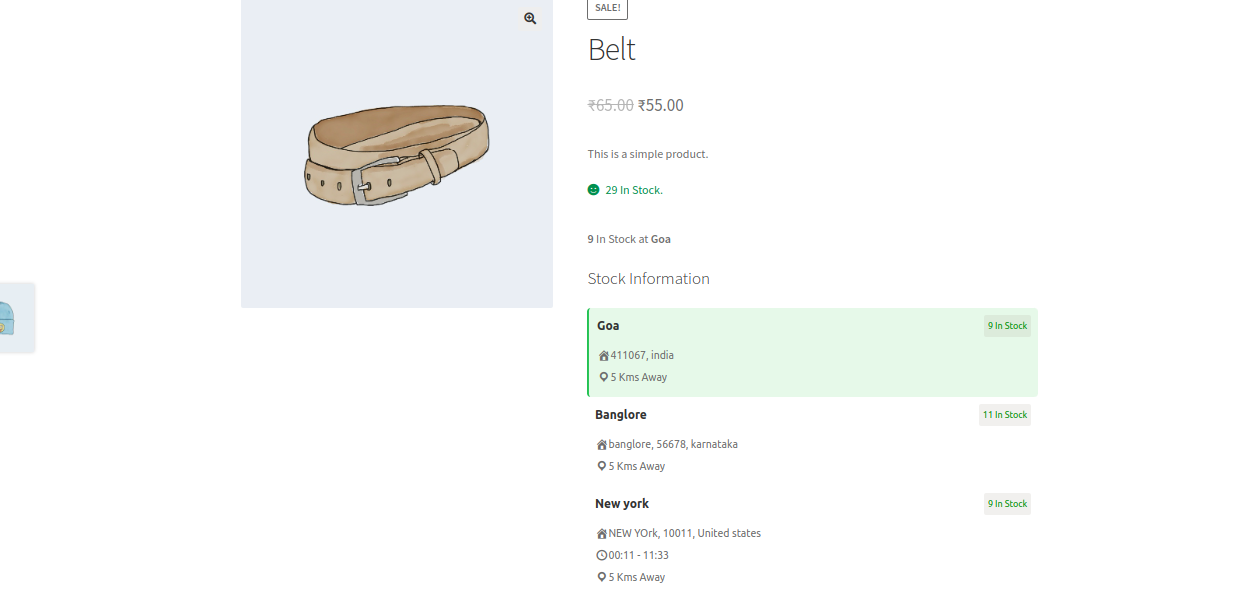
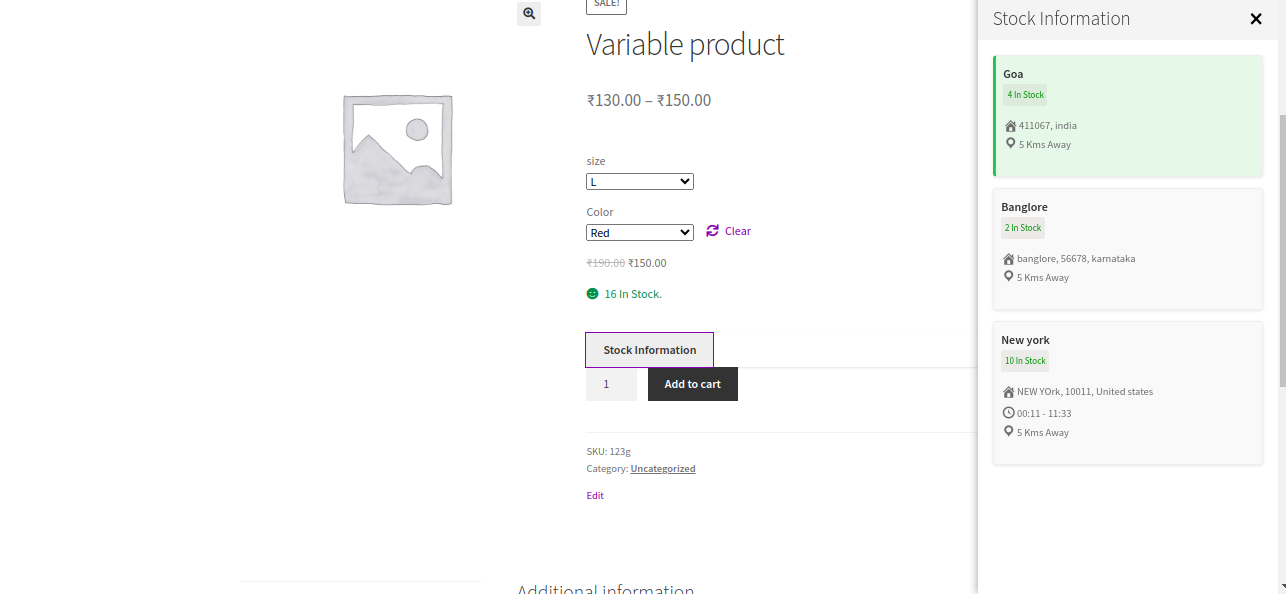
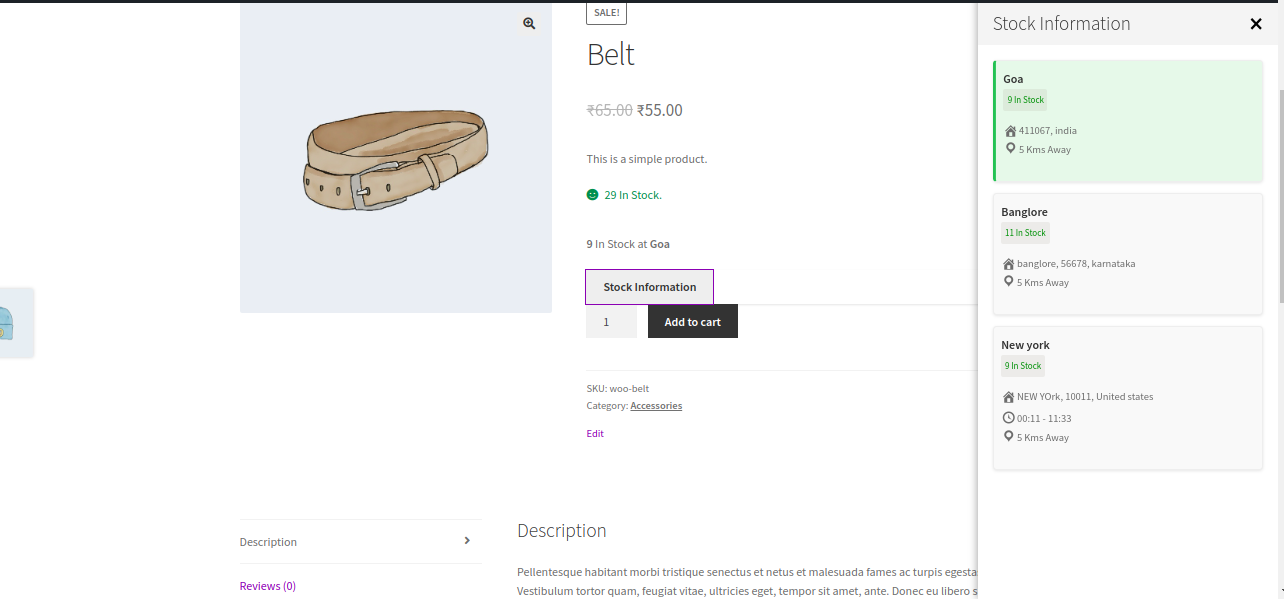
Drawer View:
For Variable Product:
For Simple Product:
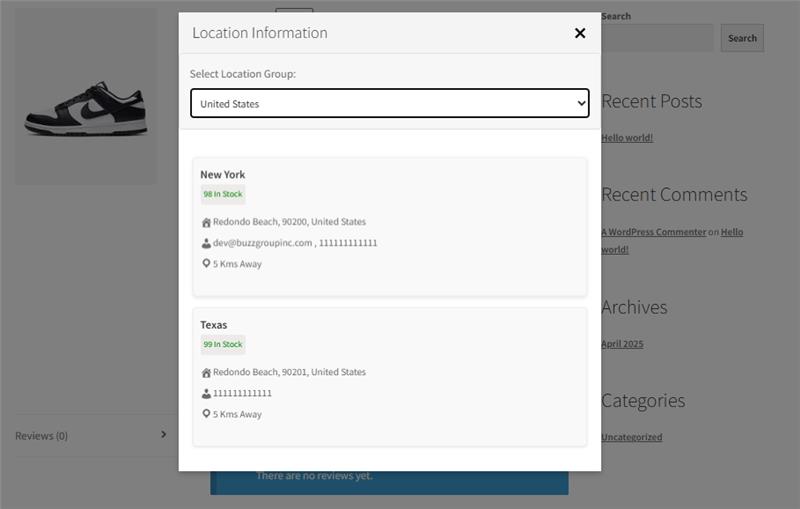
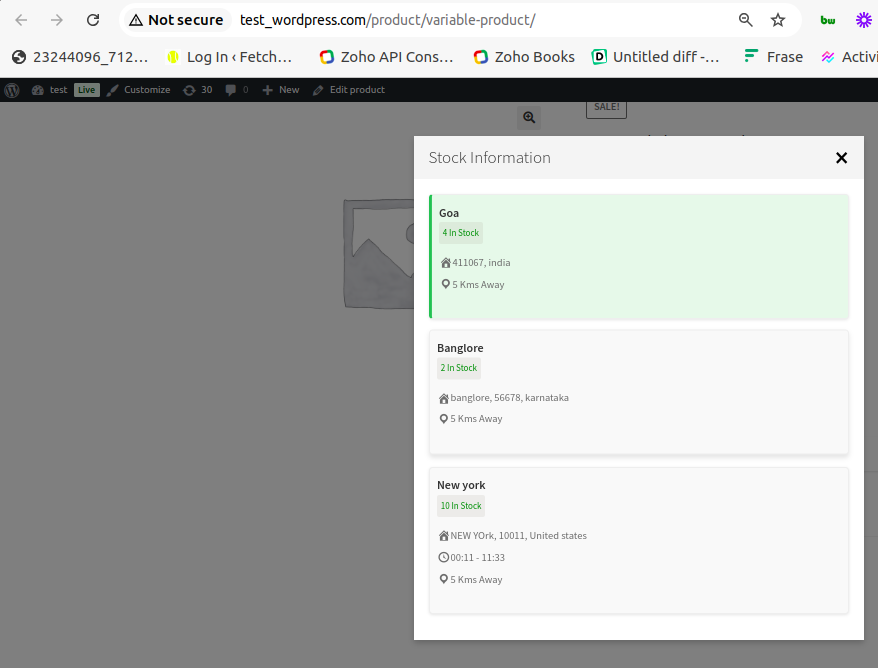
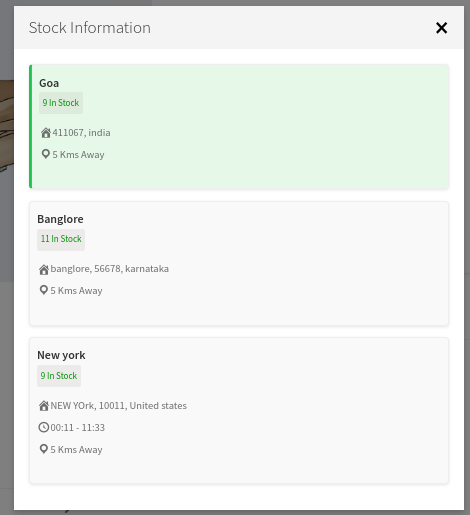
Popup View:
For Variable Product:
For Simple Product:
When the location group setting are enable then 2 column view looks like as below.
For Simple Product:
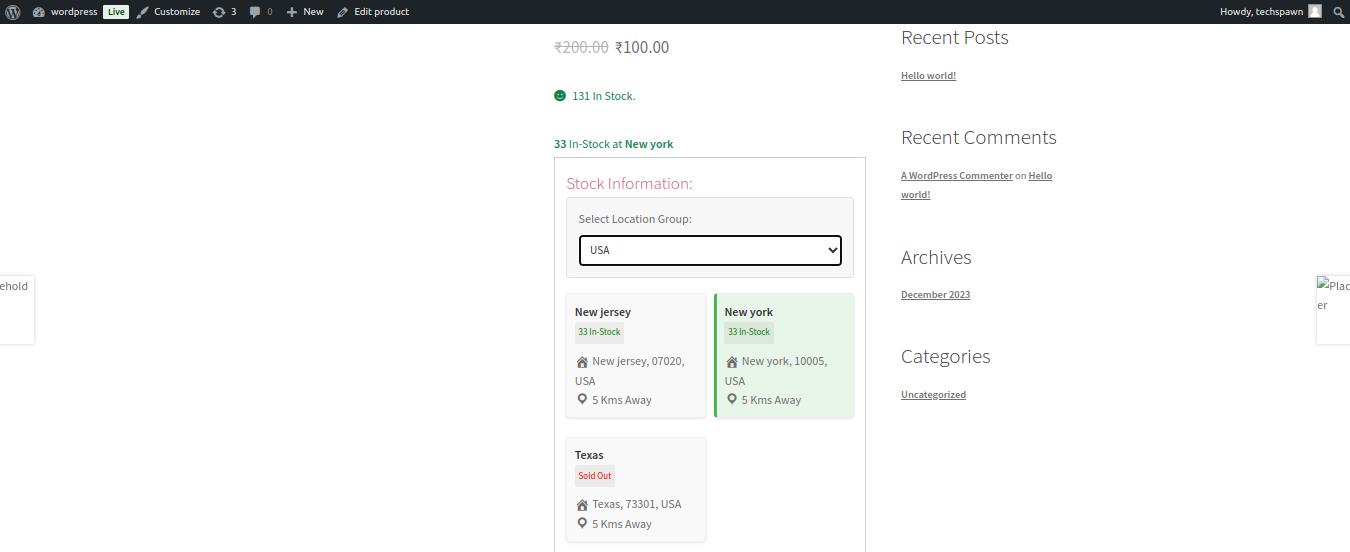
3 Column View:
For Simple product:
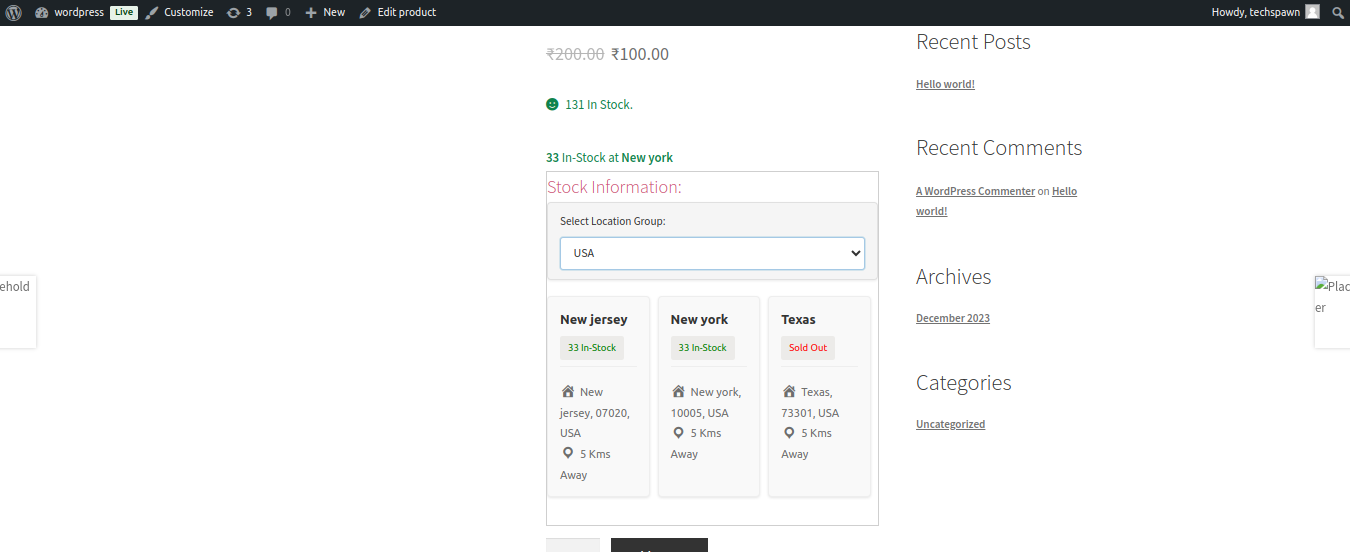
List View:
For Simple product:
Select View:
For Simple product:
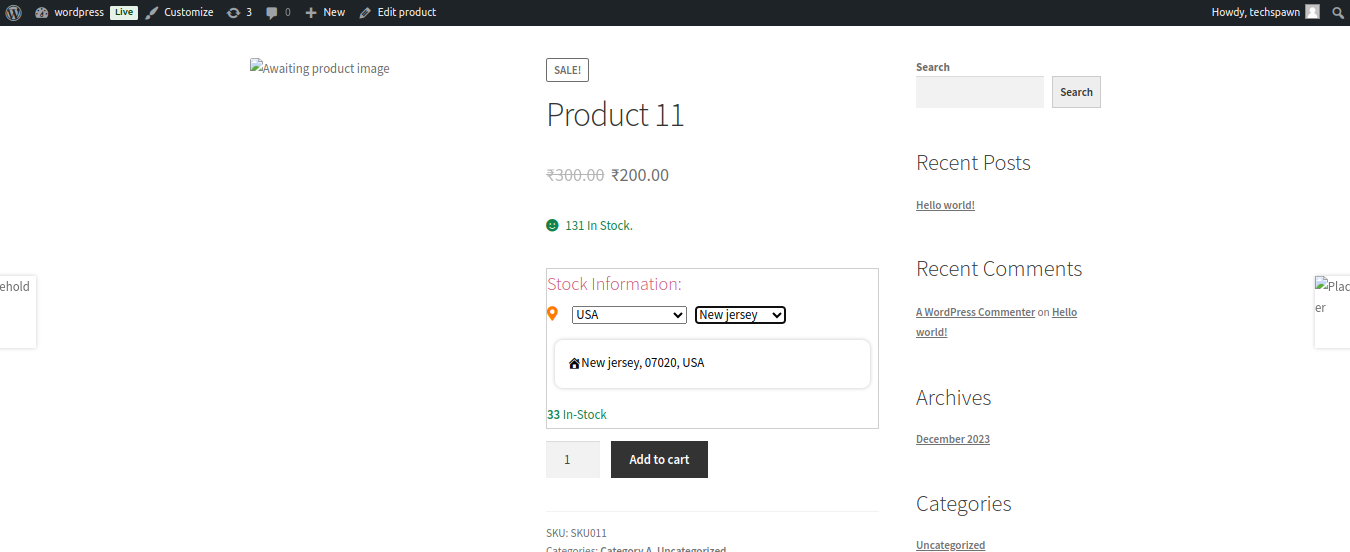
Expanded View:
For Simple product:
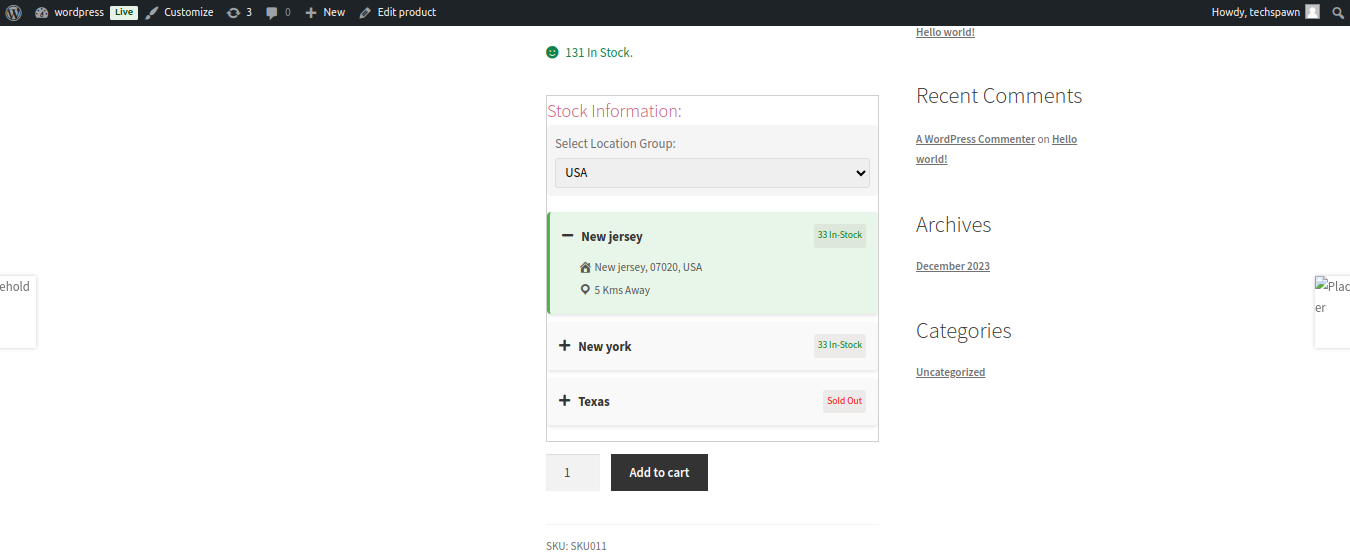
Card View:
For Simple product:
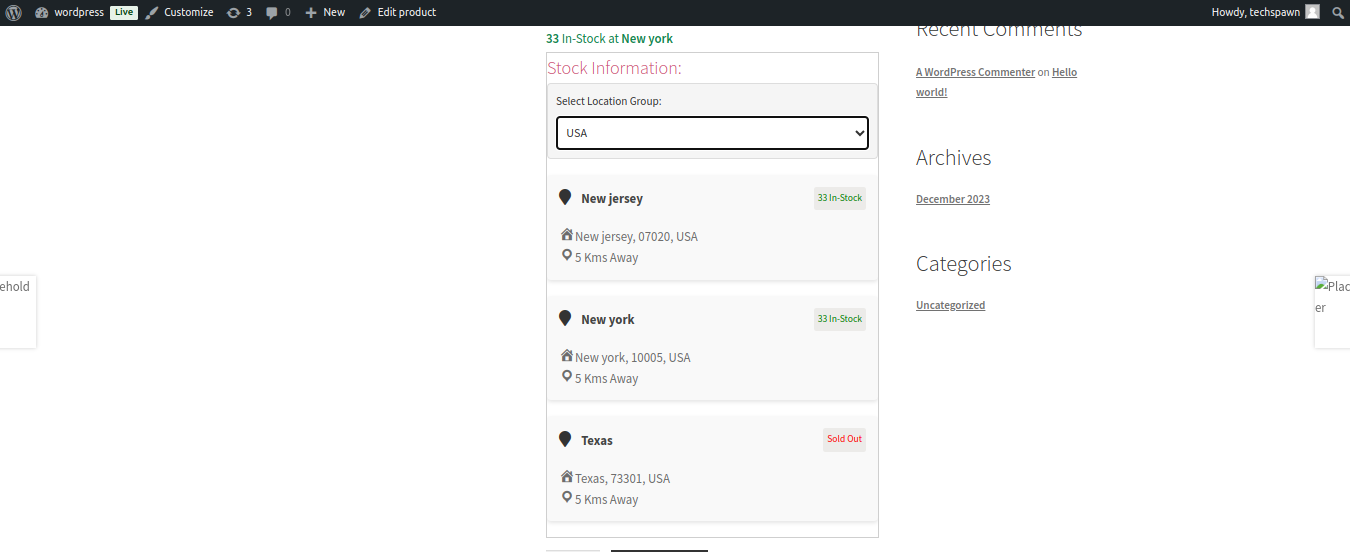
Drawer View:
For Simple product:
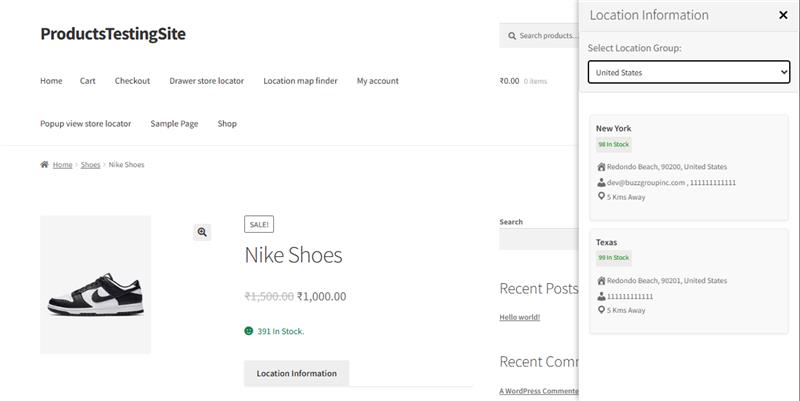
Popup View:
For Simple product: