1.Select what attributes you want to sync when Product is exported/imported to Quickbooks.
2. User Role :- You can select which Roles the plugin should work.
i.Select user role from dropdown
ii.Click on save the changes
iii.Login to selected user roles account
iv.Selected user can able to export orders and products from his account into quickbooks

3. Select which Product Description you want to sync when Product is exported/imported. You can select long , short or none from the dropdown.
4. To sync as a Service / Inventory Product, enable this option.
Prerequisite –
If you want to use Sync as an Inventory or Service Product, you must select “Inventory” from the “Product Attributes to Sync” option.
i . Go to Settings>Advanced settings
Ii. In the first option called “Product Attributes to Sync select “Inventory” from the dropdown.
Iii. After that, you can enable “Sync as Inventory / Service Product” and Update it.

5. Import Status Order from Quickbooks –
Order status from your Quickbooks account will be imported to woocommerce orders using this feature.
The order’s status in woocommerce will change to “completed” if a user clicks on receive payment in a quickbook account for an order that has a pending payment status in woocommerce.
Follow this steps :
i.Go to Quick book connector > Advanced Settings
ii.Enable the setting called “Import Status Order from Quickbooks”.

Following that,
i.Go to Woocommerce > Order
ii.In quickbook and woocommerce, look for orders with a “Pending payment” status.
iii.Use your intuit account to edit the invoice for that specific order.
iv.Click on “Receive Payment” and “Save” (Ref : Image 19)
v.Return back to woocommerce order .
vi. You can see the “Import Status” button there.
vii. Click on the “Import Status” button . (Ref : Image 20)
viii . The order status will be successfully imported, and the status of the order will be changed from “Pending payment” to “Completed.”

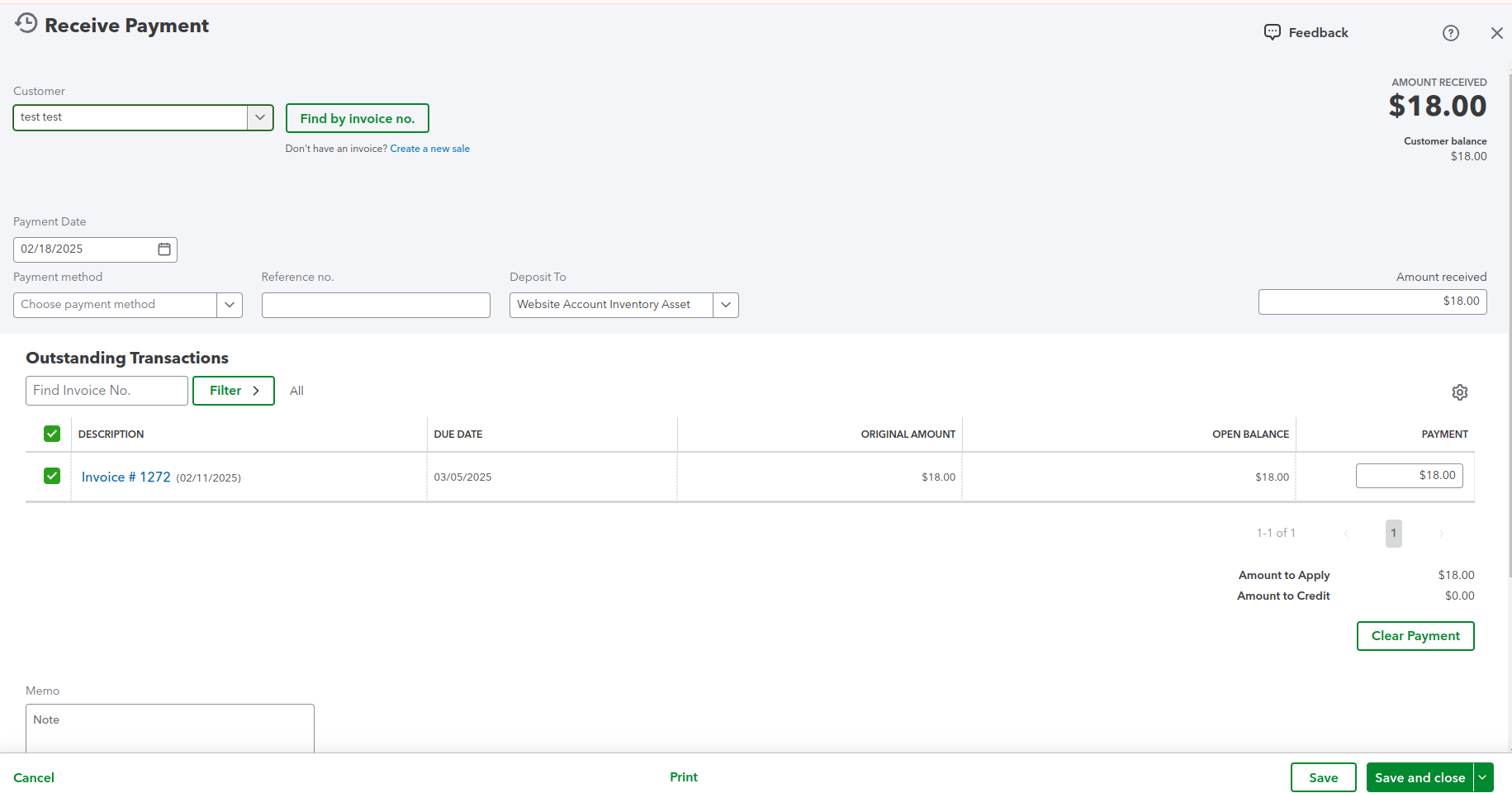
Image 19

Image 20
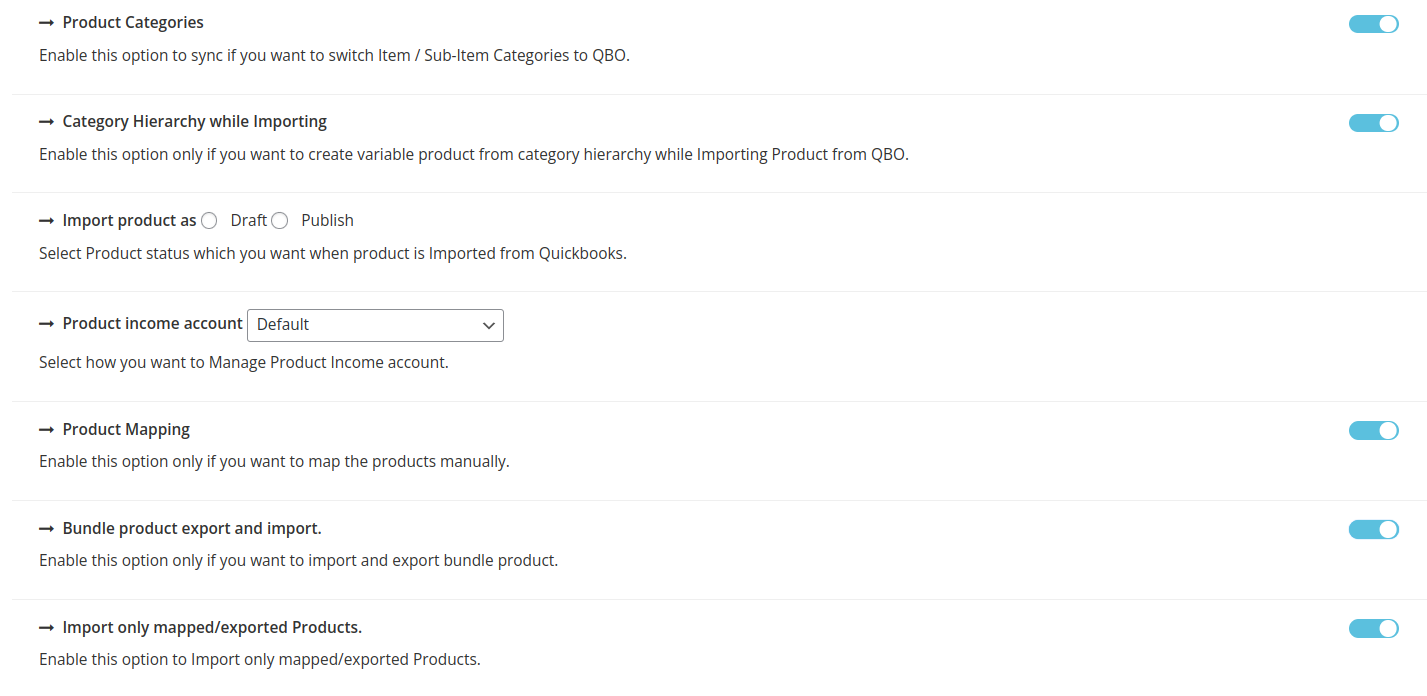
6.If you want to move Item / Sub-Item Categories to QBO, enable this option to sync.
7.This option should only be enabled if you want to construct variable products from the category hierarchy when importing products from QBO.
8.When a product is imported from Quickbooks, you can choose the product status you require. You get the option of selecting Draft or Publish.
9.Describe how you want the Product Income account to be managed.
You have the option of selecting Default, Selection within each category, and Selection within each Product from the dropdown menu.
10.This option should only be enabled if you want to manually map the products.
11.This option should only be enabled if you plan to import and export bundle products.
12.Only mapped/exported products will be imported if this option is enabled.
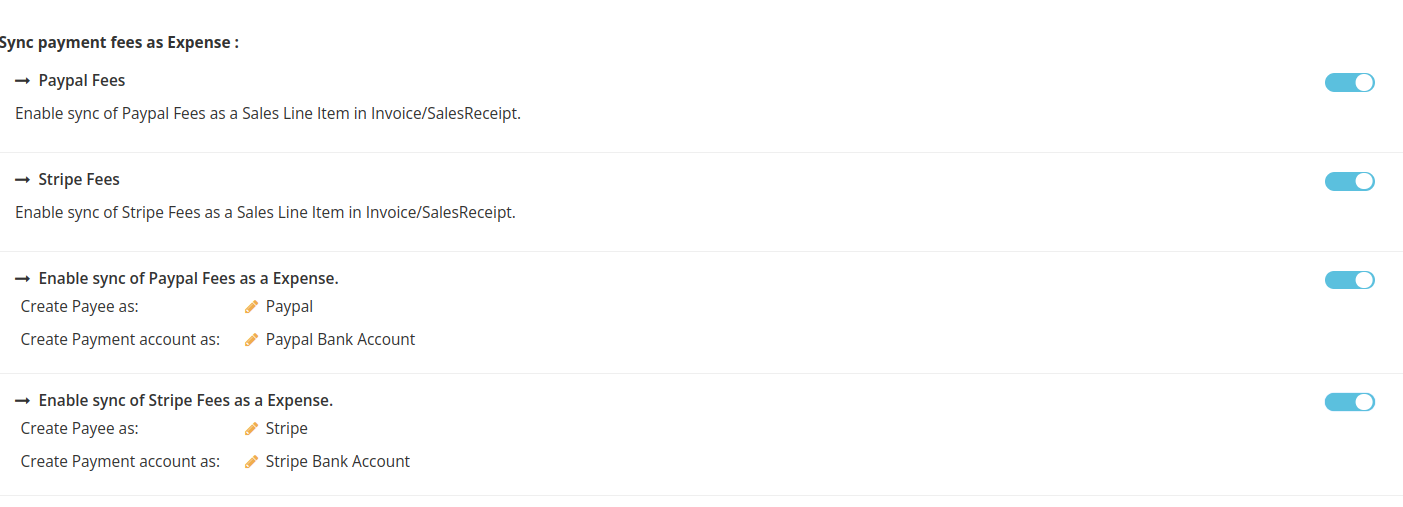
Sync payment fees as Expense:-
1.Enable Paypal Fees to be linked as a Sales Line Item in Invoice/SalesReceipt.
2.Enable Stripe Fees to be linked as a Sales Line Item on the Invoice/SalesReceipt.
3.Enable sync of Paypal Fees as an Expense.
i.Create Payee as-Paypal
ii.Create Payment account as – Paypal Bank Account
4. Enable sync of Stripe Fees as an Expense.
i.Create Payee as :Stripe
ii.Create Payment account as: Stripe Bank Account
(See below image)