
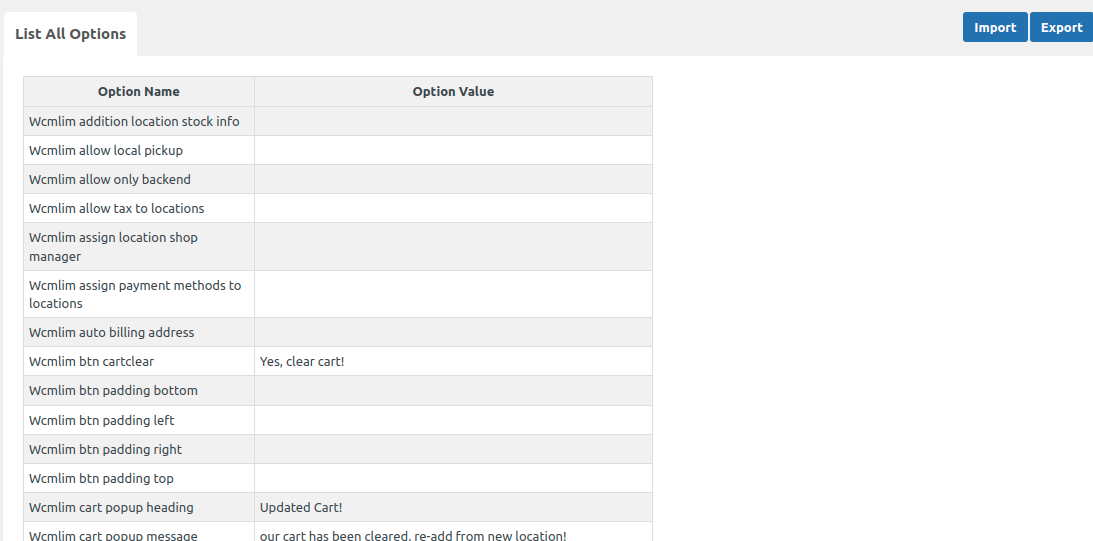
In this section, you will find two columns labeled “Option Name” and “Option Value.” As an admin, you only need to perform two operations here: Import and Export.
1. Export Operation: Suppose you have been using the multilocation feature for a few days and have already configured some settings according to your requirements. By clicking on the “Export” button, a CSV file will be downloaded. This CSV file serves as a description of the settings you have configured.
2. Import Operation: Now, imagine you have installed the multilocation plugin on a subdomain or are migrating from a staging site to a live site. You only need to click on the import button and upload the previously exported CSV file. This action will enable the settings you had configured earlier.
When should the “Config” section be utilized, and what is its significance?
- When migrating from a staging site to a live site, always remember to export the CSV file first and store it securely. Then, when migrating to another domain or live site, simply import the CSV file using the import button.
- If you encounter any issues, exporting the CSV file and providing a screen recording of the problem to the support team can expedite the debugging process. This will help the support agents understand the settings you have enabled, facilitating a faster resolution.