
● IMPORTING DATA FROM QUICKBOOKS TO ODOO:

Our module uses Odoo’s default flow along with its interdependencies. Therefore, it is important to import Accounts, Customers, Vendors, and Products first prior to importing any Sale Orders, Purchase Orders, Invoices, Bills and Payments.
The correct sequence will be:
➢ Accounts
➢ Taxes (If any)
➢ Customers
➢ Vendors
➢ Products
➢ Sales
➢ Purchase
➢ Invoices
➢ Bills
➢ Invoice Payments
➢ Journal Entries
● EXPORTING DATA FROM ODOO TO QUICKBOOKS:
To export data, please follow these steps :
IMPORTING FOR MAPPING:
Step 1: Go to the Import tab and import Accounts, Customers, Vendors,
Products, and Sales.

Step 2: After the completion of step 1, go to the Import for Mapping tab and
start importing Accounts, Customers, Vendors, Products first.
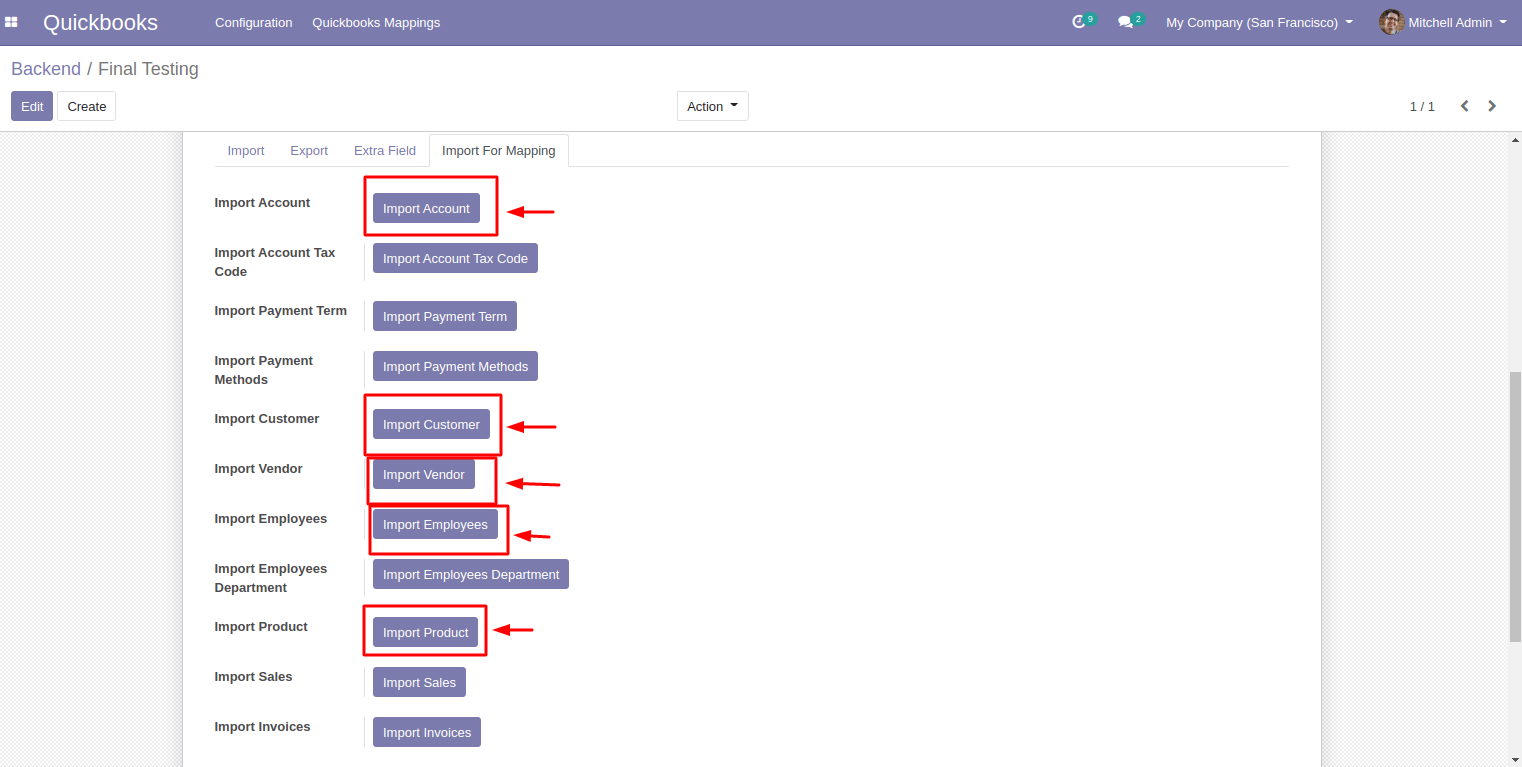
Step 3: Once that is done, then import Sales, Purchase Invoices, Bills and
Payments.

Import Account = Import All chart of Account from Quickbooks To odoo.
Import Account Tax code = Import All taxes from Qb to odoo.
Import Journal = Import All Journal from QB to odoo.
Import Customers = Import all customer from Qb to odoo.
Import Vendor = Import all Vendor from Qb to odoo.
Import Product = Import all product from Qb to Odoo.
Import Sales = Import sales receipt from Qb to odoo.
Import Invoice = Import All Invoice From Qb to odoo.
Import Invoice Payments = Import Invoice Payments and payments status I,e Paid or Not Paid
Import Bill = Import All Bill from Qb to odoo.
Import Bills Payments = Import Bill Payment and Payment Status I,e Paid or Not
Import Employees = Import Employees from Qb to odoo.
Import Employees Department = Import Employees Department from Qb to odoo
Import Payment Term = Import Payment term I,e due date or today
Import Payment Method = Import Payment Method from Qb to odoo.
EXTRA FIELD DATA:
Step 1: Go To Extra field tab, Click on Edit. Add an Asset Account (this is a required field for exporting data to Quickbooks).
Make sure that the account you add has its Type set as ‘Current Assets’ only. If an account is already present, you can use it, otherwise you will have to create a new account and Sync the account to your quickbooks and click Save.
See Sync Button on top left side
Step 2:

Map all the
fields accordingly.
EXPORT DATA
Step 1: Go to the Export tab and export the Accounts, Customers, Vendors, and Items first.
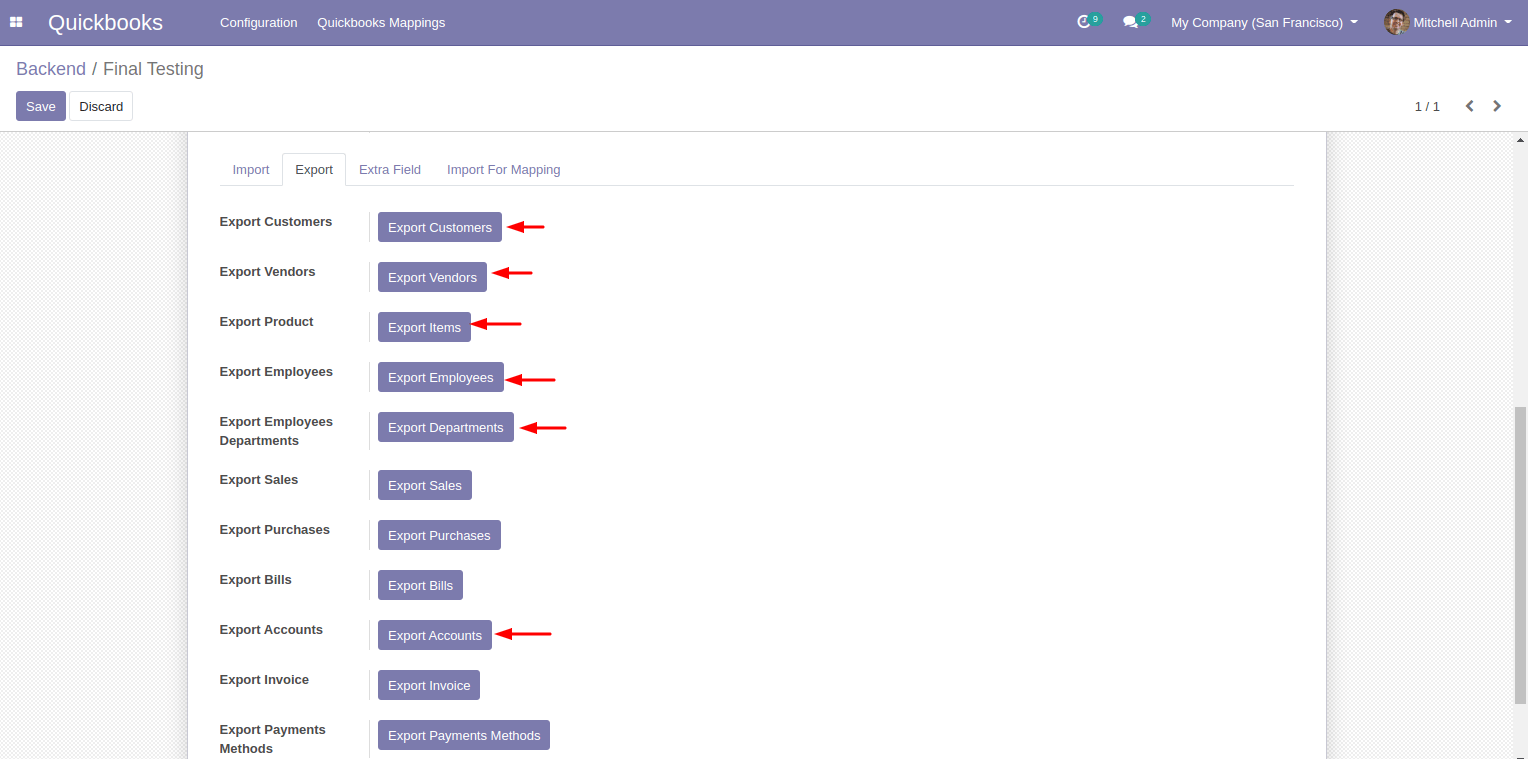
Note : While exporting items, the Income Account , Expense Account and Price Difference Account field is required and the Type of Income Account and Price Difference Account should be set as ‘Income’.

Similarly, the Type of the Expense Account should be in ‘Cost of Goods Sold’.
These accounts must be synced to Quickbooks before exporting the product.
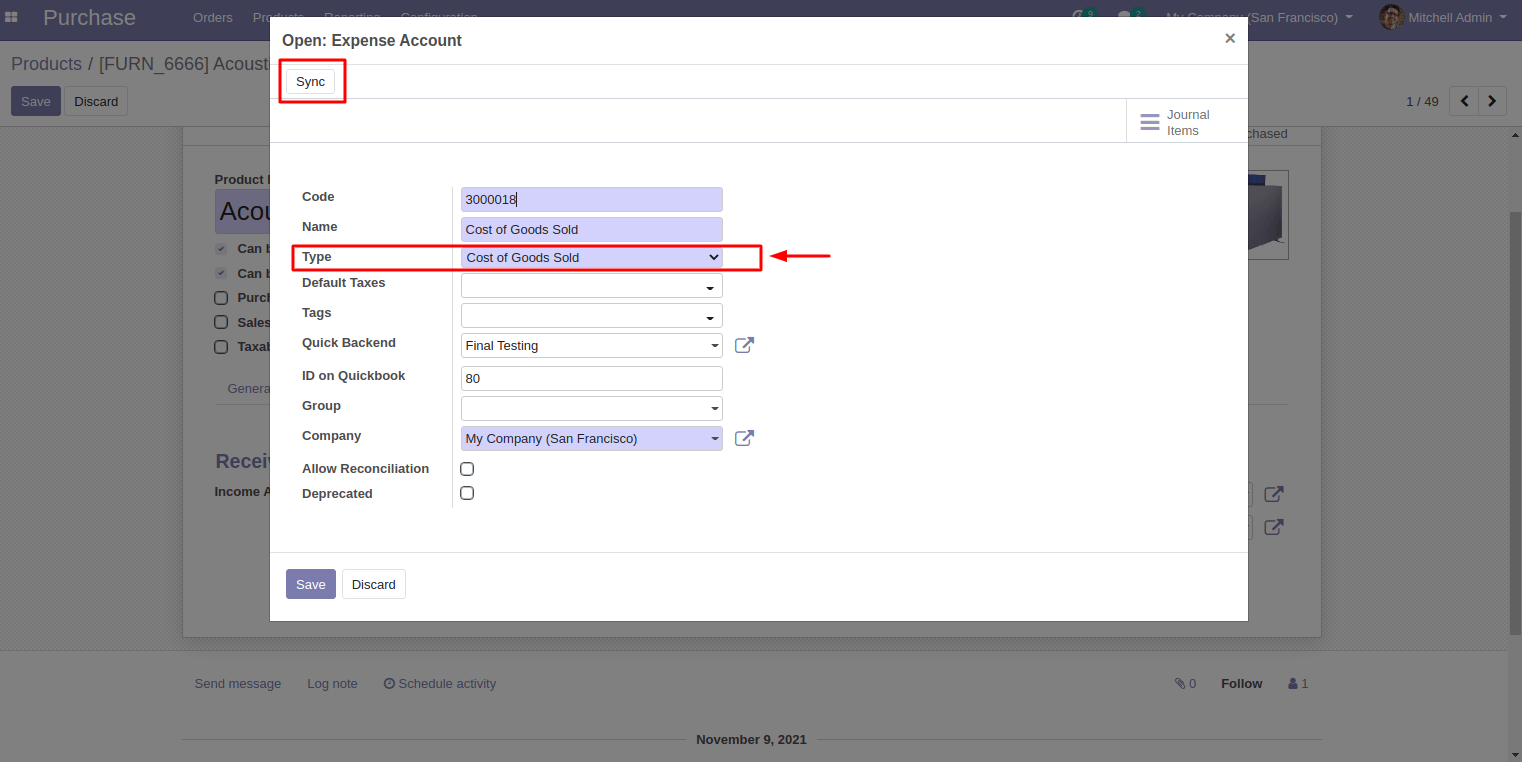

You can set Income Account and Expense Account through the Account Notebook Page. It is important to Export that income account and expense account. Click on the side tilt arrow and sync that account. If you are not able to see the accounting notes books page in the product then follow the step Setting –> User –>Technical Settings –>Show Full Accounting Features. Enable show full accounting feature.
Step 2: Once that is done, you can export Sales, Purchase, Invoices, Bills,
Payments Methods and Tax Methods accordingly.

For Exporting Invoice and Bill with Discount :
Step. 1: First check Journal in Quickbooks with the name ”Discounts”. If not present in QuickBooks then. make New Journal with the name “Discounts”. And first import “Discounts” Journal.
Export Account = Export All chart of Account from Odoo to QB.
Export Account Tax code = Export All taxes from Odoo to QB.
Export Journal = Export All Journal from Odoo to QB.
Export Customers = Export all customer from Odoo to QB.
Export Vendor = Export all Vendor from Odoo to QB.
Export Product = Export all product from Odoo to QB.
Export Sales = Export sales receipt from Odoo to QB.
Export Invoice = Export All Invoice from Odoo to QB.
Export Invoice Payments = Export Invoice Payments and payments status I,e Paid or Not Paid
Export Bill = Export All Bill from Odoo to QB.
Export Bills Payments = Export Bill Payment and Payment Status I,e Paid or Not
Export Employees = Export Employees from Odoo to QB
Export Employees Department = Export Employees Department from Odoo toQB
Export Payment Term = Export Payment term I,e due date or today
Export Payment Method = Export Payment Method from Odoo to QB.