Method 1: Bulk Sync Orders from the Order Page
- Go to the WooCommerce Orders Page:
- In your WooCommerce dashboard, navigate to WooCommerce > Orders to view all your orders.
- Check Sync Status:
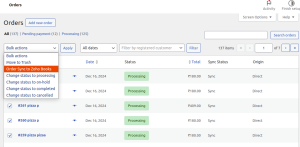
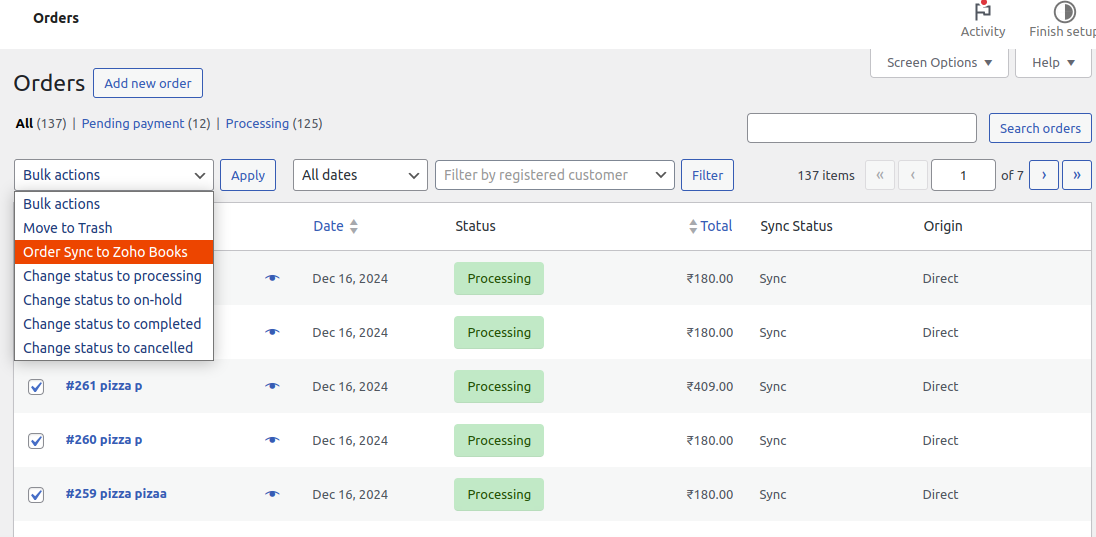
- On the orders page, there will be a column called Sync Update. This column shows whether the order has already been synced with Zoho Books or not.
- Select Orders to Sync:
- Use the checkboxes next to each order row to select the orders you wish to sync with Zoho Books.
- Choose Bulk Action:
- After selecting the orders, go to the Bulk Actions dropdown at the top of the page.
- From the dropdown menu, select Order Sync to Zoho Books.
- Apply the Bulk Action:
- Click on the Apply button.
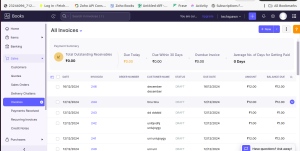
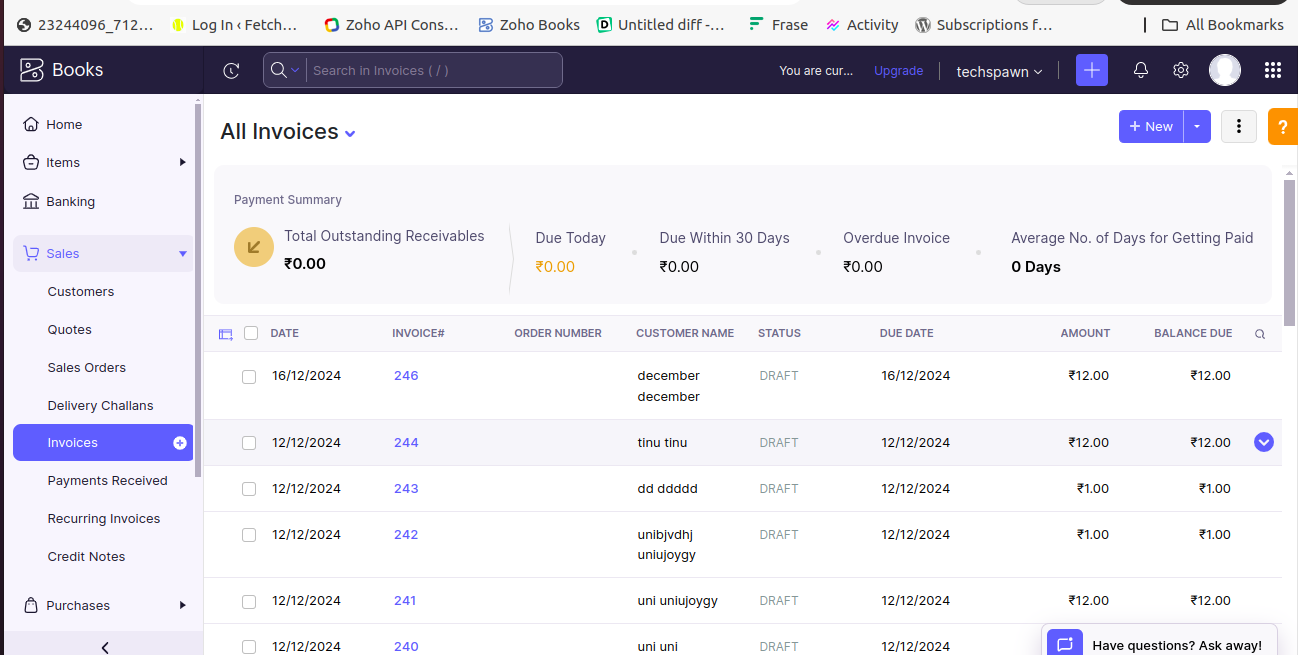
- Zsync will now sync the selected orders with Zoho Books.
Method 2: Sync Individual Orders from the Order Edit Page
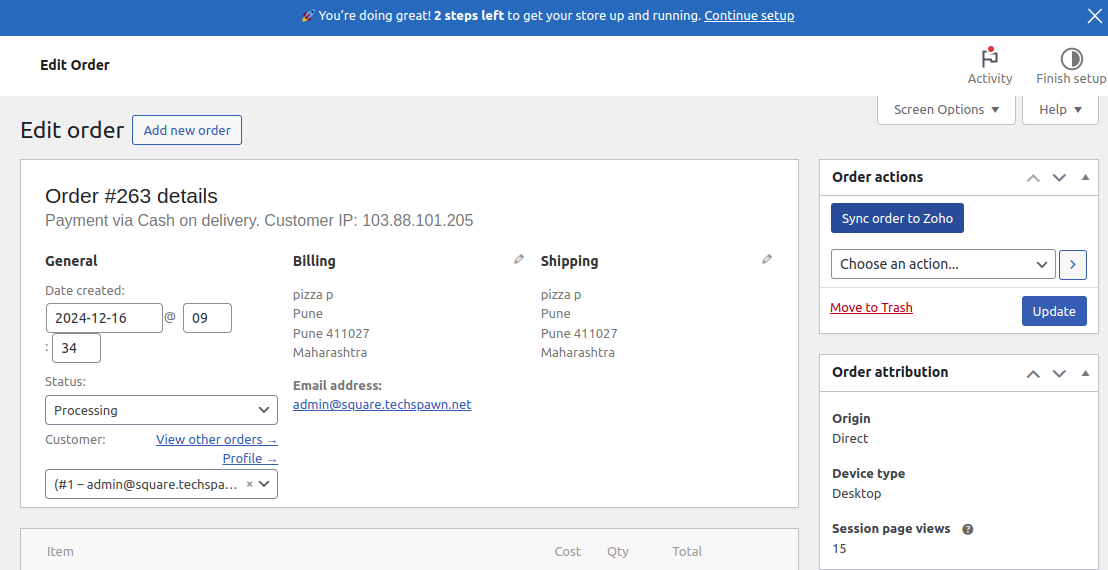
- Go to the Edit Order Page:
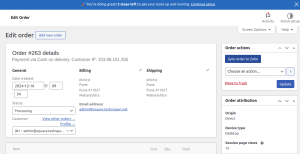
- From the Orders page in WooCommerce, click on the order you want to sync to Zoho Books to open the Edit Order page.
- Sync Order to Zoho Books:
- On the order edit page, you should see a button labeled Sync Order to Zoho (usually added by Zsync).
- Click the Sync Order to Zoho button to sync the order with Zoho Books.