Skip to content
-
Home
-
Zsync Wocommerce Zoho Con...
- Installation and Setup
- Step 1: Download and Install Zsync
- Purchase or download Zsync – WooCommerce and Zoho Books Sync.
- Go to your WordPress Dashboard.
- Navigate to Plugins ➔ Add New.
- Click Upload Plugin, choose the Zsync
.zip file, and click Install Now.
- Once the installation is complete, activate the plugin.
- Step 2: Activate Your License
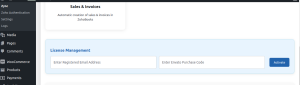
- Access Zsync Page in your WordPress dashboard.
- Enter the license key you received upon purchase, then click Activate License.
- Successful license activation is essential to receive updates and support.
- Step 3: Connect Your Zoho Books Account
- Go to Zsync Authentication within Zsync.
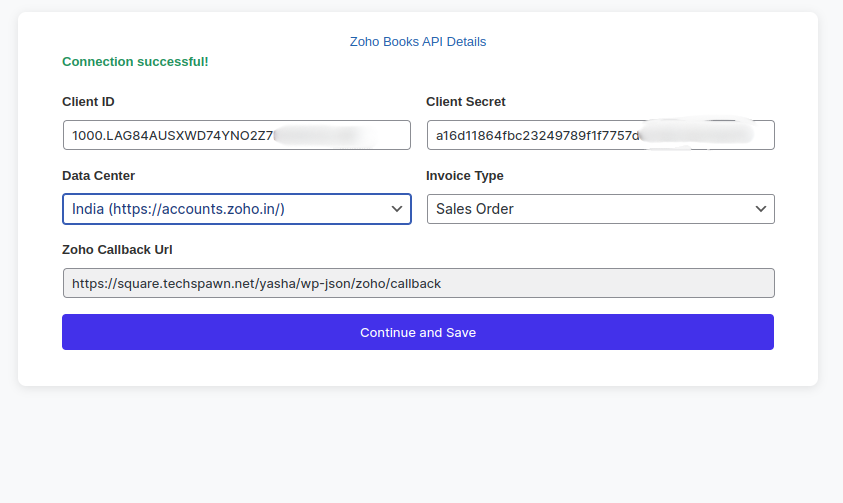
- Enter your Client Id, Client Secret and Select the Data Center and Invoice Type from the Zoho of Zoho books
- login to ZOHO API Console
- On Application page click on Add Client.
- Select Server based Application and click on Create Now
- Enter Client Name, Home Page Url, Authorized Redirect URIs, and click on create.
- Go to Client Secret Copy the client Id and Client Secrect and paste in Zyscn Authentication Page
- Select Data Center and Invoice Type and click on Save and Continue
Page load link