
Instruction to make app on intuit developer:
Sandbox Company Connection :
To create your developer account, navigate to the URL below.
https://developer.intuit.com/app/developer/homepage
Once you’ve created your developer account, follow the steps below.
- To navigate to your sandbox testing QuickBooks instance,
- Click on API Docs & Tools Menu located at the top -> click on the Sandbox Option.

- Click on Add Sandbox Company Button

- Select QuickBooks online plus option from the next screen. Select United States as Country. Our module only support to United states accounts.

- Click on the Add Button. After clicking on the Add button the created company will be displayed.

- Now, there might be a company already created. If you wish to use that,then you can go ahead with it. Otherwise, you can create another company based on your country.
- Make sure that you set it up according to your needs.
Steps to follow for Sandbox Testing connection odoo:
- Install the Quickbooks Odoo Connector module in your system.
- Go to the Quickbooks Module
- Now, create an instance
- Click on New Button.

- Give a proper name to the instance.

- Now in the url field, copy the following url:
- For Sandbox: https://sandbox-quickbooks.api.intuit.com/v3/company/
- Make sure you, you do not add any extra spaces in the URL.

- For the Consumer and Secret key we need to create an app in the intuit developer.
- To create an app click on the Dashboard

- Click on the Create an App button.

- Click on the app you have created.

- You may see a menu on the left side.
- Click on the Keys & OAuth under Development sub-menu. You will see following page. Also see Client ID and Client Secret ID.

- After that, copy Client ID and paste in the Consumer Key in odoo quickbooks module fields and copy Client Secret and paste in Consumer Secret field in odoo quickbooks module.

- Now, go back to the Intuit Developer Account, under Developer -> Keys and OAuth and scroll down until you see the Redirect URIs option.
- Click on Add URI button.

- Add your server url and add “/web/callback” at the end. Please see the following local url example:
- Click on Save Button.

- Copy this newly added url and paste it in the Redirect URI field of the odoo quickbooks connector module.

- Now click on OAUTH2AUTHORIZATION button.
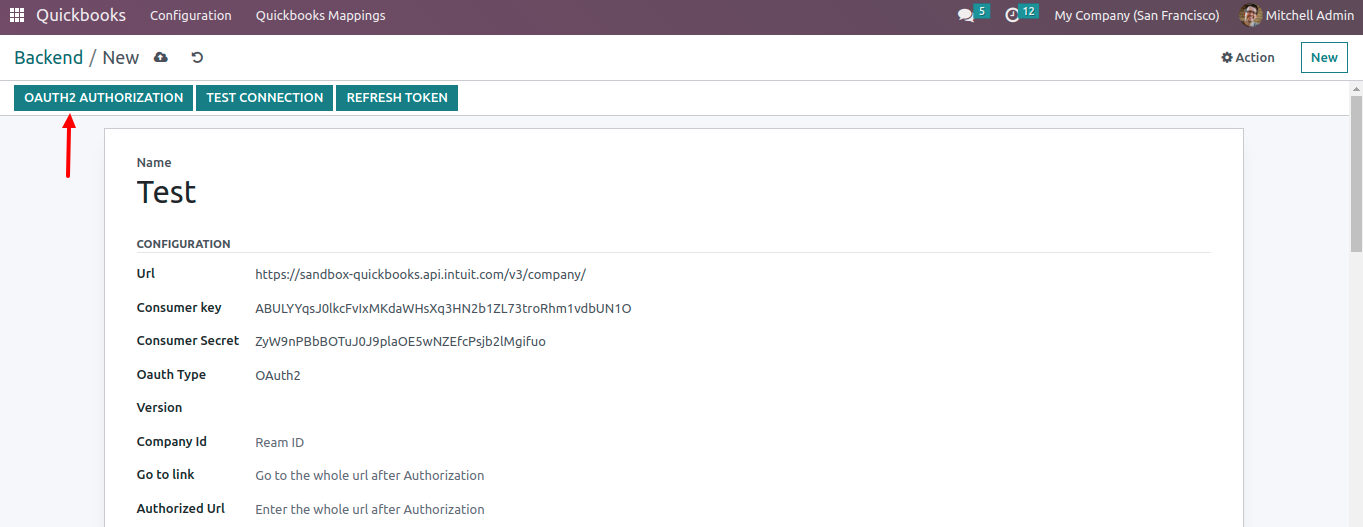
- It will generate automatic(after clicked on OAUTH2 AUTHORIZATION button) a link in the Go to Link field of the setup. Click on that generated link.

- Now, click on Go to Link, It will redirected to the QuickBooks Online Where we can select the QB Campany and the App.
- Note: If you are testing on a localhost, you might face an Internal ServerError. If you do, then please make sure that your url typed in that tab matches your localhost url.
- Example: https://localhost:8070/web/callback, Remove ‘s’ from the https.
- Also check your port number and localhost name as well.
- After selecting the Company and App, Authorized URL and Company ID/ Ream ID will be fetched .

- Now, click on Test Connection Button.

- If everything is set up properly, then it will display a message accordingly.

Production Company Connection:
- Install the Quickbooks Odoo Connector module in your system.
- Go to the Quickbooks Module
- Now, create an instance
- Click on New Button

- Give a proper name to the instance
- Now in the url field, copy the following url:
- For Production: https://quickbooks.api.intuit.com/v3/company/
- If you have not create an app please see “Instruction to make app on intuit developer:”mentioned above. If you have created an app, please click on it to navigate to the following page:
- Once you reach the intuit developer page, go to the Keys and Credentials section under the Production Tab.

- After clicking on Keys and Credentials section under the Production Tab. We need to fill the questionnaire for client and secret ID.

- Once the questionnaire is completed then we get Client Id and Secret ID.
- After that add the Redirect URL under the Redirent URIs Section.

- Now Go to Odoo Put the client ID, Secret ID, Redirect URL.
- Now click on the OAUTH2 AUTHORIZATION button.
- It will generate Automatic a link in the Go to Link field of the setup.
- Click on the link, you will be redirected to the same setup page. Where you would be able to see the Company Id & Authorized URL.
- Then click on the Test Connection button.
- If everything is set up properly, then it will display a message accordingly.
Redirect URL: first Add redirect url in quickbooks app and then add this same in odoo quickbooks module.
Client Key = client key paste in Consumer Key in odoo quickbooks module.
Client Secret key = client Secret key paste in Consumer Secret Key field of odoo quickbooks module.