
To start using the plugin, let’s take a look at the following settings:
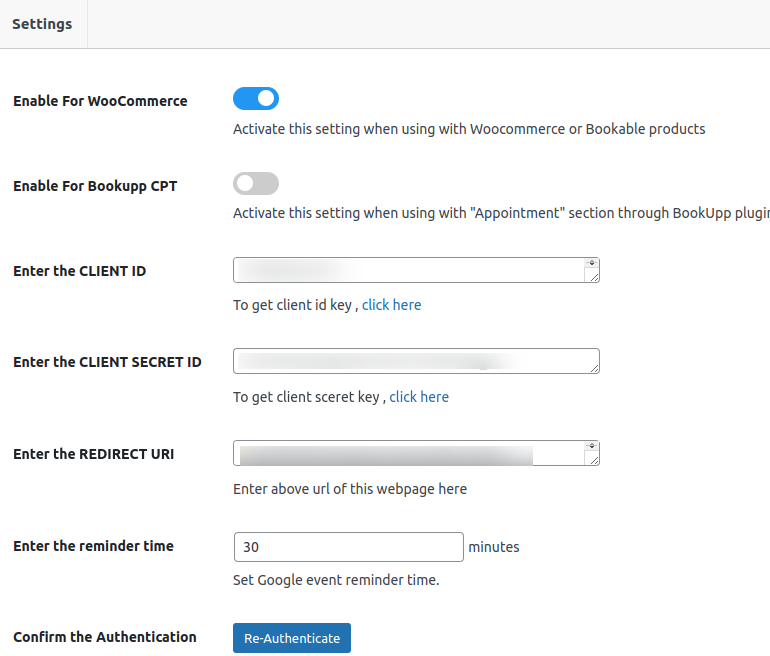
Image :- Settings tab
Enable For WooCommerce: This setting should be enabled if you want to use the plugin with WooCommerce. Simply Toggle On this setting to activate it.
Enable For Bookupp CPT: The Woocommerce Google Calendar is designed to work seamlessly with BookUpp – WordPress Booking SystemFor instructions on how to use it with Bookupp CPT, please visit here – click here.
Enter the CLIENT ID and CLIENT SECRET ID: You need to input the Client Id and Client Secret Id obtained from the Google Console here. This is necessary for the plugin to communicate with your Google account.
To know how to get CLIENT ID and CLIENT SECRET ID, simply navigate here – Guide to Getting Client ID and Secret Key from Google Console
Enter the REDIRECT URI: Here, you’ll need to enter the WordPress backend URL as indicated by the plugin. This is necessary for Google to redirect the authorization response to your website.
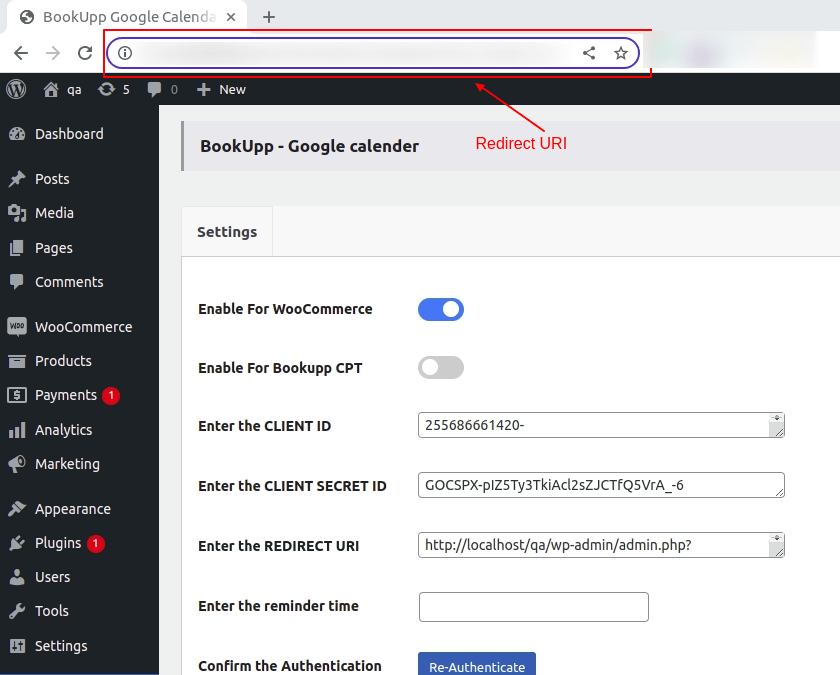
Image : Redirect URI
Enter the reminder time:- The Woocommerce Google Meet feature is integrated with Google Calendar, allowing administrators to set up a Google Meet link reminder. If the admin sets a 10-minute reminder before the scheduled booking time, users will receive a reminder on their screens.
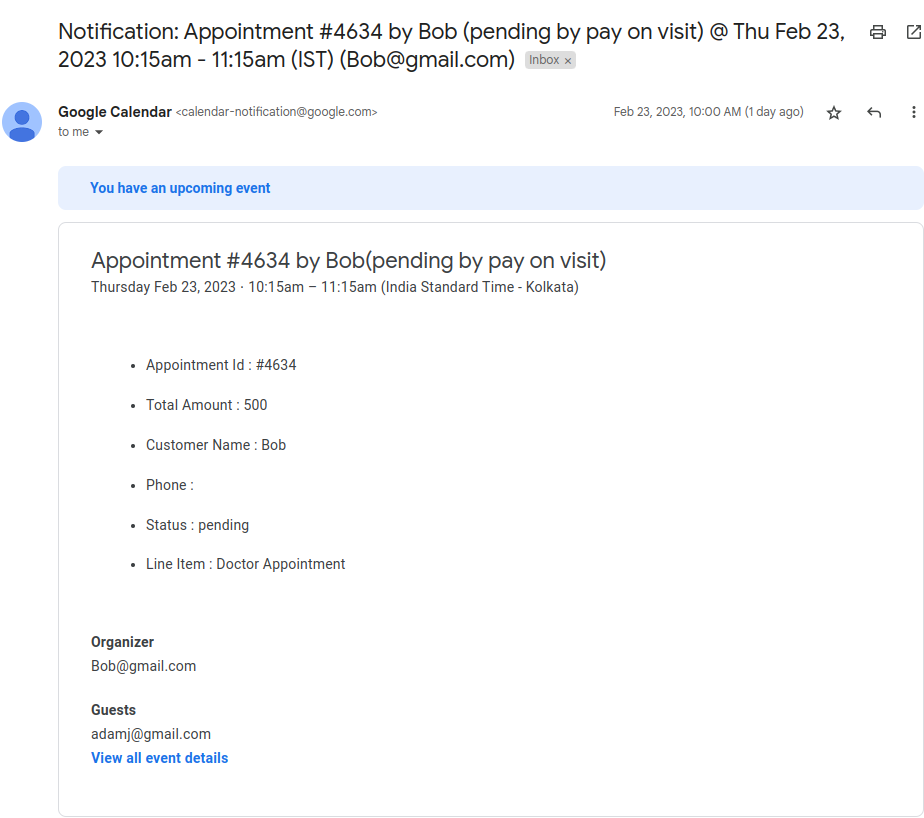
Image : Google Reminder
Confirm the Authentication:- Click on the “Confirm Authentication” button and then on “Save Changes” to connect with your Google Calendar once you have entered all the required details.
To sync your WooCommerce orders as a event with your Google Calendar, first add a product to your cart and place the order on the frontend of your website.
Then, go to the WooCommerce Orders section in the WordPress backend, where you’ll see a “Event Sync” button. Click on the button to create an event in your Google Calendar.
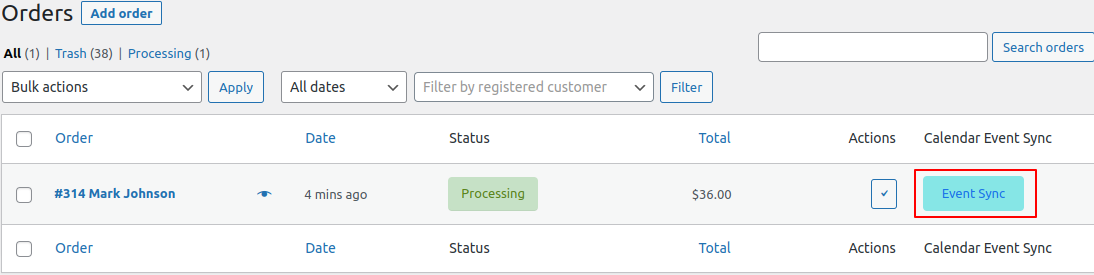
Image: “Event Sync” button in orders
Once the event has been created, you can see the details of the order in your Google Calendar. You have the option to create an event for a specific order or for all orders, depending on your requirements.
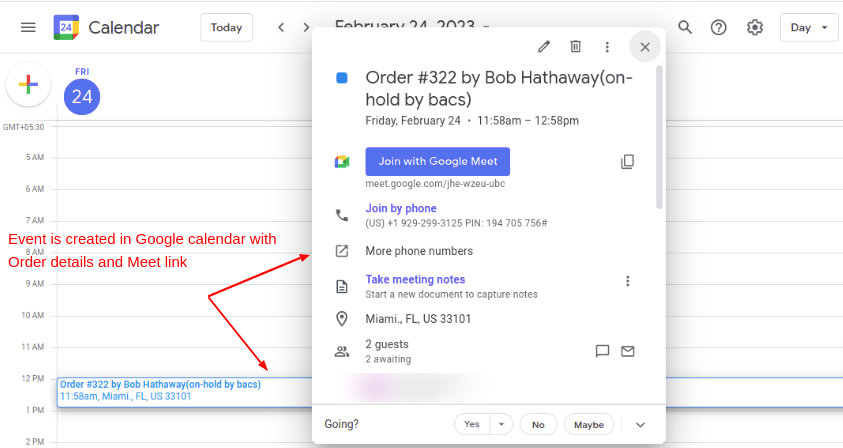
Image – Event Sync in Google Calendar