
Step 1: Login In Azure
Go to the Azure Portal
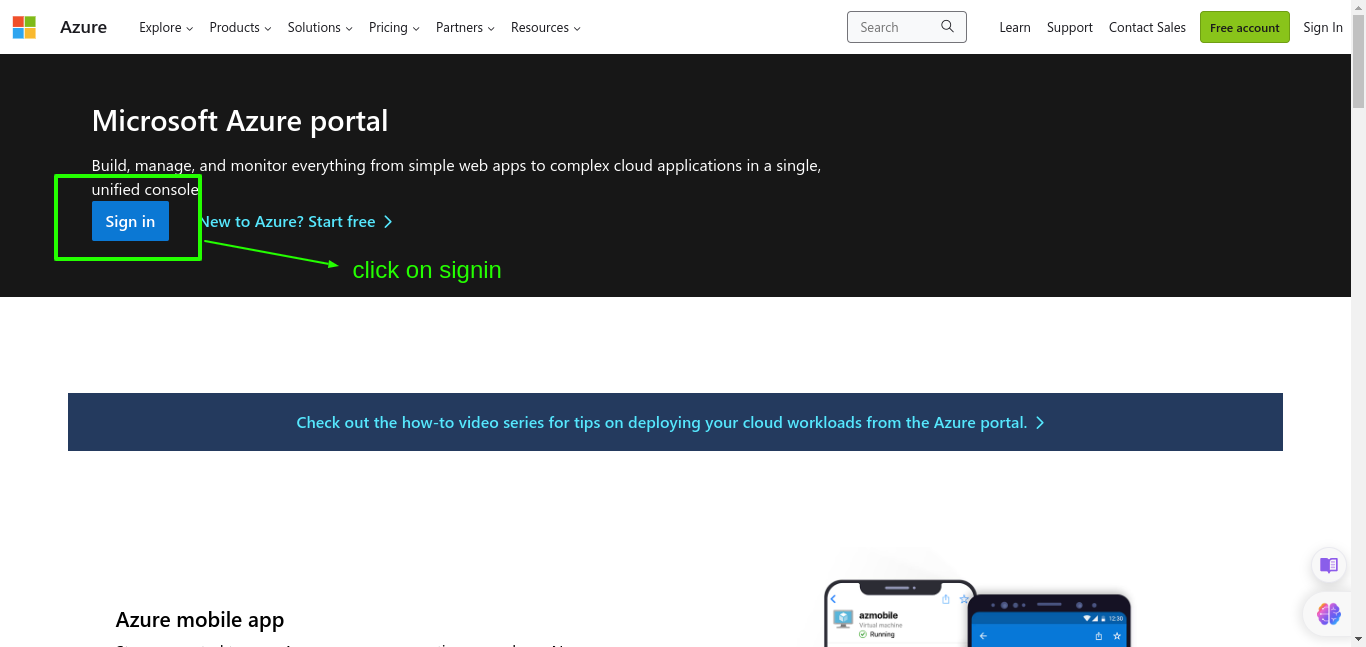
Signin into you account.
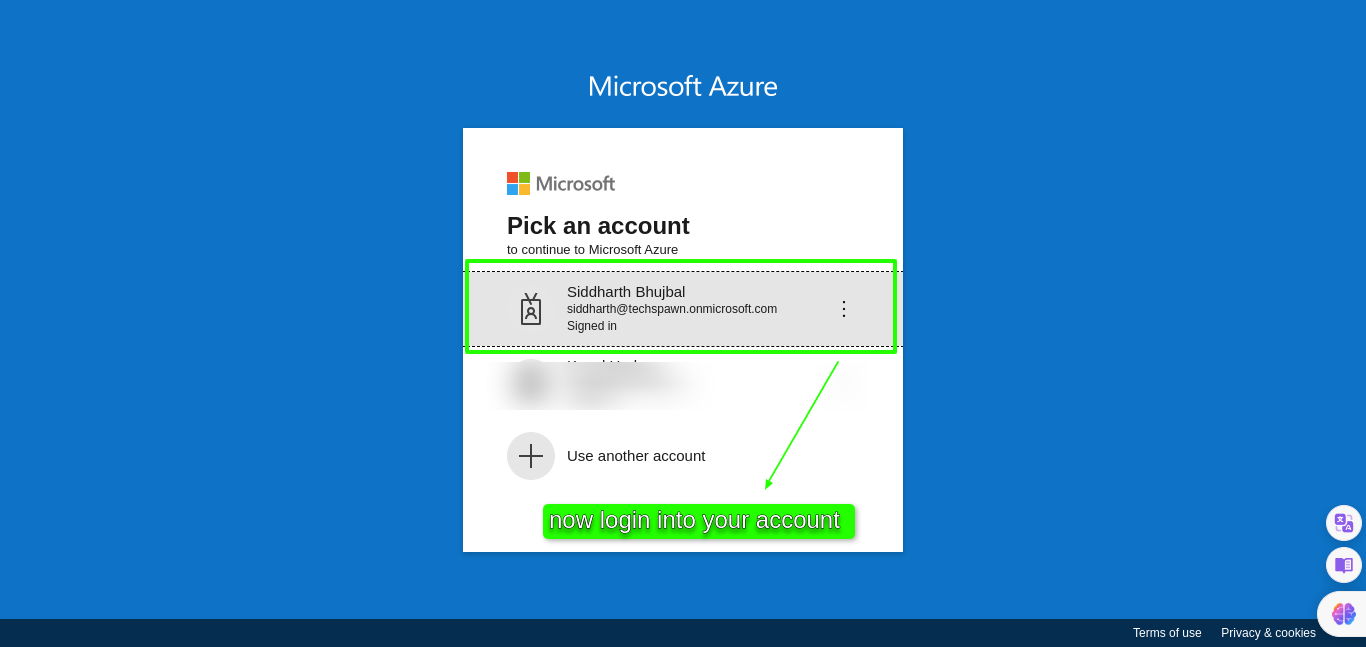
Step 2: Create Application
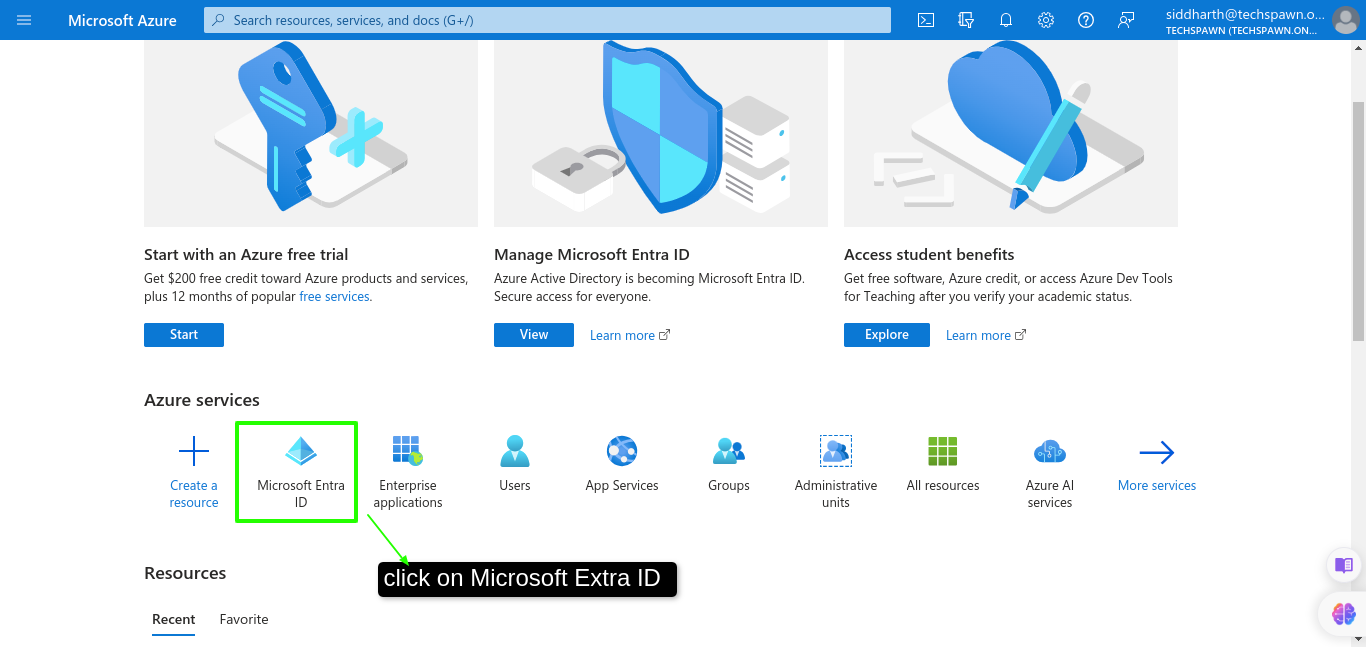
After login in the azure portal select Azure Directory on the section of Azure
Services.
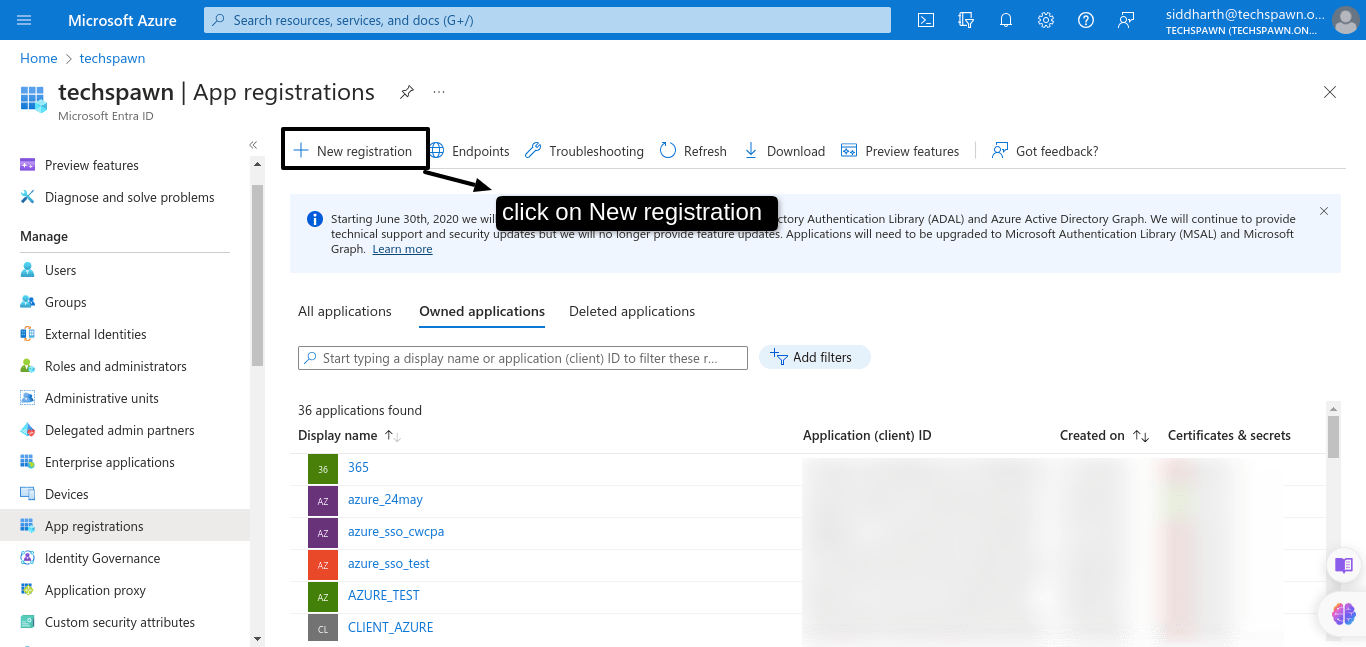
Now go to App registrations.
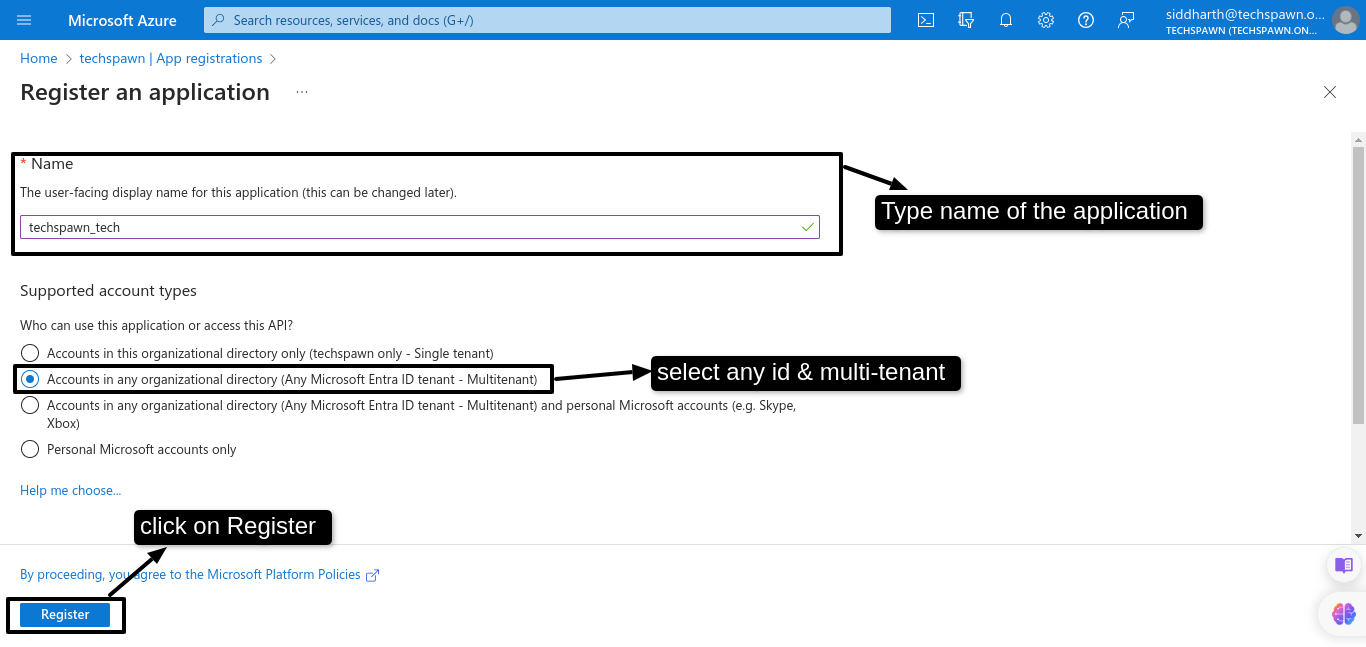
Click on the New Registration.
Give an appropriate name and select Accounts in any Organizational directory
(Multitenant) option. Click on the Register button.
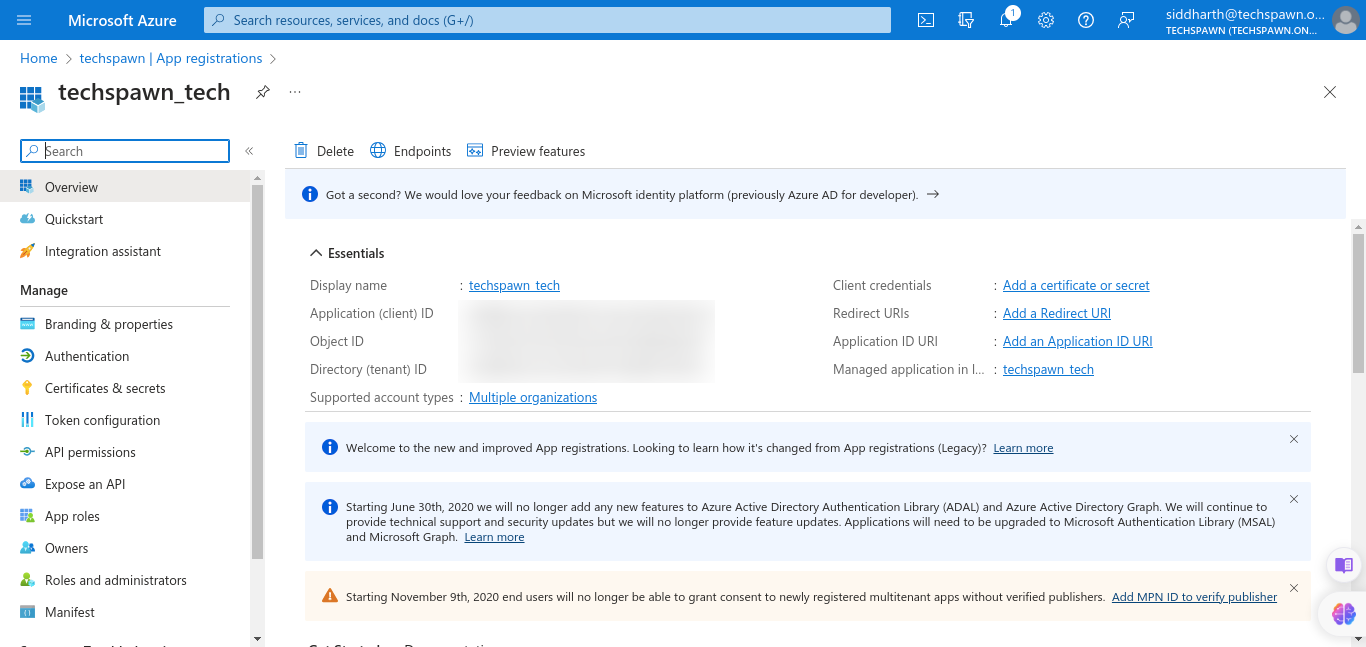
After clicking register you will redirect into the app
Step 3: Add API permission to the Application
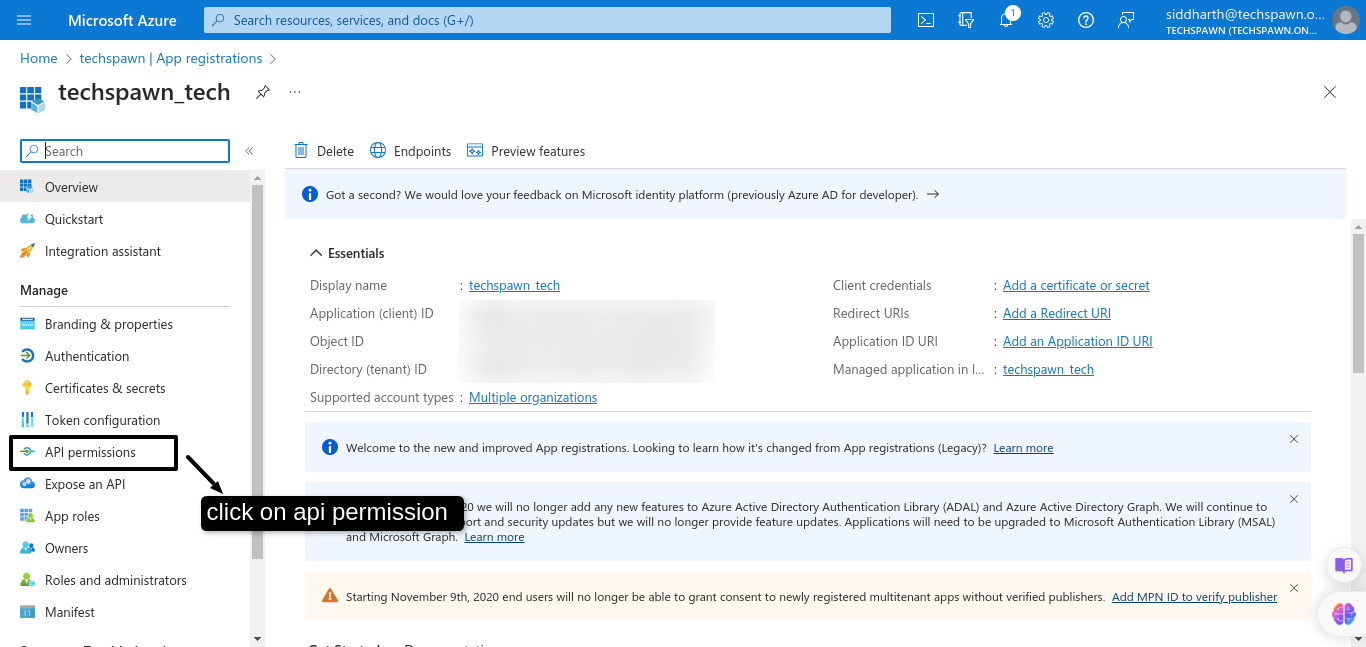
Go to the API Permissions.
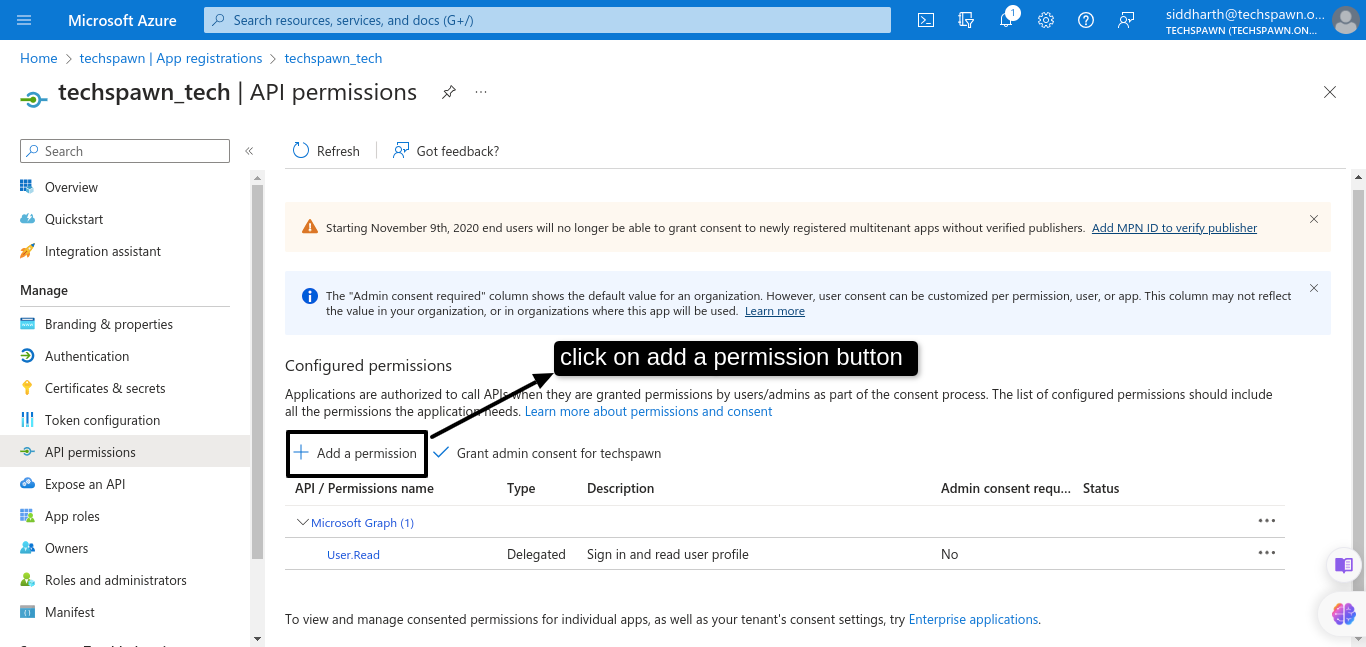
now click on add permission
Then select Microsoft Graph permission.
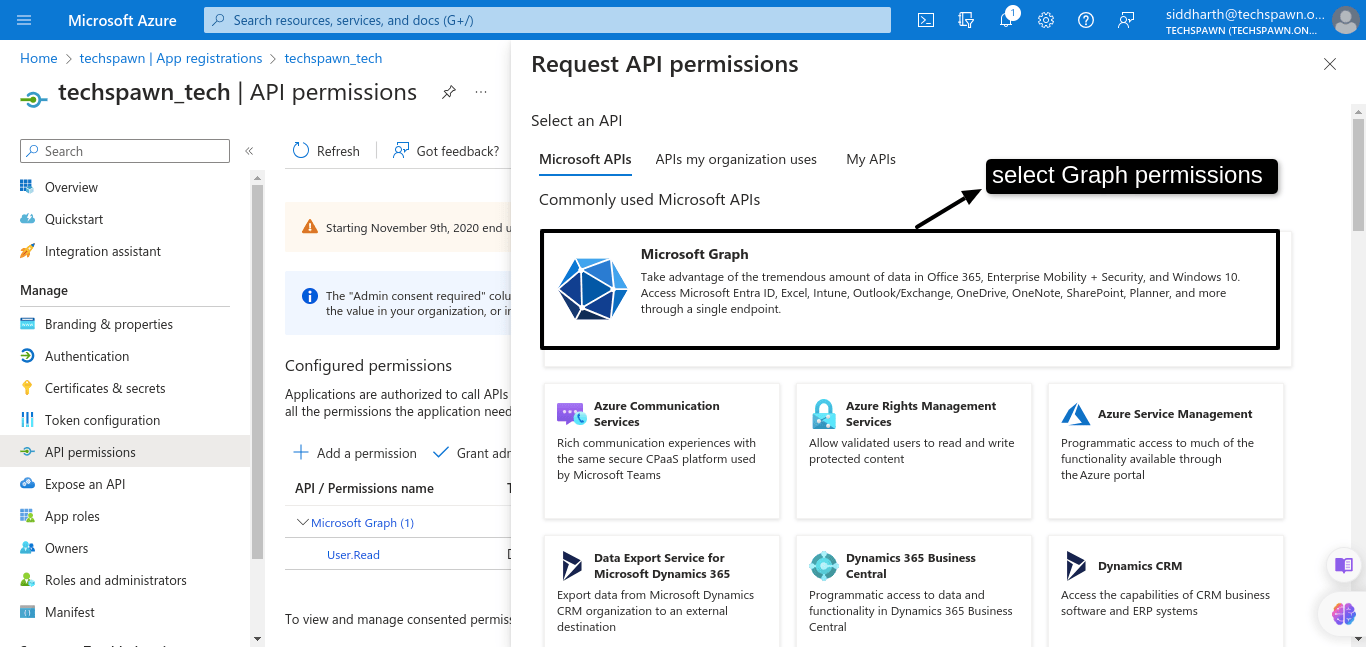
Now select delegated permission
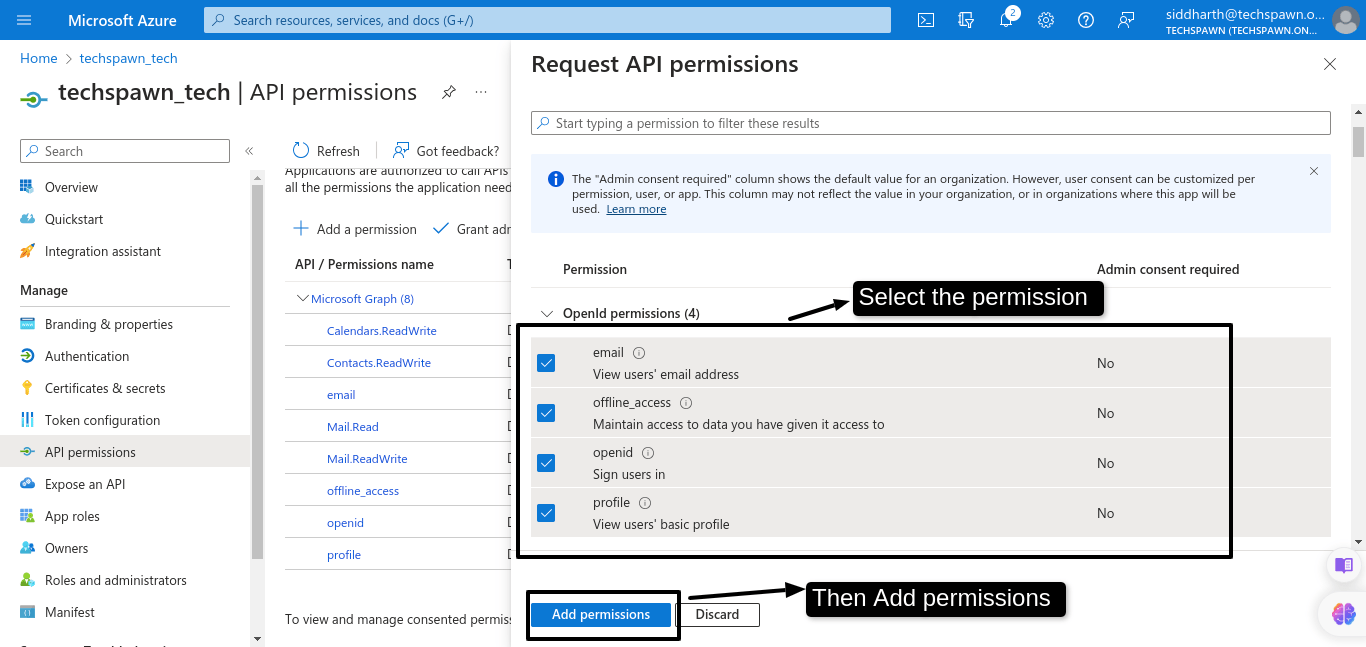
After that give all the permission that is give below:
- Calendars.ReadWrite -> Have full access to user calendars
- Contacts.ReadWrite -> Have full access to user contacts
- email -> View users’ email address
- Mail.Read -> Read user mail
- Mail.ReadWrite -> Read and write access to user mail
- offline_access -> Maintain access to data you have given it access to
- openid -> Sign users in
- profile -> View users’ basic profile
- User.Read -> Sign in and read user profile
- User.ReadWrite.All -> Read and write all users’ full profiles
then click on add permission.
Step 4: Create secret value or secret key
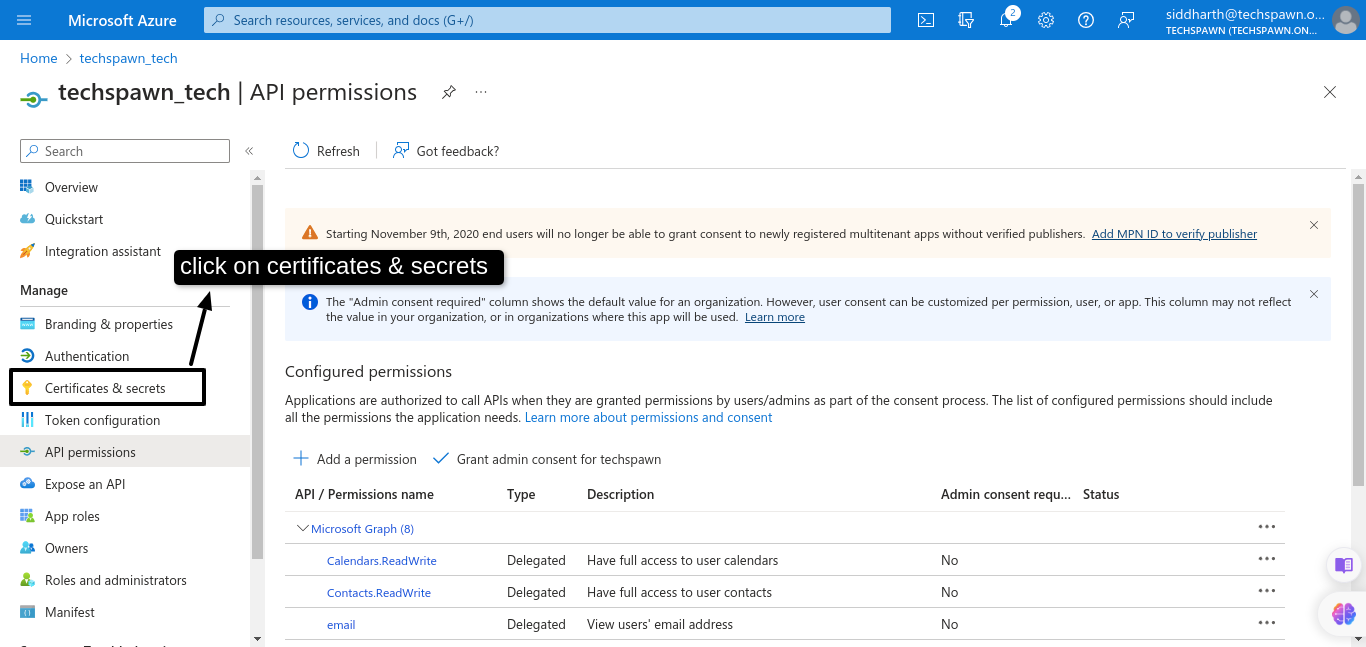
Now click on the Certificates & secrets
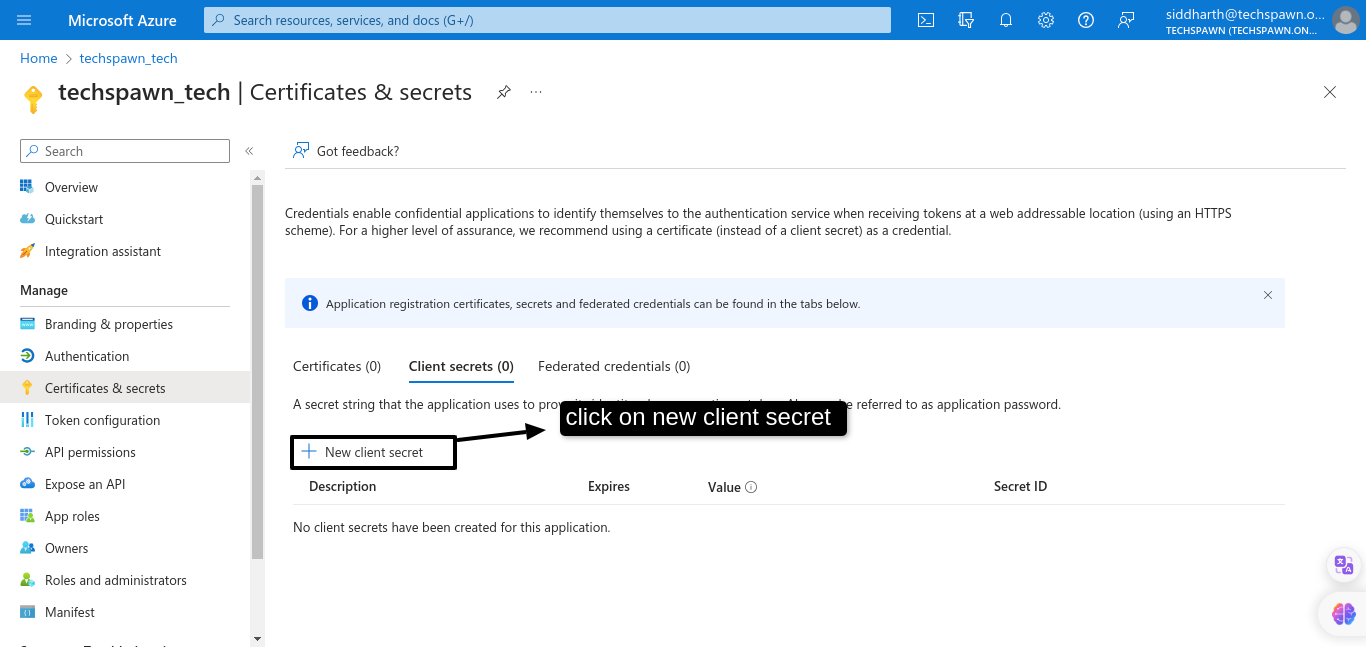
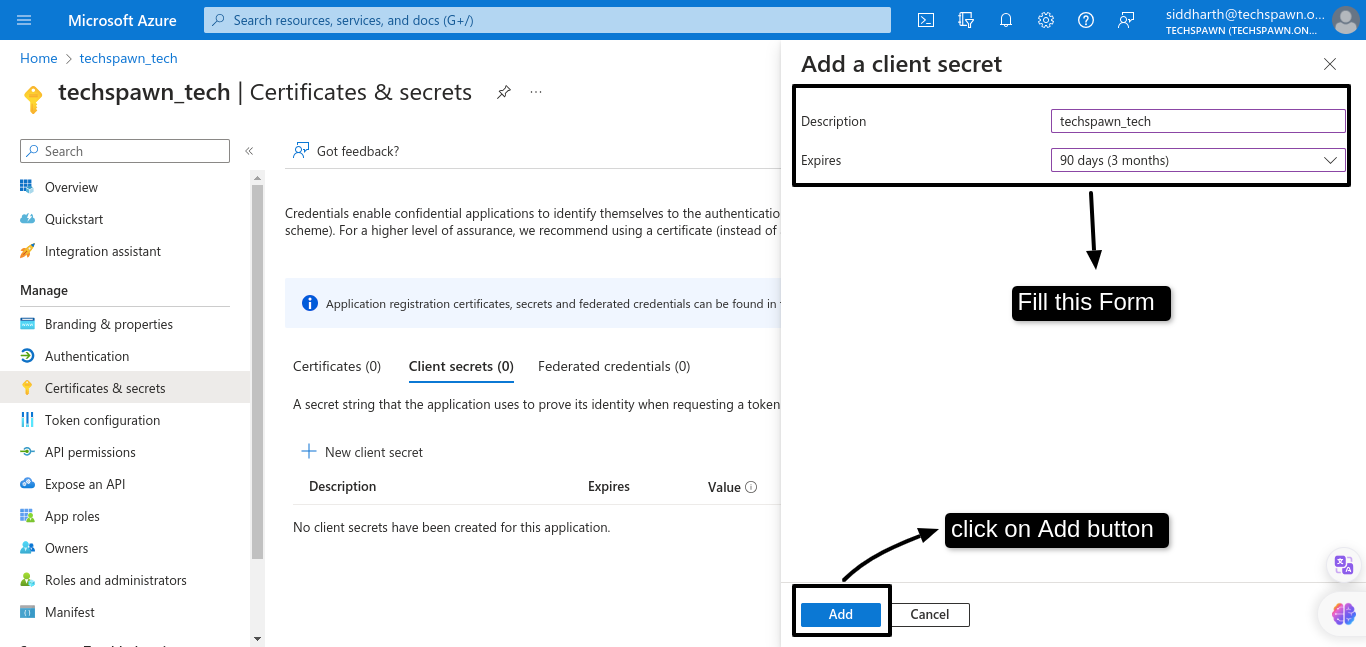
Then click on the New client secret
Fill the form that appeared and click Add button.
Then copy value in the Value for future use
Note: save sceart value on the textpad or any notepad if you not copy this time
then it will be hidden
Step 5: Add redirect URI in the Application
Now goto Overview of the Application.
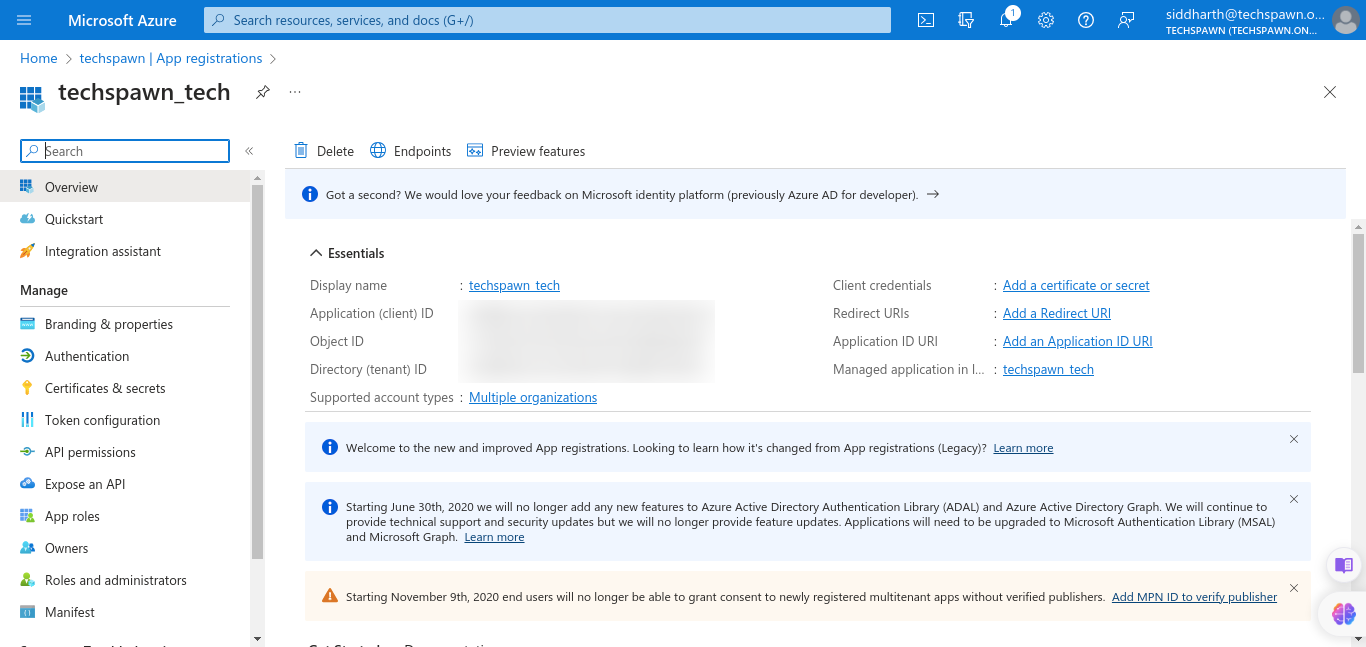
Click on the Add redirect URI
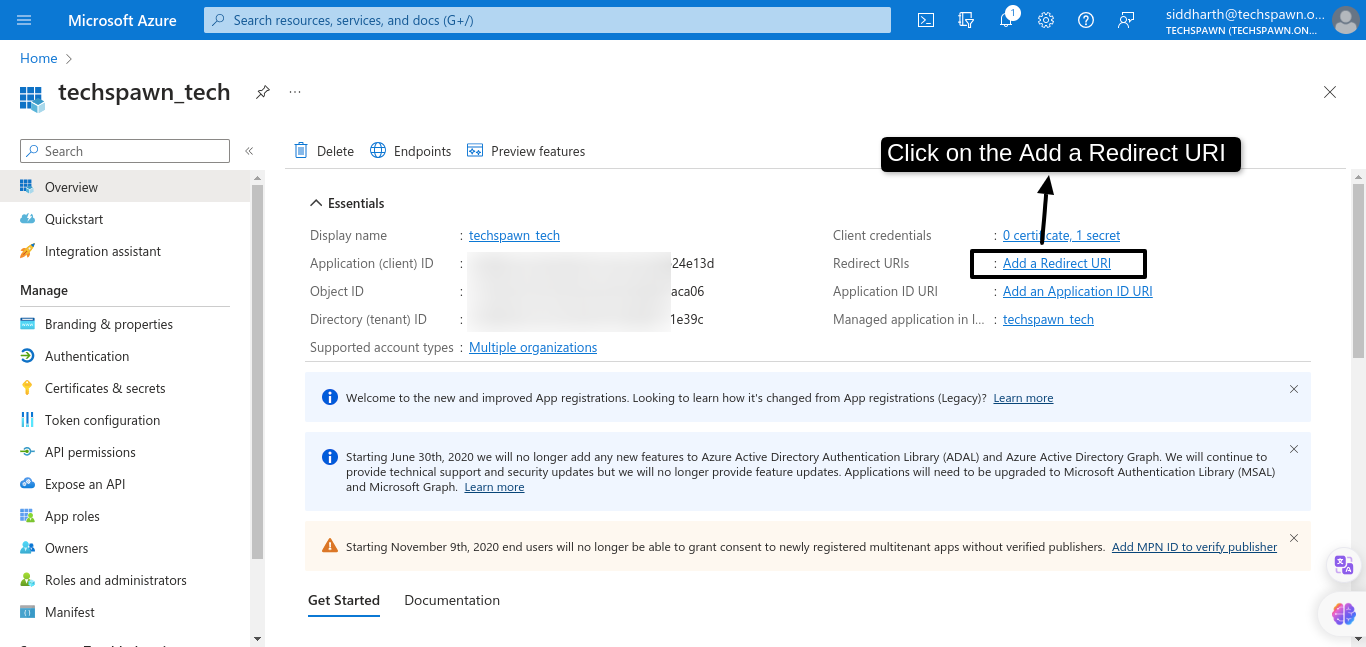
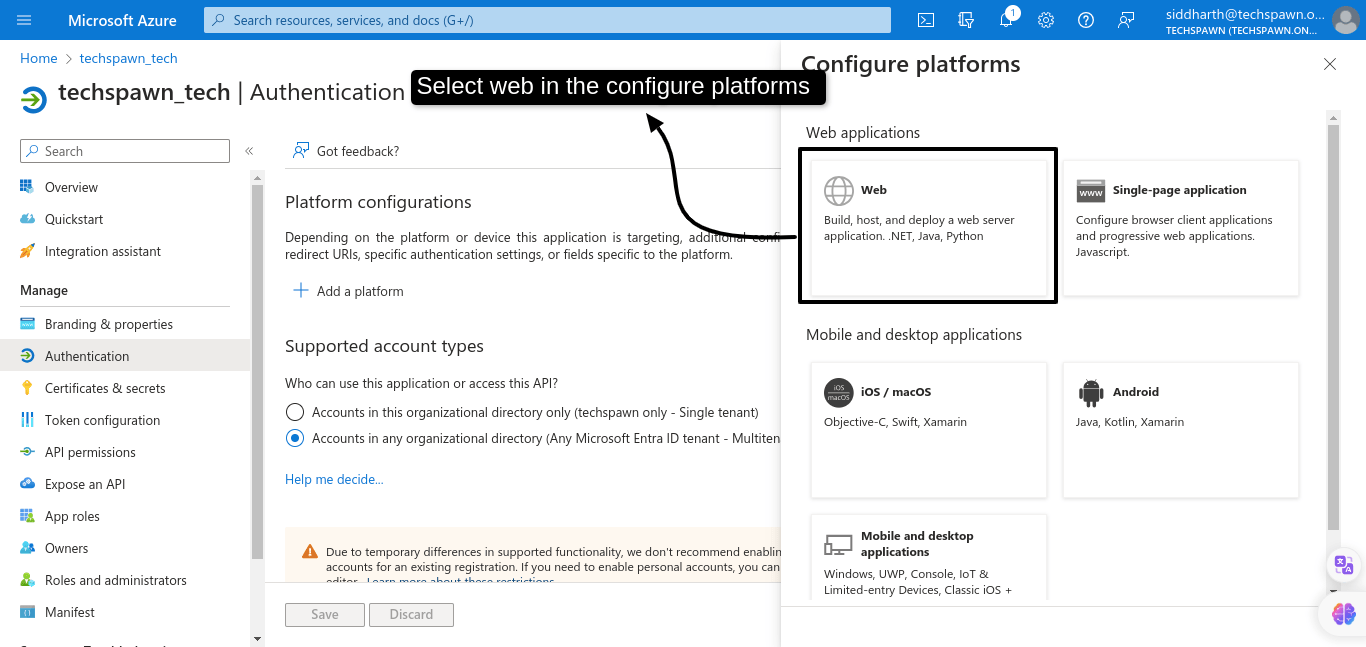
After click the Add redirect uri, then click on the Add a platform button
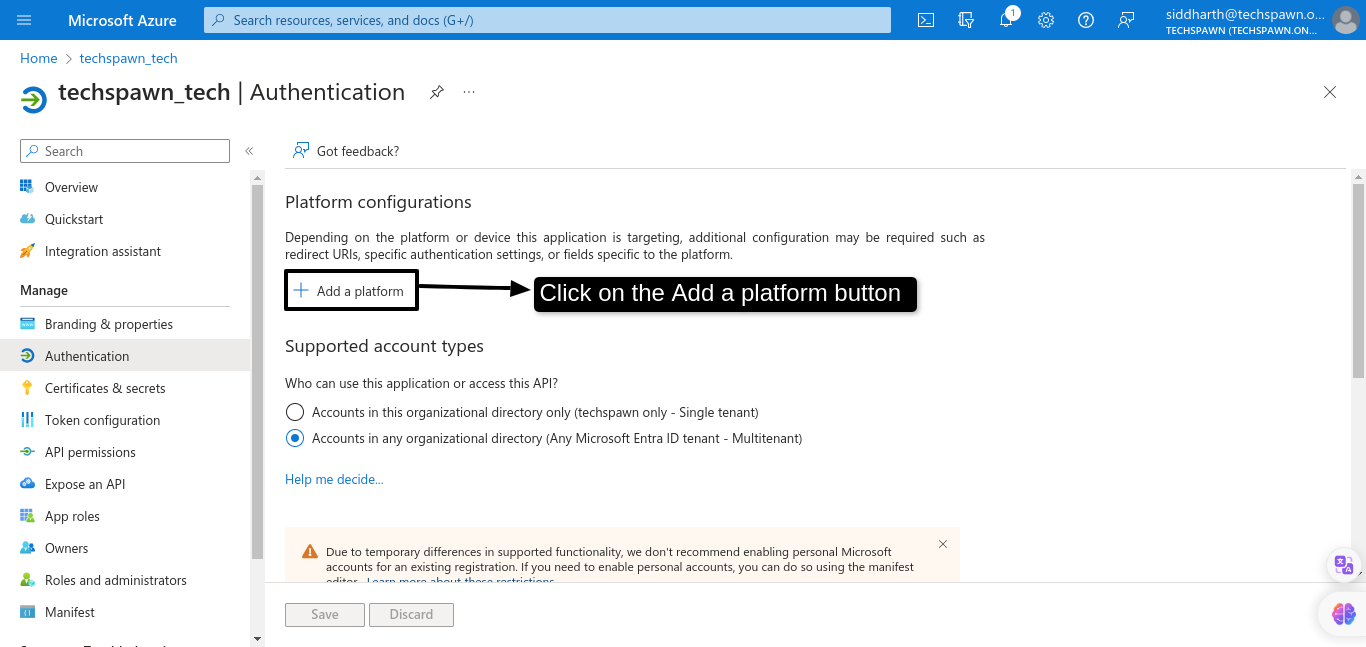
Then select the web in the configure platforms.
Then goto your odoo instance and copy domain name and after copying your
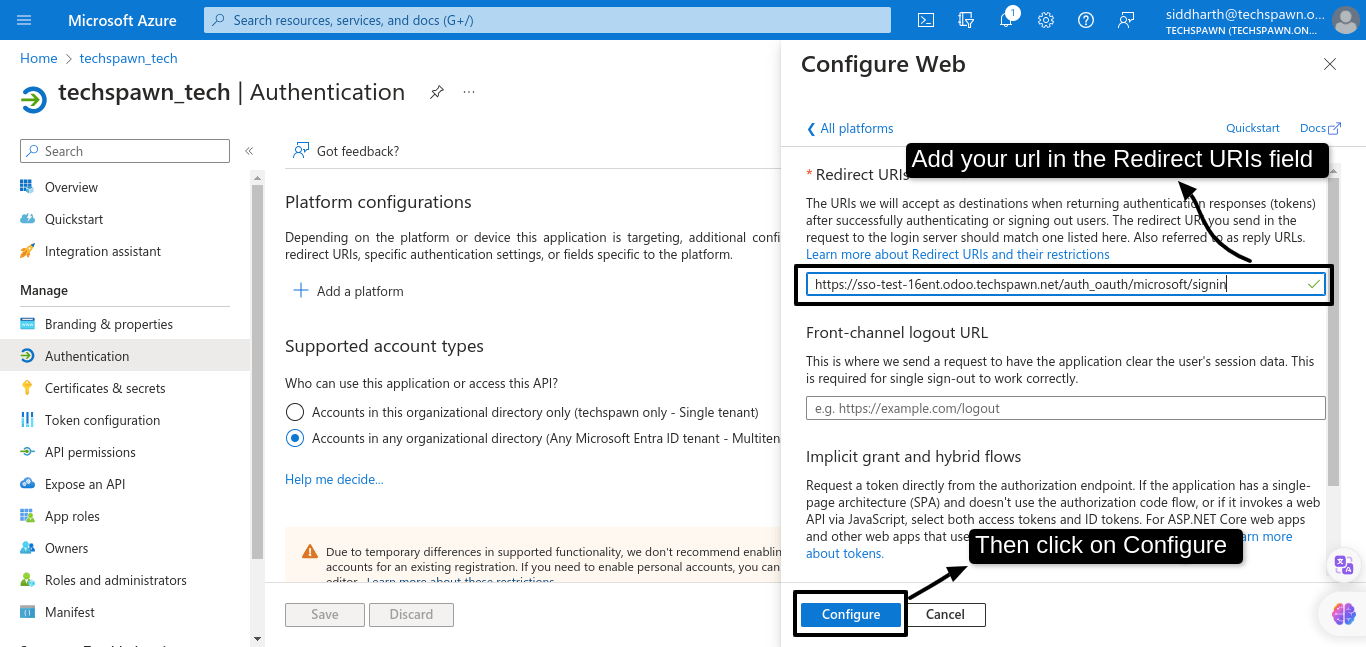
domain add suffix [/auth_oauth/microsoft/signin] in your odoo url.
for example:
domain:- https://sso-test-16ent.odoo.techspawn.net
After suffix:- https://sso-test16ent.odoo.techspawn.net/auth_oauth/microsoft/signin
Note: Redirect url should be copied from odoo’s system parameters
‘web_base_url’.
Now Add this url in the Redirect URIs field as show in the figure.Then after click
on the configure button
Here your Azure Configuration done.