Let’s see how to use Woocommerce Google Sync with “BookUpp – WordPress Appointment Booking and Scheduling System”
Note: Make sure you have installed and activated with “BookUpp – WordPress Appointment Booking and Scheduling System” plugin. To know more about this plugin , visit here
Activate the “Enable For Bookupp CPT” setting in “BookUpp – Google Calendar” as illustrated in the image below.

- Navigate to the Frontend, and Add a bookable product by specifying your desired time and slot preferences
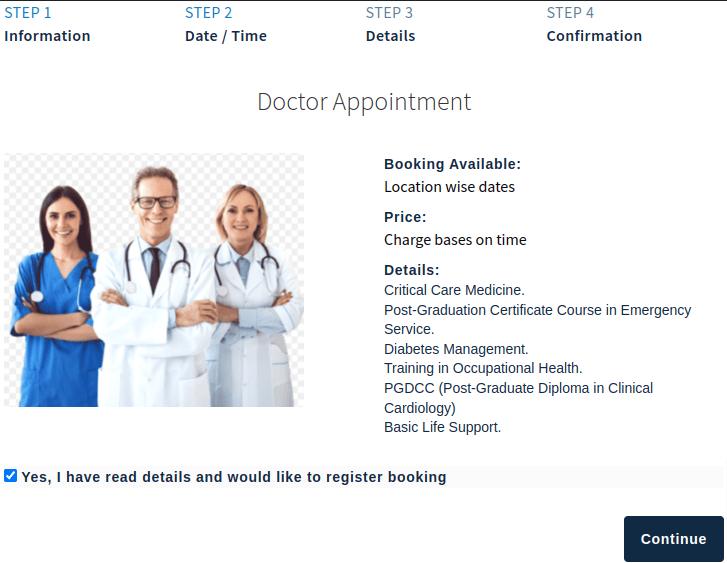
Image: Bookable product
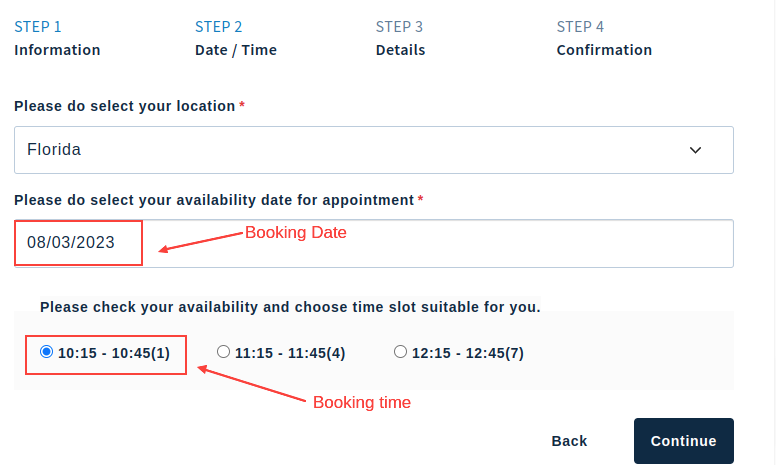
- To book a product, the user will select their preferred time and slot based on their requirements as shown in the below image. Using the date and time window provided, a Google Calendar event will be generated and added to the end user’s Google Calendar account for the specified day.
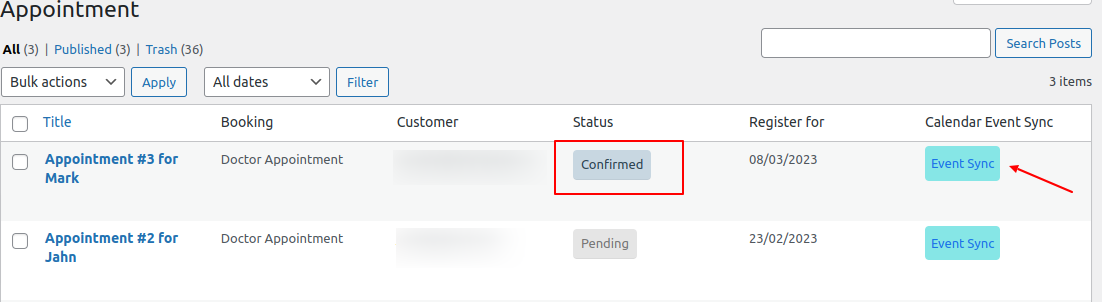
- After the admin clicks on the “Event Sync” button, an event is generated on the end user’s Google Calendar account.
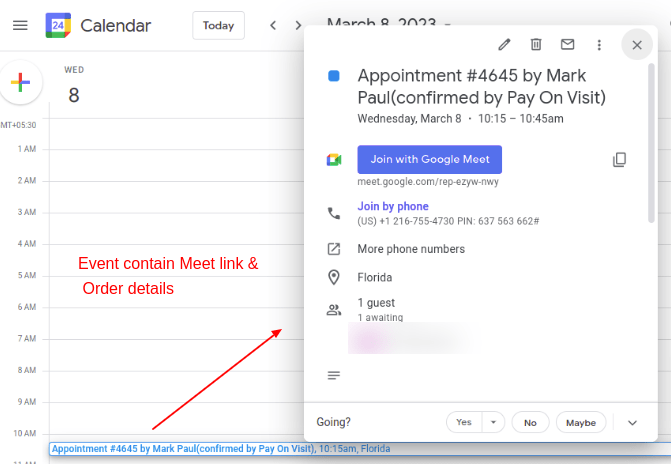
- The following images showcase the events that were created in the end users’ Google accounts at the selected date and time for the bookable product.
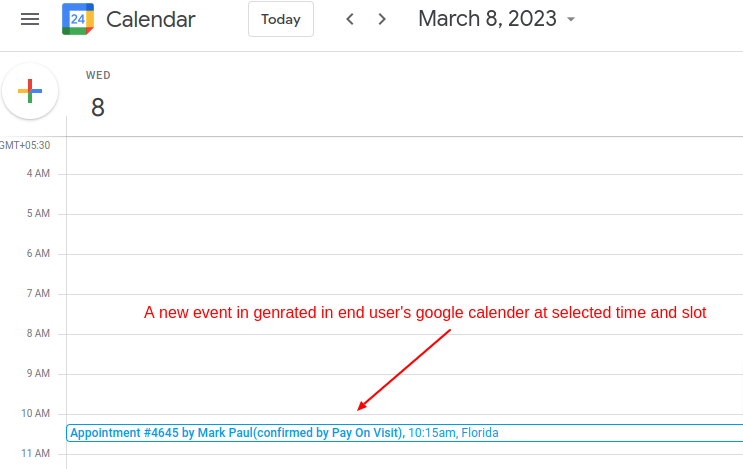
Image : Google event in calendar
- This event includes information about the order details, date, time slot, and location as shown in the below image