
Guide to Getting Client ID and Secret Key from Google Console
1. Go to the Google Developers Console.
2. Click Select a project ➝ New Project ➝ the Create button.

3. Enter your Project name ➝ click the Create button.

4. Click OAuth consent screen in the left side menu ➝ choose User Type ➝ click the Create button.

5. Add Application name ➝ Support email ➝ Authorized domain ➝ Developer content information ➝ click the Save and Continue button.
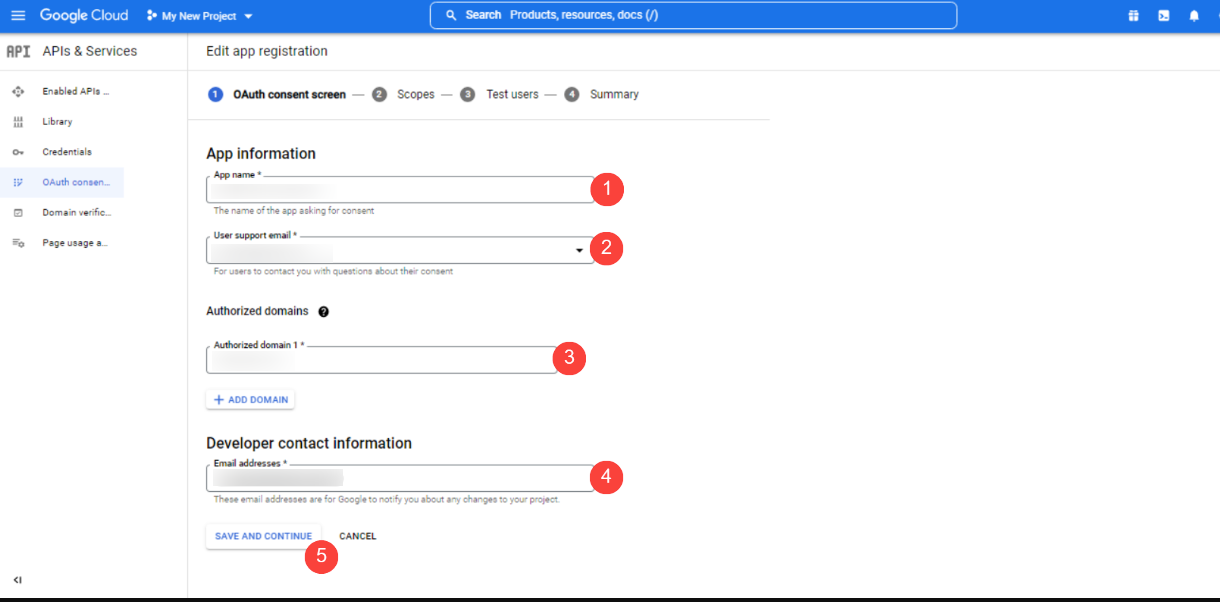
6. Complete all 4 steps in OAuth consent screen ➝ click the Back to Dashboard button.

7. Go to Credentials ➝ click Create Credentials ➝ select OAuth client ID from the dropdown list.

8. Open the dropdown list Application type ➝ select Web application ➝ enter the name of your OAuth 2.0 client.

9. Enter your site URL in Authorized JavaScript origins ➝ in Authorized redirect URIs, enter the page URL where you wanted your users redirected back after they have authenticated with Google ➝ click the Create button.

10. Copy your Client ID and Client Secret.
