

Image 1

Image 2

Image 3
- Rule Name : A name can be assigned to the created rules for identification purposes, which is referred to as “Rule Name.
- Condition : Its purpose is to define the basis for the rules, whether it is Distance or Duration (total travel time).
There are three conditions that can be applied in these cases:
i) Equal to (=) – which means that the weight and dimensions are considered equal to calculate the distance or duration.
ii)Greater than (>) – which means that the weight and dimensions are considered greater than the distance or duration
iii)Less than (<) – which means that the weight and dimensions are considered less than the distance or duration - Min and Max Value – You can set a range for the type to fall into, based on Distance (in kilometers) or Duration (in minutes), by specifying both the minimum and maximum values.
- Min and Max cart amount – You can define both the minimum and maximum cart amounts when creating rules by utilizing the “Min and Max Cart Amount” feature. This allows for greater control over the application of rules based on cart amounts.
- Fixed Cost – If a rule is matched, a Fixed Cost will be applied, and the calculation will be performed by multiplying the Fixed Cost by the distance.
Status –The status of a rule can be adjusted to enable or disable it as needed.
Validation Note: ranges cannot overlap.
A working example is:
- Min.Value: 1-9.9 KM/Min
- Max.Value: 10-24.9 KM/Min
A nonworking example is:
- Min.Value: 1-10 KM/Min
- Max.Value: 10-25 KM/Min
7. You can create rules by including specific attributes like Minimum and Maximum Cart Quantity of products.
In the image below, you will notice the fields named:
Min Cart Qty: Please input the minimum quantity for a product that must be present in the cart.
Max Cart Qty: Please specify the maximum quantity of the product.
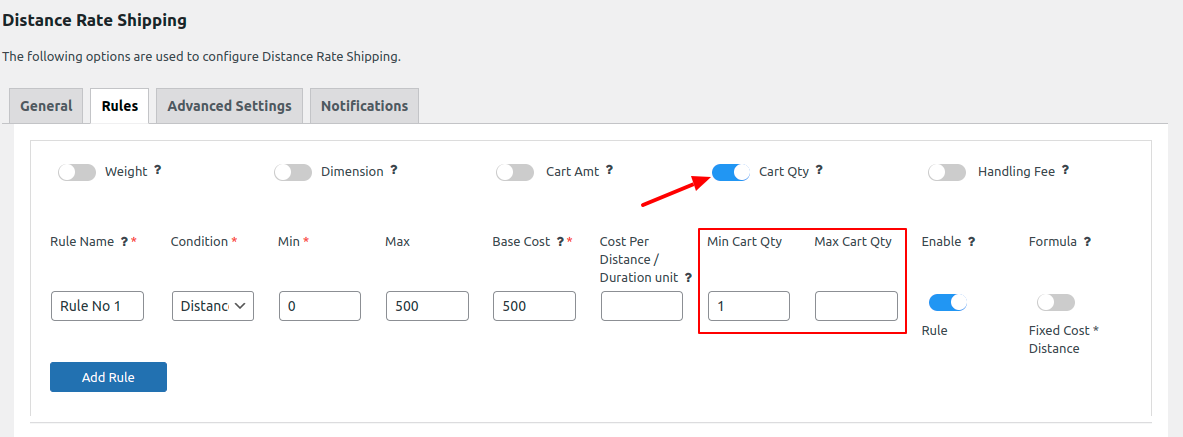
Image 4
Let’s understand it with examples,
Example 1
Min Cart Qty = 5 and Max Cart Qty = Not given
User’s Cart Qty = 7
It will check like 5 <= 7 or not
–> In this case, the rule will be applied only if the user can add at least 5 products to their cart.
Example 2
Min Cart Qty = Not given and Max Cart Qty = 8
User’s Cart Qty = 10
It will check like 10 >= 8 or not
–> The rule will be applied in this case only if the user can add up to 8 products to their cart.
Example 3
Min Cart Qty = 5 and Max Cart Qty = 8
User’s Cart Qty = 7
It will check 7 <= 5 or not and check 7 >= 8 or not
–> The rule will be applied in this case only if the user has between 5 to 8 products in their cart.
- We can edit and view the rule by clicking on the Edit and View Button.

Image 5
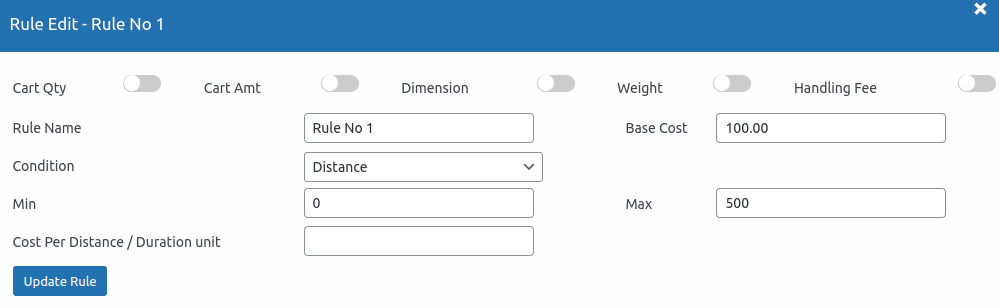
Image 6 : Edit Screen

Image 7
8. Weight Range :-
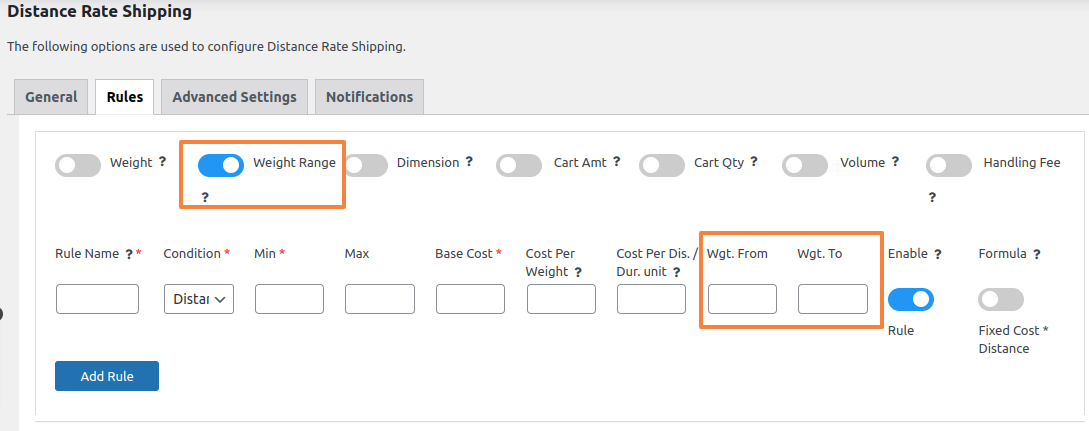
With the Weight Range feature, you can set up a rule that specifies a weight range from “To” to “From.” When a product falls within this defined weight range, the rule will be applied and displayed on the cart page.
For example, let’s say you create a rule for a weight range of “1 lbs” to “12 lbs.” If there’s a product called “Product A” that weighs 5 lbs, the rule will be applied. However, if the quantity of “Product A” is 3, the rule will not be applied because the total weight (5 lbs x 3) exceeds 12 lbs.
Products with a weight greater than 12 lbs won’t meet the criteria for this rule, and thus, the rule will not apply to them.
9. Volume Range :-

With our Volume Range feature, you have the ability to define a rule that specifies a volume range from “To” to “From.” When a product’s volume falls within this defined range, the rule will be applied and visibly displayed on the cart page. To calculate the product’s volume, we use the formula length (L) * width (W) * height (H). You can find the input fields for these dimensions by navigating to the product editing page and selecting the Shipping tab.
For products with dimensions like 5 * 5 * 5, the volume is calculated as follows:
Volume (V) = Length (L) * Width (W) * Height (H) = 5 * 5 * 5 = 125
If you create a volume range rule with a range from 0 to 125, this rule will be applied to the product on the cart page.