
1] If UPS rates and services are not displayed on your cart and checkout page, please verify the following checklist:
- Adding Weight and Dimension to Products
It is crucial to maintain uniformity in the selection of weight and dimension units in the following steps. Make sure that you selected the proper weight unit and dimension unit at both tabs displayed in the following screenshots.
- Step 1 – Go to WooCommerce > Settings > Shipping > UPS > Packaging > Package Dimension/ Weight Unit
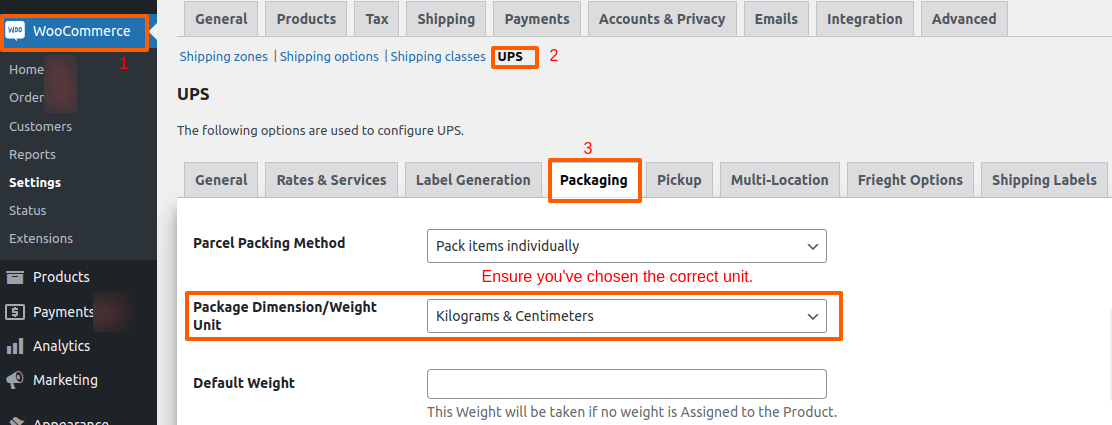
- Step 2 – Go to WooCommerce > Settings > Products > General. Double-check that you have chosen the correct weight and dimensions here, ensuring they match the selections made in Step 1.

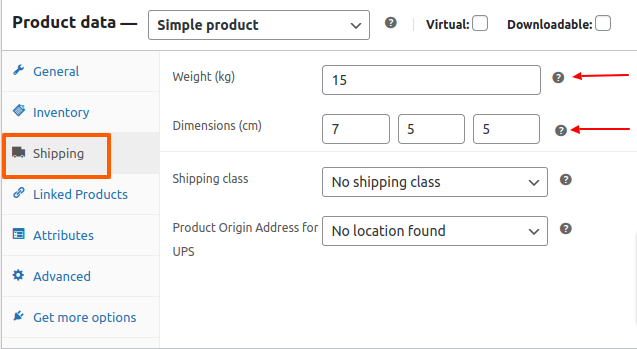
. Step 3 – After choosing the weight and dimensions unit, proceed to the product edit page, specifically the Shipping tab, and input the respective weight and dimensions.
Step 4:- Ensure that in the product edit section, under ‘Shipping class,’ you have chosen the ‘Standard‘ shipping class. 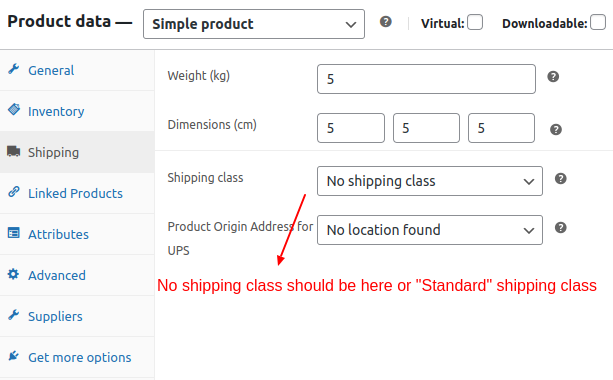
Step 5 :- Navigate to your ‘UPS’ developer account, go to ‘Production keys,’ and verify that you have added and enabled all APIs, with special attention to the ‘Geolocation API’.