
Firstly click on woo commerce setting & then click on advanced setting.Then generate the consumer API key for that click on REST API in advanced setting & generate a new key for stockup pos with read/write features.After generating the consumer API key copy & paste in stockup pos.

Image 1

Image 2
Image 3
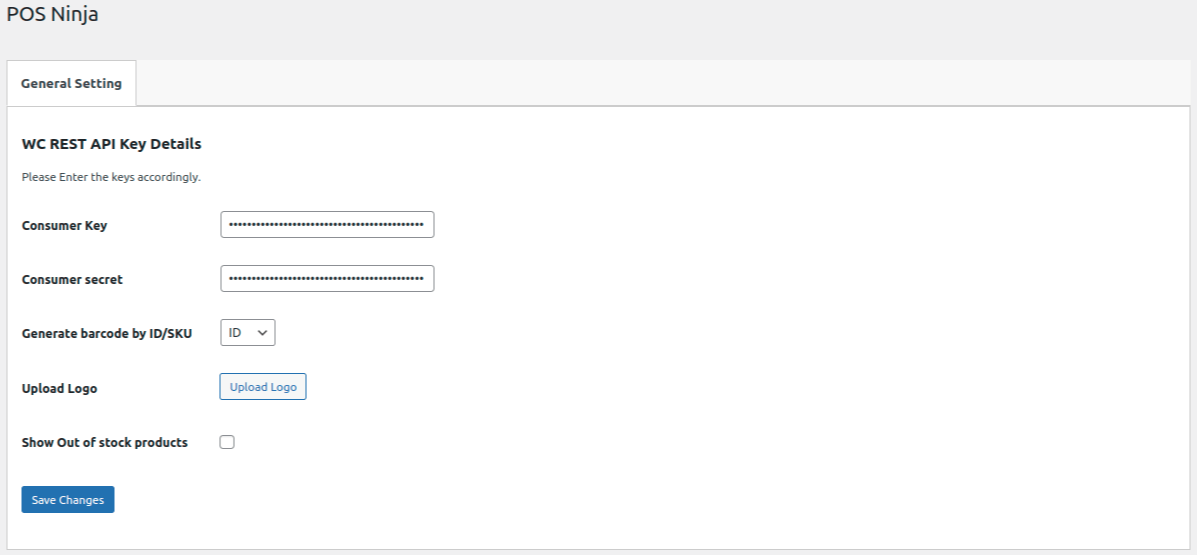
Image 4
Secondly after Installation go to stores add any products to cart after that click on checkout button.After that select the calculator & you can set discount price for it.It will select the price of one location & according to that bill is calculated.For admin even orders can be seen in backend as well.
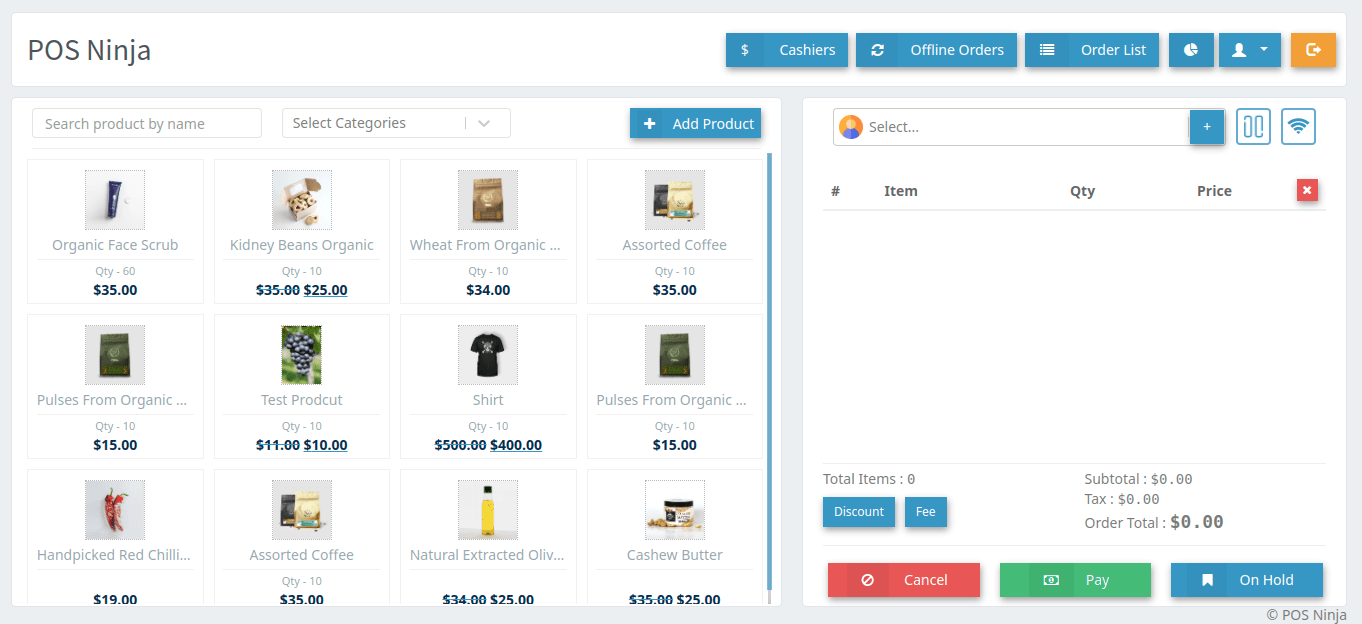
Image 5
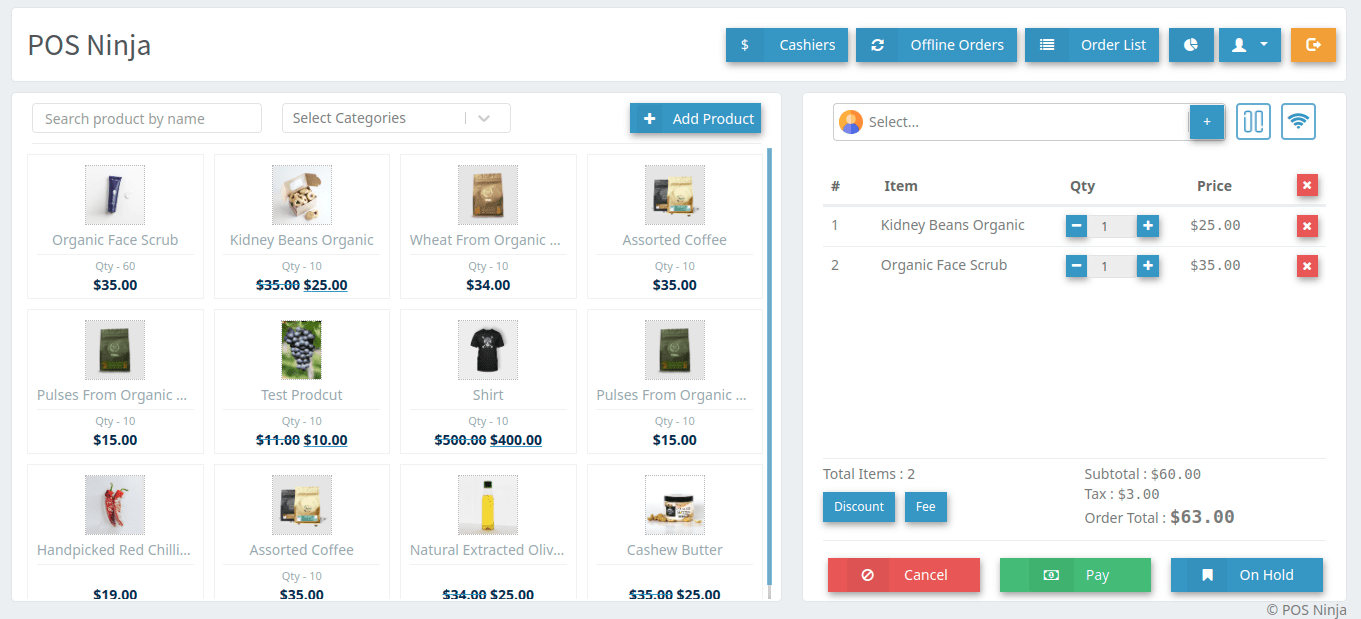
Image 6
After Adding product to the cart click on ‘Pay‘ button. Make Payment
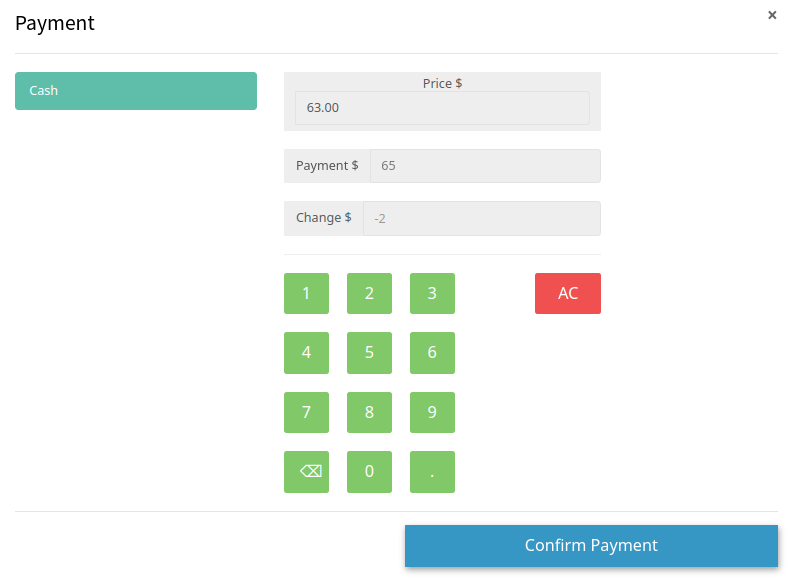 Image 7
After placing an order. That order will be displayed in the ‘Order List‘.
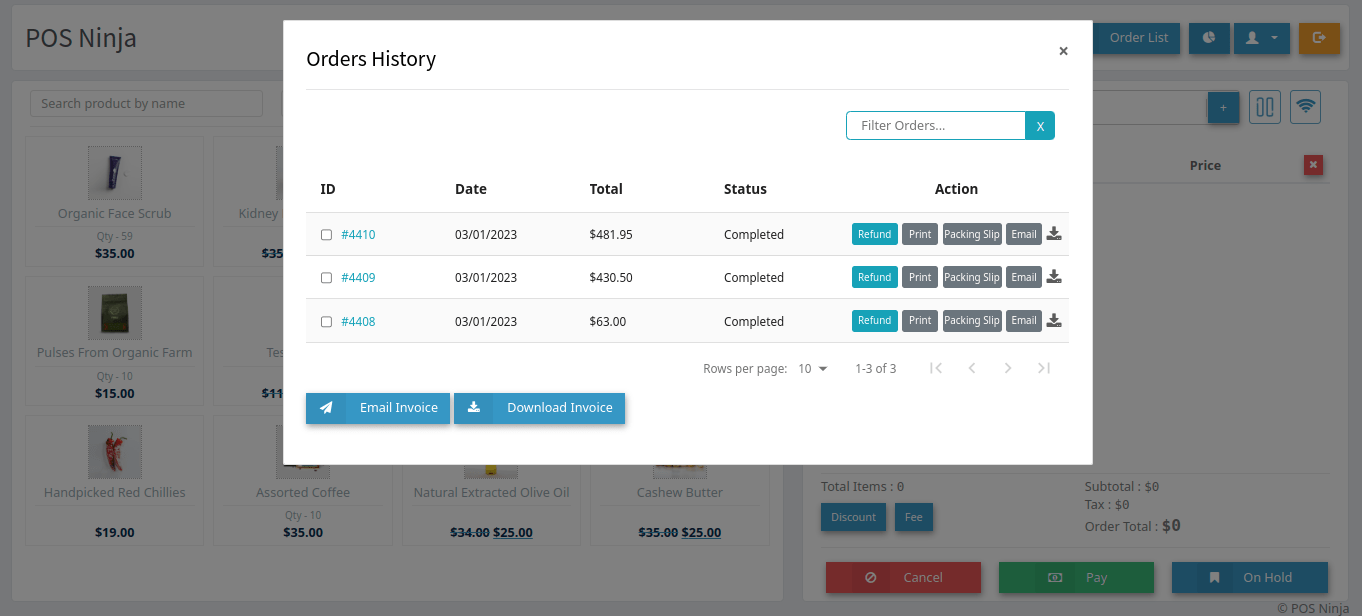
Image 8
Offline Orders
We can place an orders even if user is offline means user is not connected to the any network. ‘Wi Fi‘ Icon color turns into “Red”
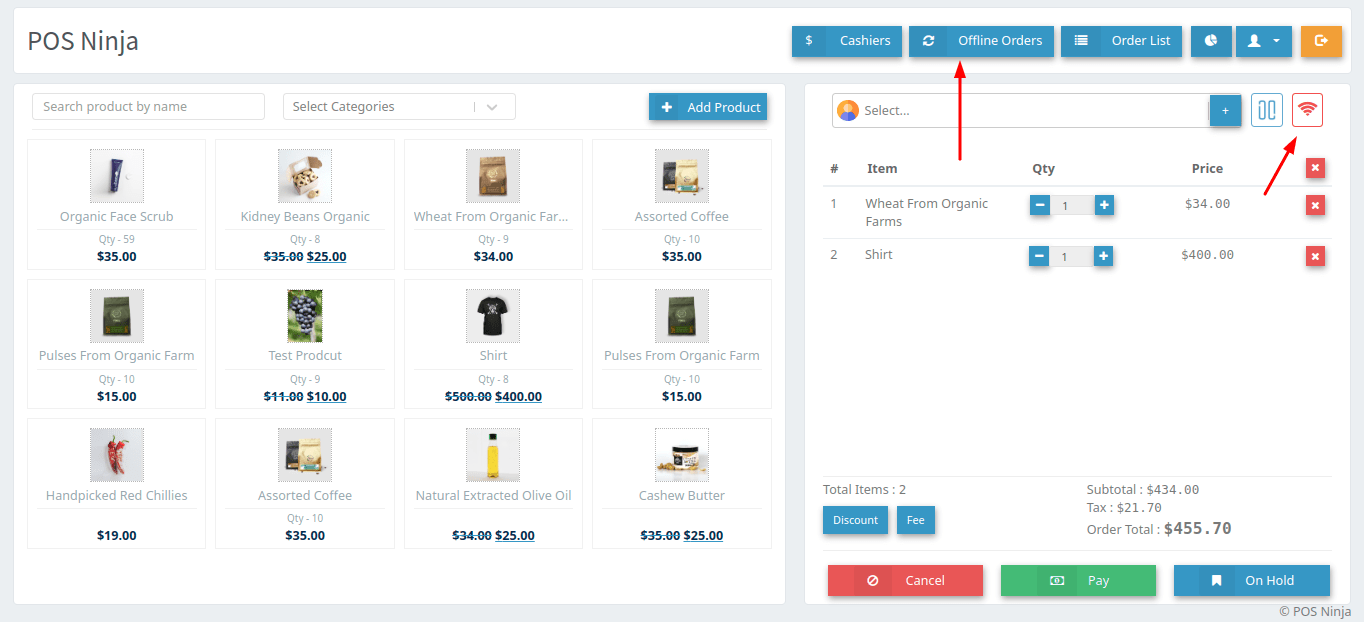
Image 9
Placed orders will be displayed in the offline orders.
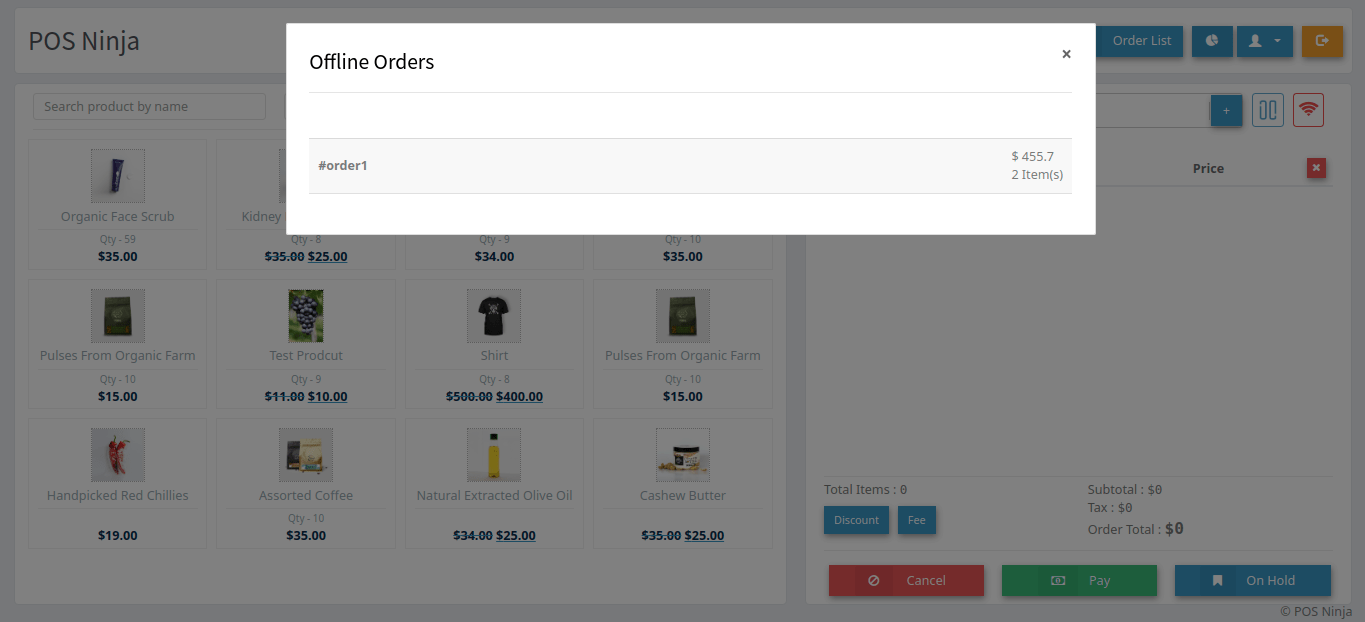
Image 10
If the user is connected to the network “Sync All Orders” button will be displayed in the “Offline Orders” list.
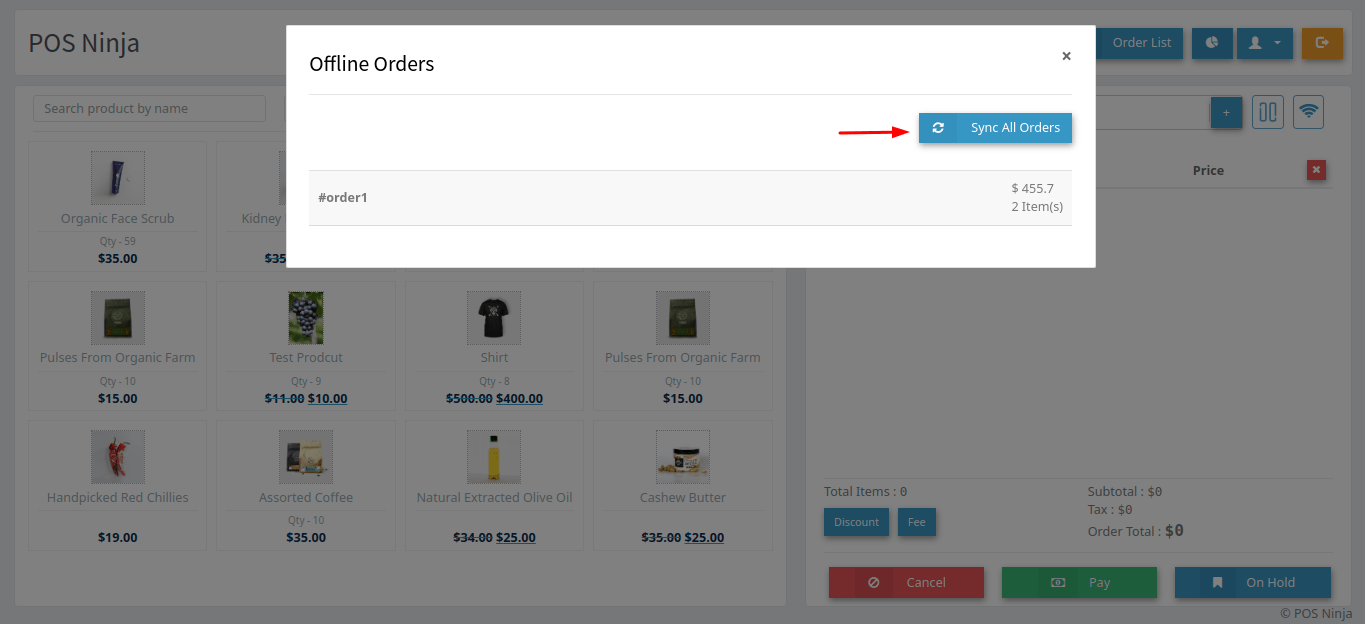
Image 11
After syncing all the orders that orders will be displayed in the “Order List”
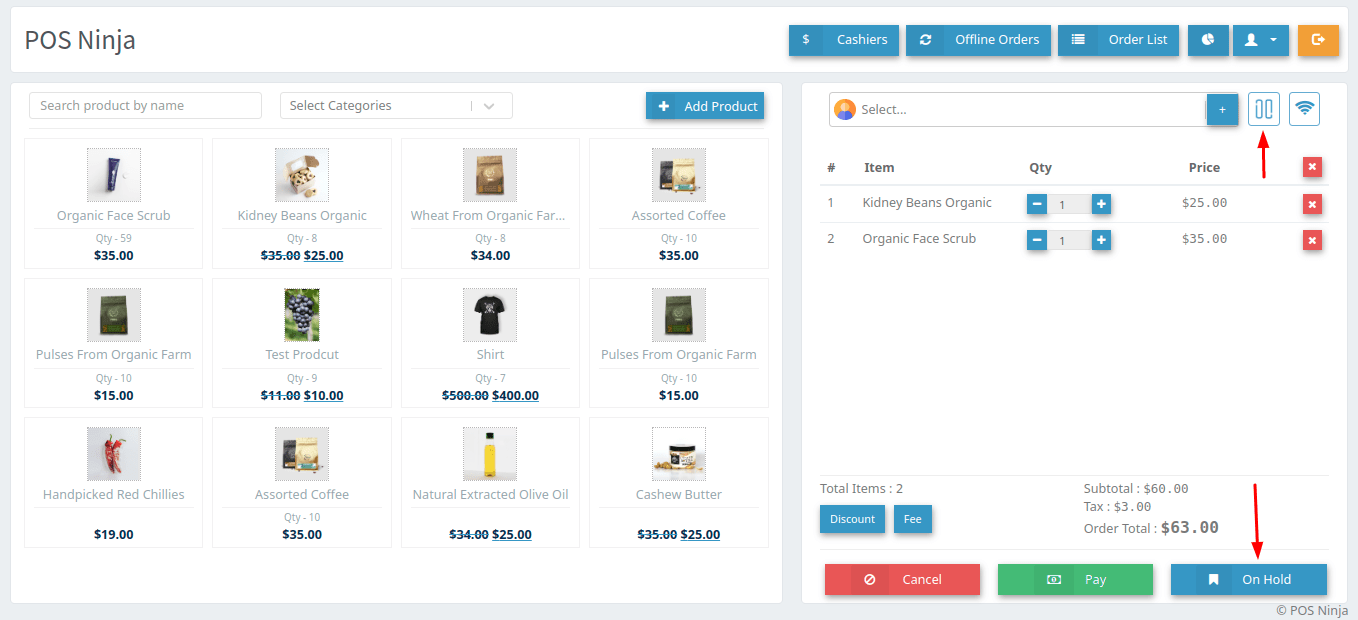
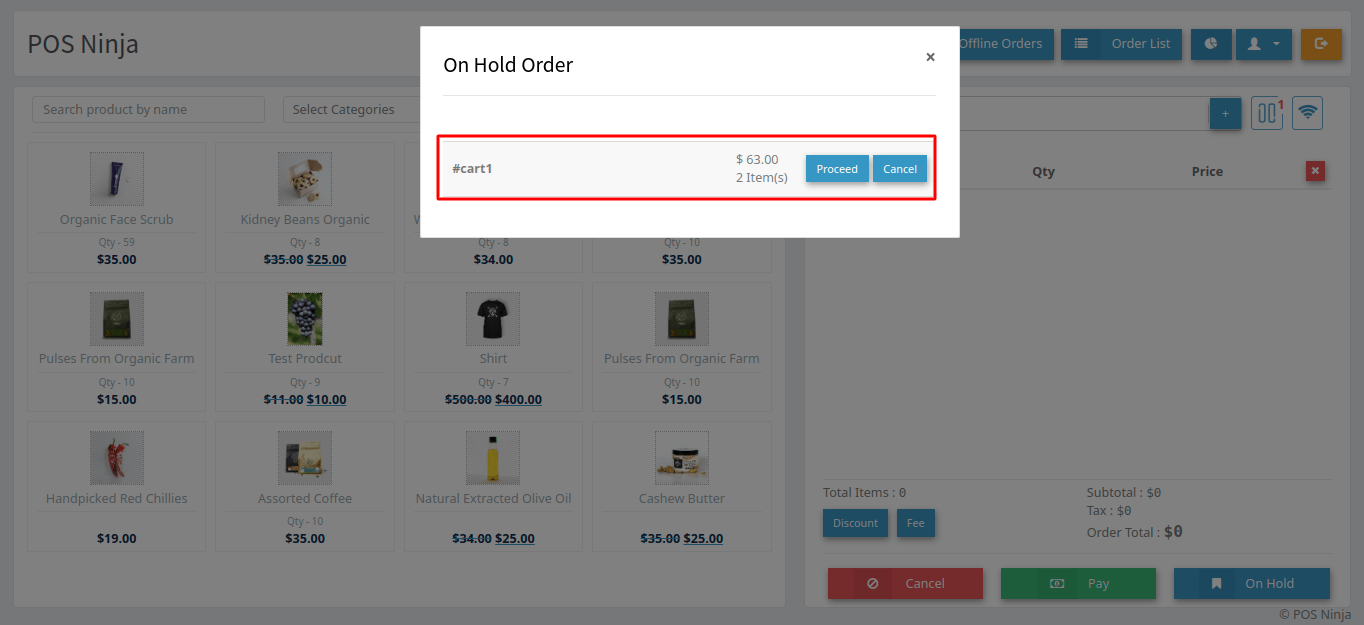
On Hold Orders
Fee
We can add the extra fee into the orders total. Click on the Fee button. Enter the name, amount and click on Add button. Then that fee will be added into the order total amount.
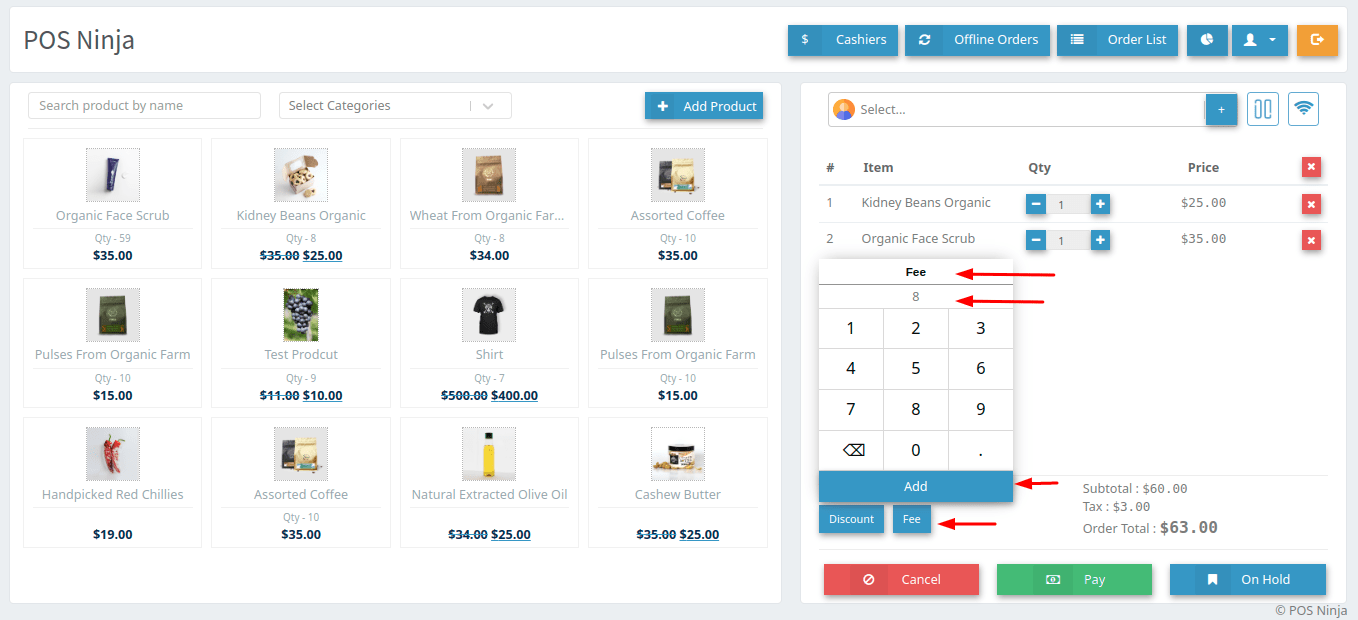
Image 14
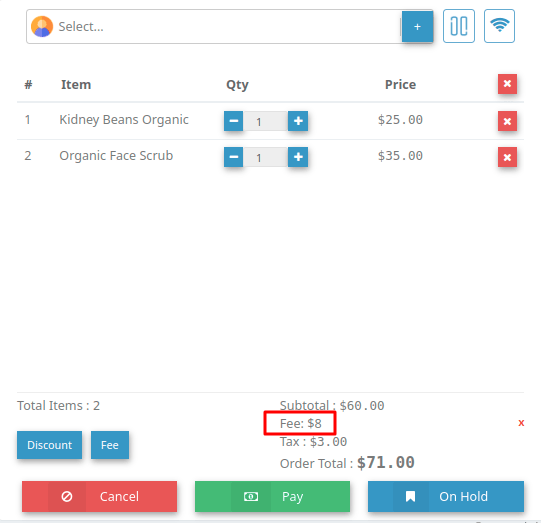
Image 15