
Creating “ Local Pickup Location” shipping method.
After installing and activating “Local Pickup for WooCommerce” it will appear in the WordPress backend’s left pane, as illustrated in the image below.

The initial step is to include the Pickup Locations, which refers to the areas where you wish to offer local pickup shipping to your customers.
- Navigate to the “Pickup Locations” tab by clicking on the “Local Pickup” Settings
- Enter the details of the pickup location, including its name, postal code, state, and other relevant information.
At least one pickup location must be added before creating the “Local Pickup Location” method.
To add a new shipping zone in WooCommerce, navigate to WooCommerce > Settings > Shipping, and then click on the “Add Shipping Zone” button
First, enter the name of your zones. Then, select “Add Shipping Method” and proceed to choose.
Select “Local Pickup Location” as the shipping method, then save the changes.
Note : Our plugin offers the “Local Pickup Location” method, while the “Local Pickup” shipping method is a default option provided by WooCommerce. To use our plugin’s method, be sure to select “Local Pickup Location“
Pickup Location > Edit Location Screen
You can access location-related settings, such as pickup date, pickup time slot, order limit, lead days, lead hours, and more, on the location edit screen.
To access the “Edit” option, follow these steps: Click on “Local Pickup” Settings, then navigate to the “Pickup Locations” tab, and click on the corresponding Edit button, as illustrated below
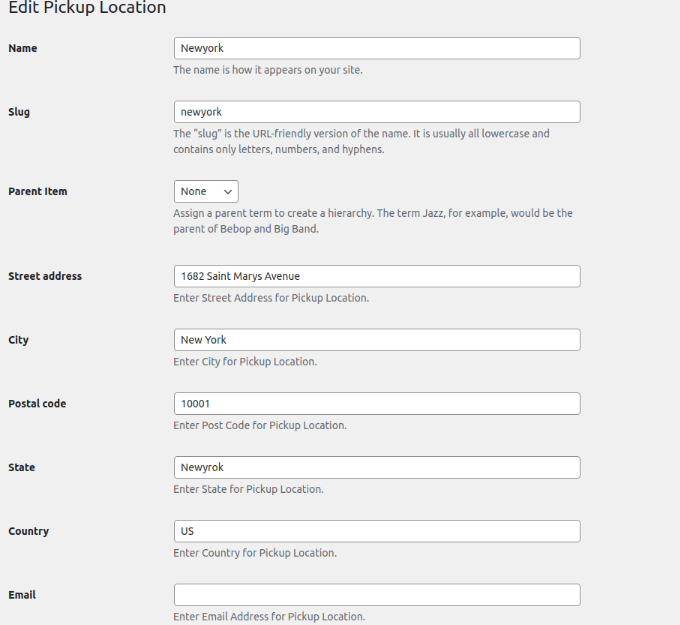
Name: Please provide the name of the location, shop, or warehouse where you intend to offer the Local Pickup Location method
Slug: The term “slug” refers to the URL-friendly version of the name, which typically consists of all lowercase letters, numbers, and hyphens. You may also leave it empty if desired.
Street Address: Please enter the street address for the Pickup Location/Pickup Shop name where you plan to offer the local pickup service.
City: Provide the name of the city where your pickup location is situated.
Postal code: Input the Post Code for your Pickup Location.
State: Please enter the State for your Pickup Location.
Country: Provide the Country for your Pickup Location
Email: Input the Email Address for your Pickup Location.
Phone:Please provide the Phone Number for your Pickup Location.
Select Products: Choose the Products Availability for your Pickup Location. You may select either all products or specific products.
Pickup Appointments:
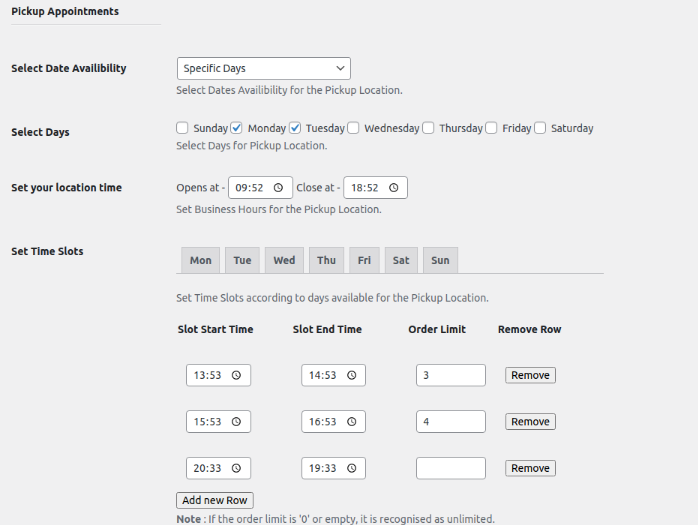
Select Date Availability: Choose the Products Availability for your Pickup Location. You may select either all products or specific products
When selecting specific days for providing local pickup service, ensure that you check the corresponding days. If you opt for specific dates, you must select them from the field below.
Set your location time:- Establish the Business Hours for your Pickup Location.
Set Time Slots:Configure the Time Slots based on the available days for your Pickup Location. You have the option to set a specific time slot for each day.
For ex: Mon – 10am – 11 am , Tue – 4pm -5pm
Lead Time in Hours:
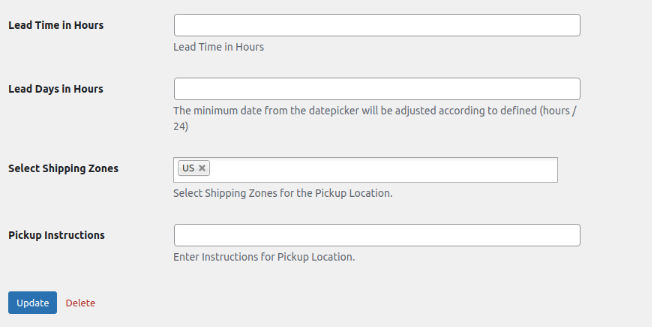
To indicate the lead time in hours, input the appropriate value. For instance, if there are two time slots such as:
If you have two time slots available, such as Mon- 10 am -11am, 11am- 12pm, and the lead time in hours is set to “1”, then users will not be able to select the current time slot for pickup when the time is 10 am.
Lead Days in Hours: Choose the days you wish to skip, in hours format.
Select Shipping Zones: -Please choose the Shipping Zones for your Pickup Location.
Pickup Instructions:- Enter the instructions for your Pickup Location, which will appear on the checkout page.
Local Pickup Details will displayed like the below image on the checkout page
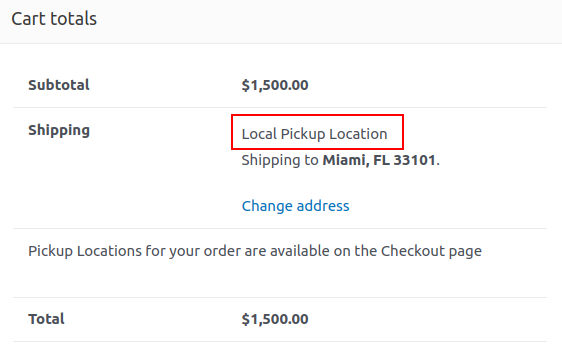
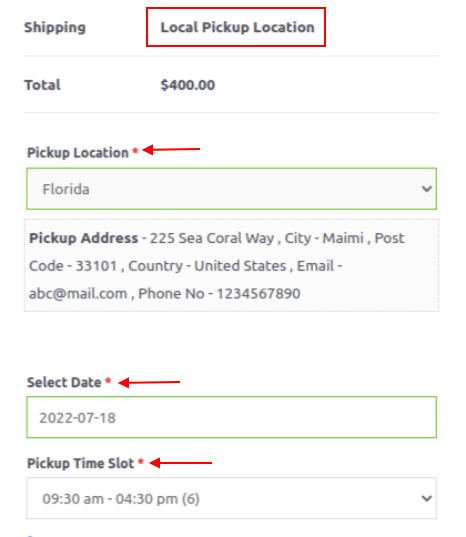
Local Pickup Details – Checkout Page