General
To access the General Tab, navigate to Local Pickup Settings and click on it.

- Enable Pay at Pickup – Enabling this setting will allow users to pay at the time of pickup. Once turned on, the “Pay at Pickup” option will appear under the payment method on the checkout page.
- Hide Shipping Address:-To hide the shipping address, you can enable these settings.
- Enable to Show date and time as optional:-To make the Date and Time slots set as optional on checkout page if you enable this setting.
- Enable to allow Pickup Date to be required in Checkout and Enable to allow Pickup Time to be required in Checkout:-To make the Date and Time slots mandatory on the checkout page, you can activate this setting. On the other hand, if you prefer them to be optional or not required, you can deactivate this setting.
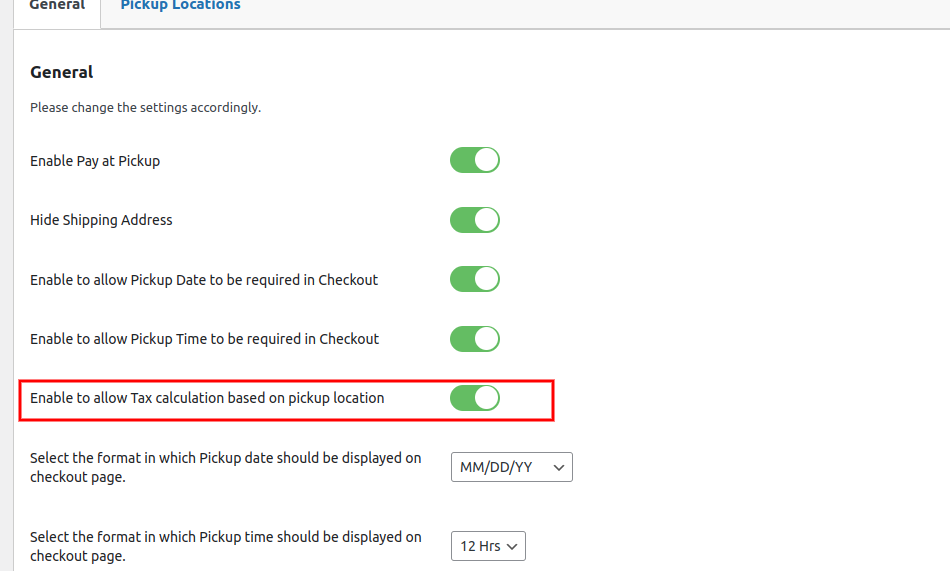
- Enable to allow Tax calculation based on pickup location:-When a user selects a pickup location from India during checkout, Tax2 is applied, while selecting a pickup location from the US will apply Tax.
1. Go to the Wocommerce Setting. >> Go to the General tab. >> Enable the taxes setting from the general tab. 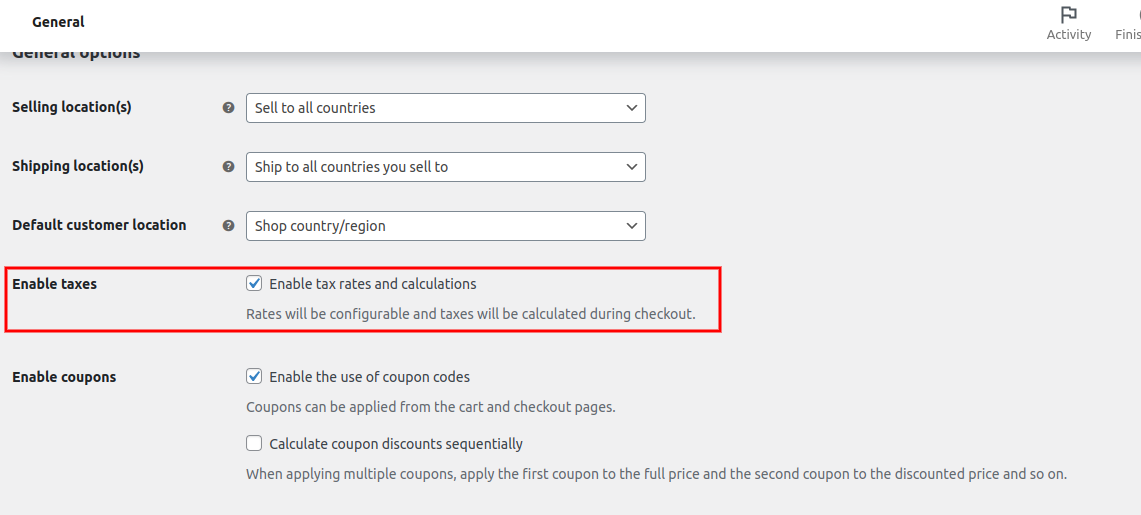
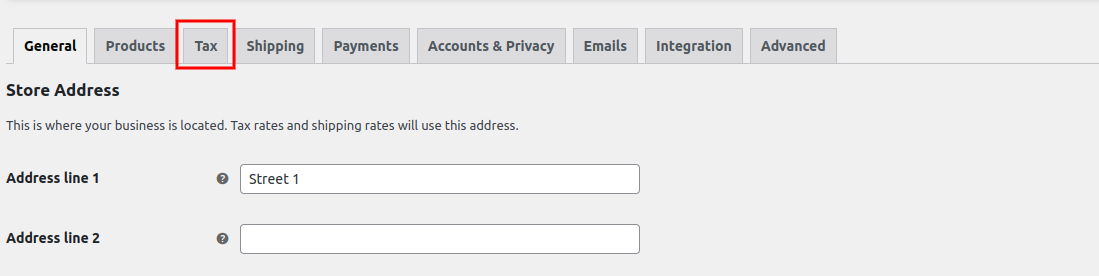
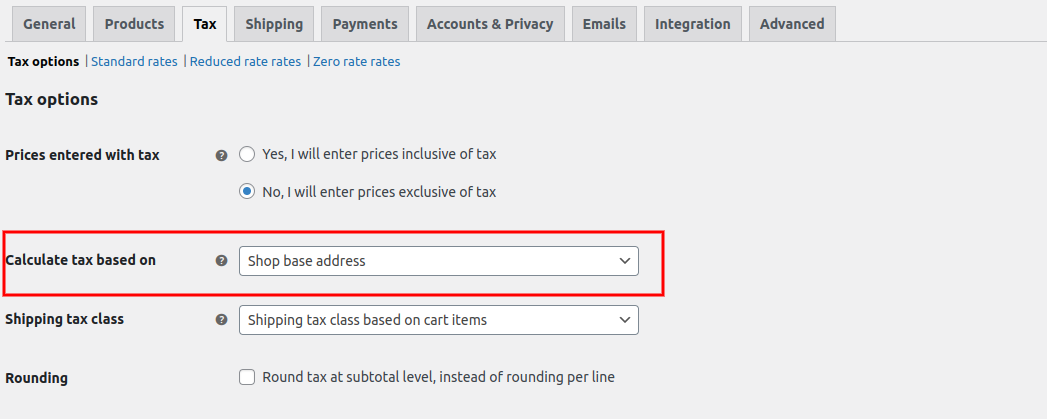
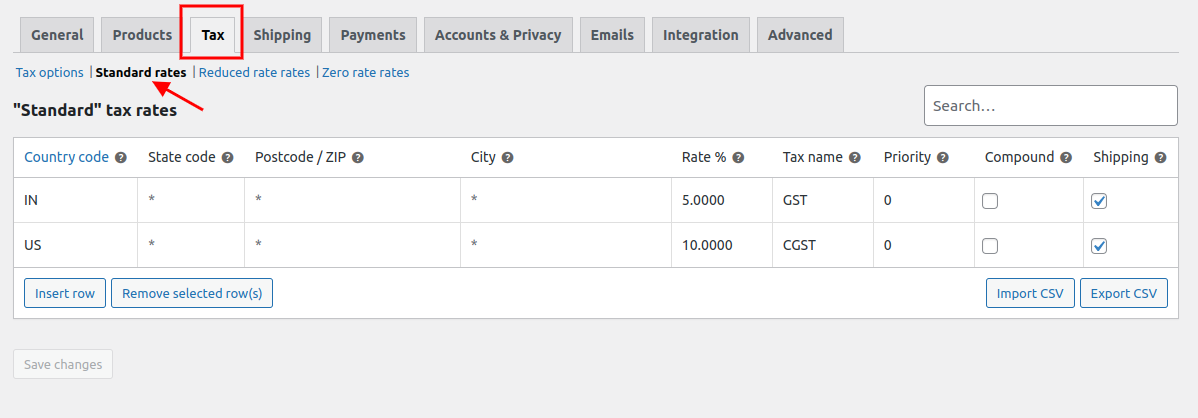
2. After accessing the Tax tab, choose Shop Base Address as the basis for calculated tax. Then, proceed to the Standard Rates and create the necessary tax for the desired country according to your preferences.
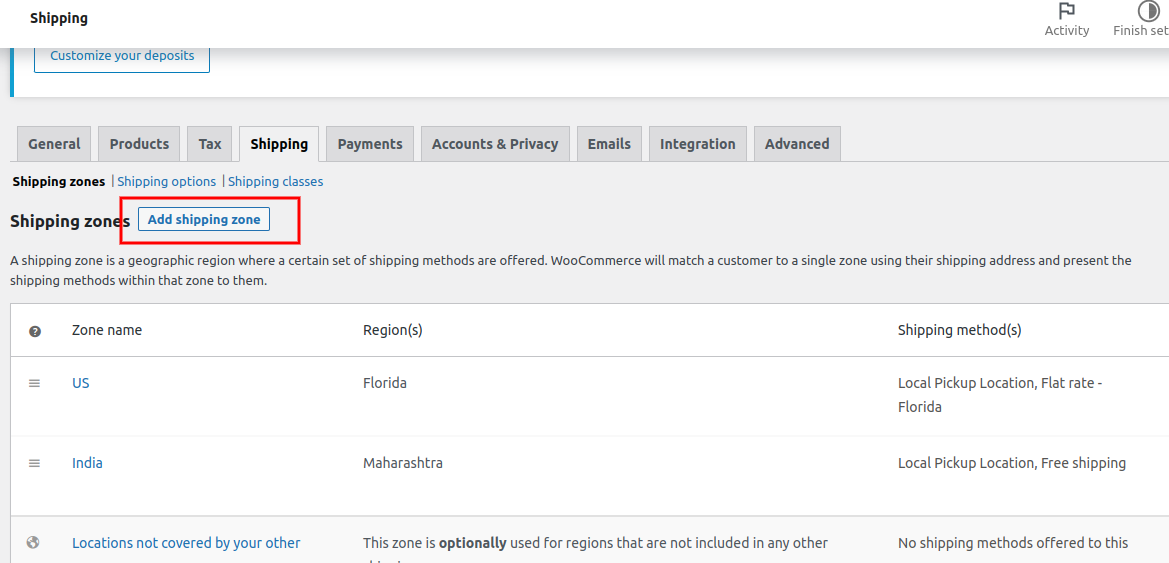
3. You can add shipping zones and methods by following these steps:
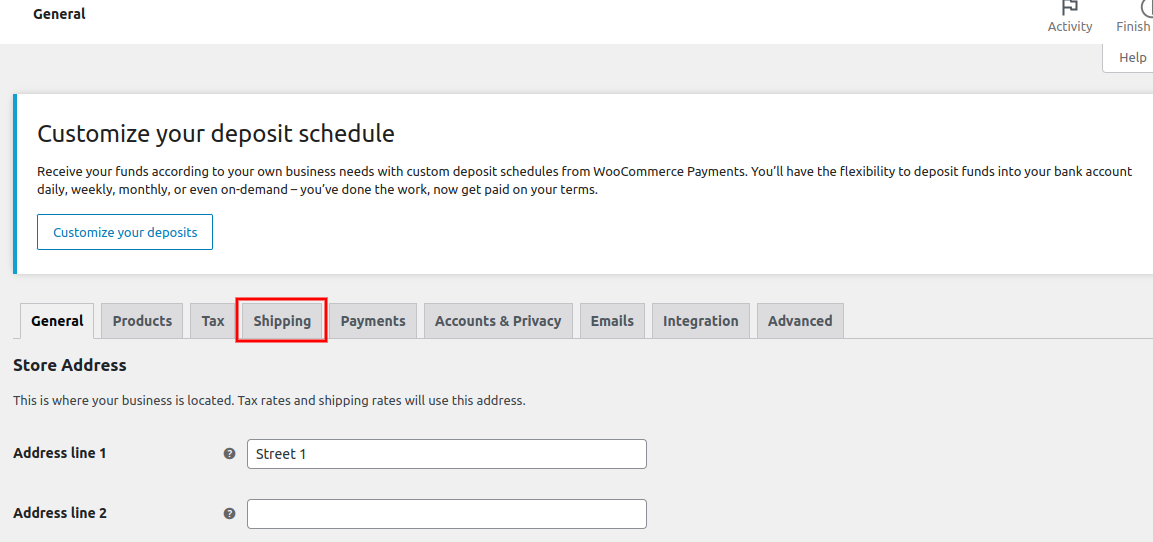
To add shipping zones and methods, go to the Shipping tab in Woocommerce settings, click on the “Add Shipping Zone” button, and then proceed to input the desired shipping zones and methods.
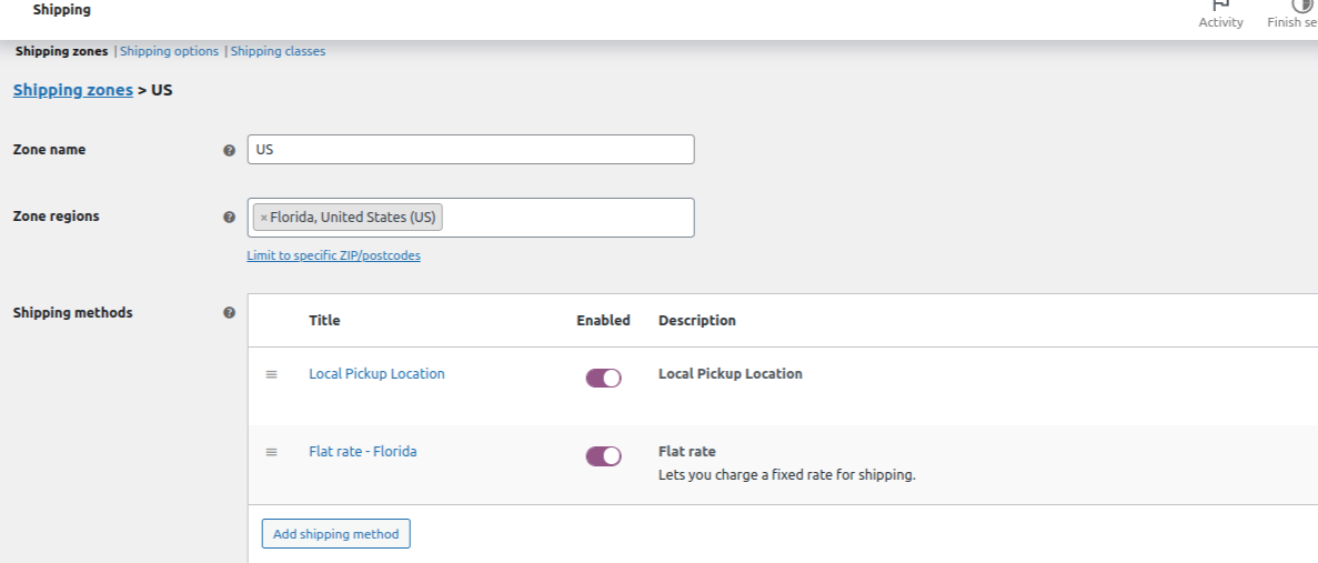
- Access the “Pickup Location” section and edit the locations, then assign the appropriate shipping methods to the designated pickup location.
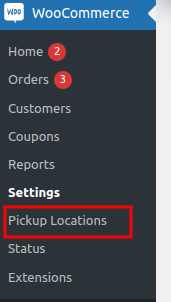
5.To enable tax calculation based on pickup location, click on “Local Pickup Setting” and activate the “Enable to allow Tax calculation based on pickup location” setting.
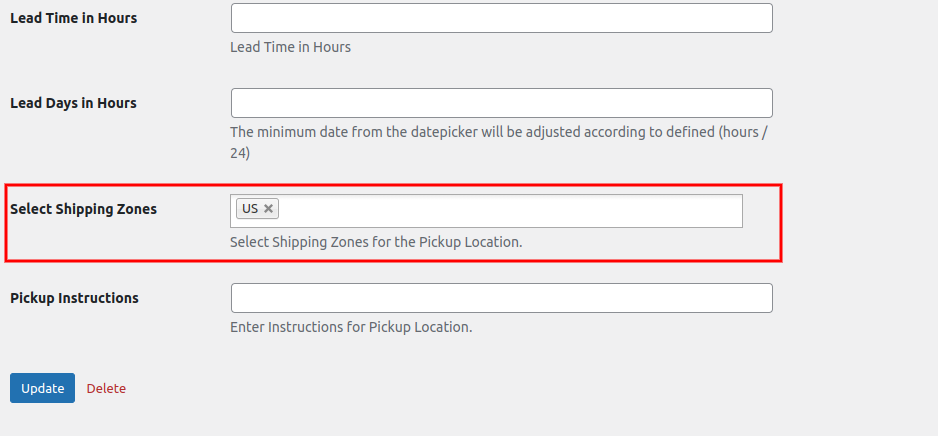
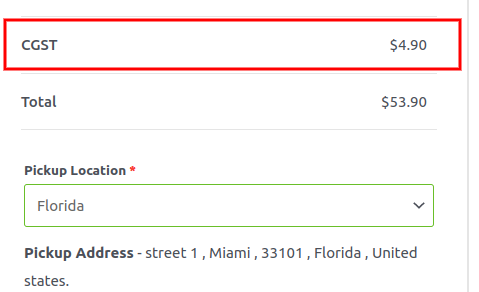
- After completing the steps, the tax rates displayed on the front-end of the website should change based on the pickup location selected by the customer during the checkout process.
- Select the format in which the Pickup date should be displayed on the checkout page – Choose the preferred date format for display on the checkout page for the pickup date. You can select from various date formats available in the dropdown menu.
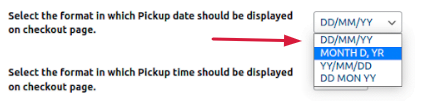
- Select the format in which the Pickup time should be displayed on the checkout page – You can choose the desired format for the pickup time slot to be displayed on the checkout page. The available options include “24” hour or “12” hour format for time slots.
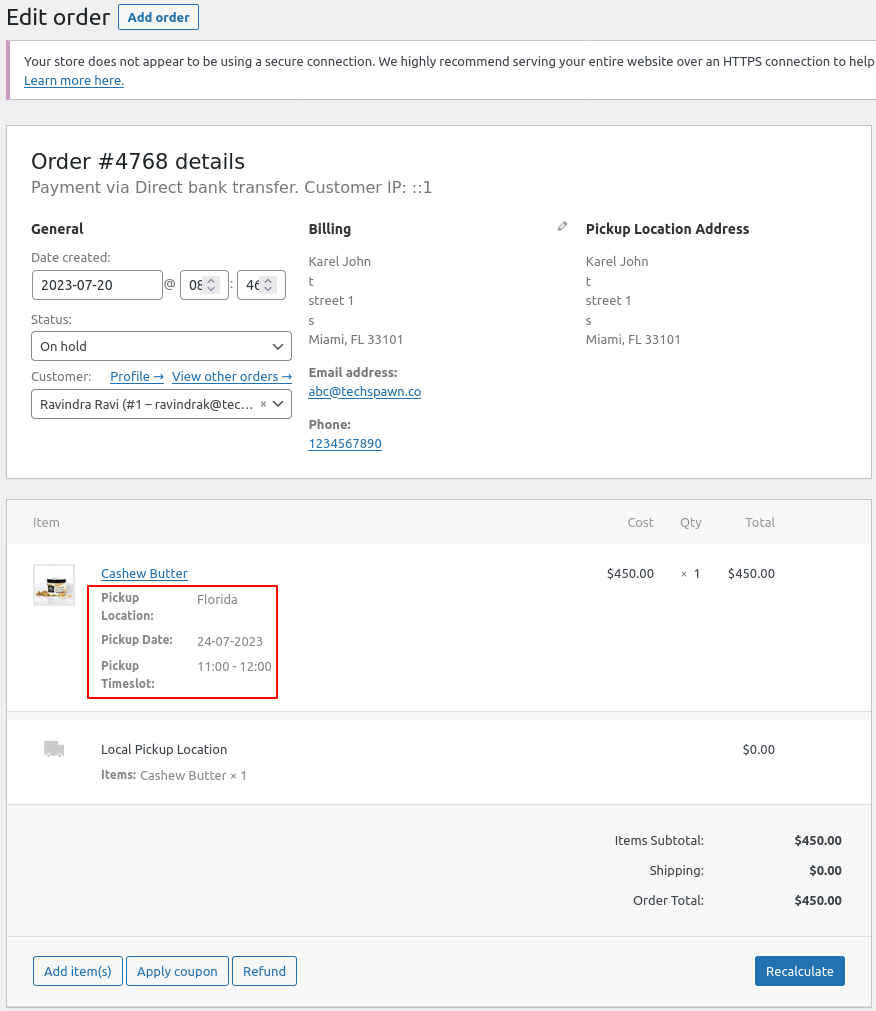
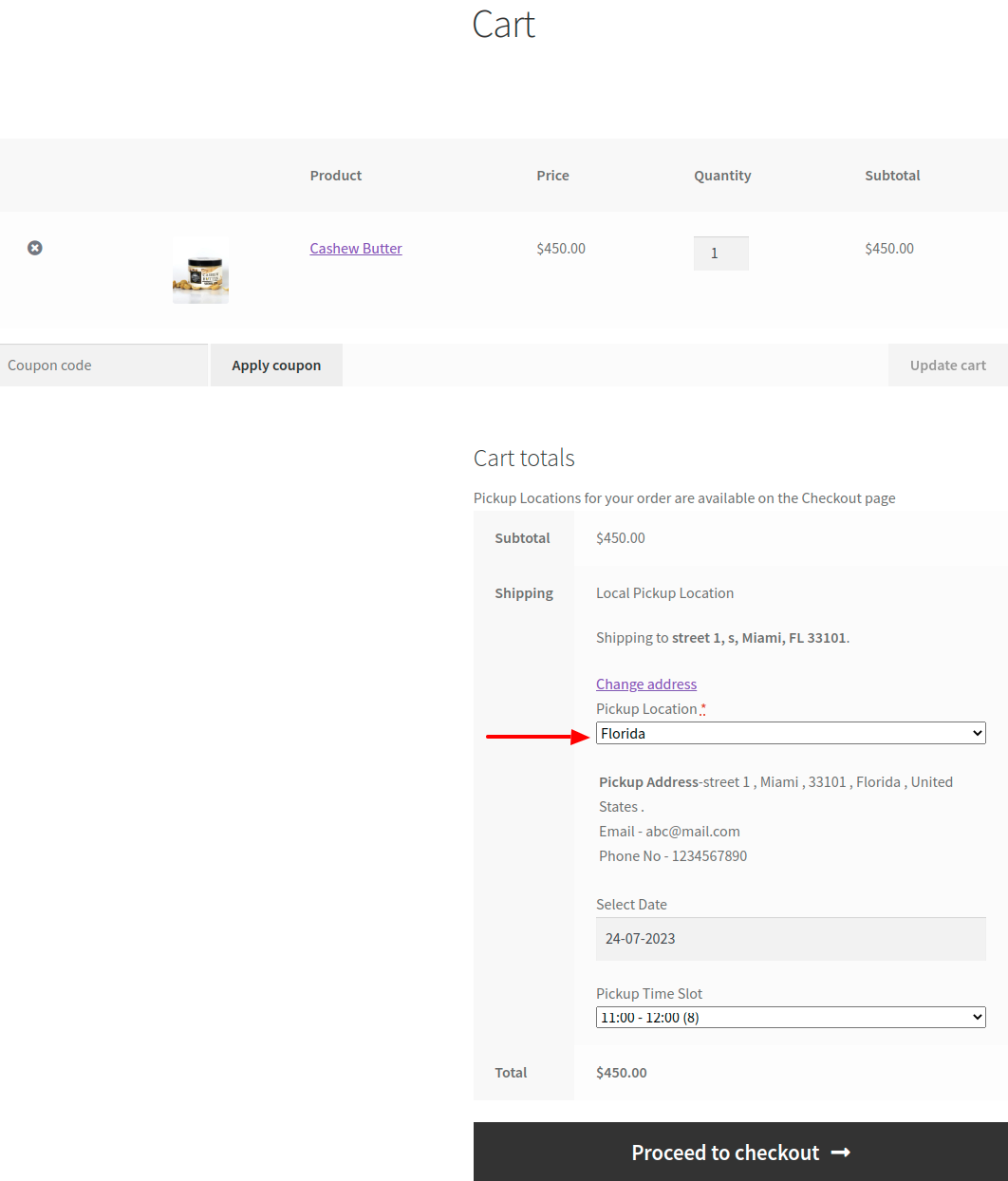
Navigate to the front end of the platform. Proceed to add the desired product to the cart. Then, from the drop-down menu, choose your preferred Pickup location, and finally, select the desired date and time for the pickup
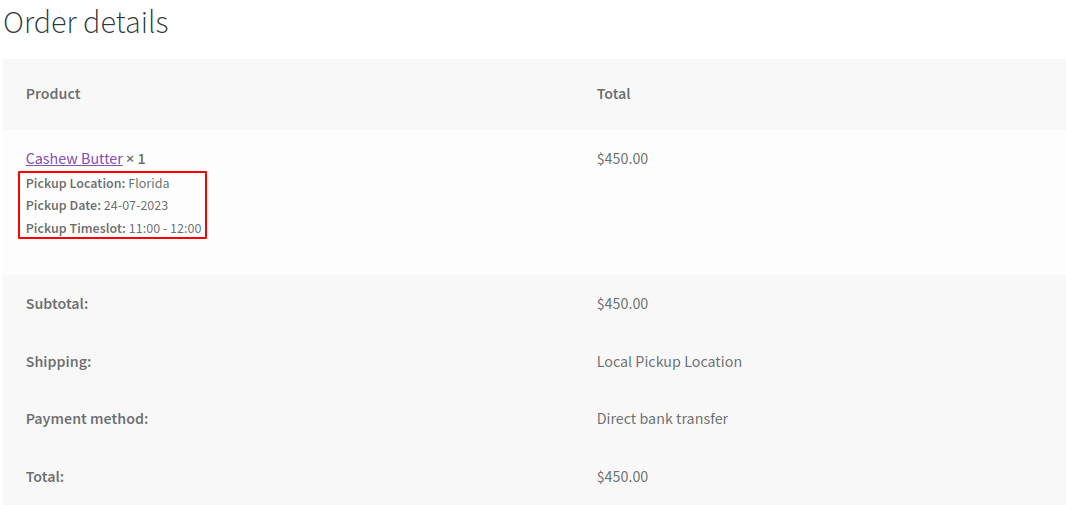
Access the system as a Pickup Location Manager to view all incoming orders designated for pickup at your location.