
- Go to WP Backend → Click on “StockUpp Split Order”
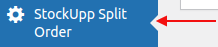 Image 01
- Once we click on that, You can see the below screen as.
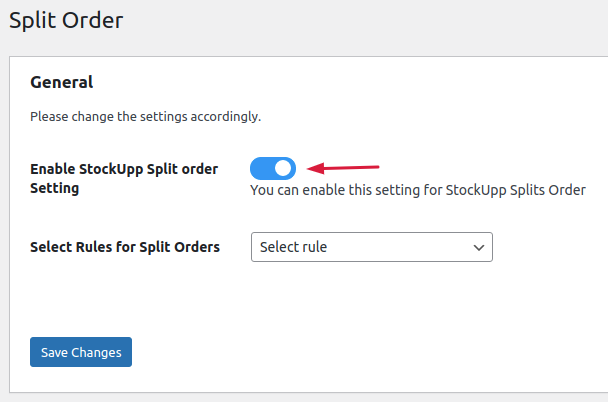 Image 02
- Enable Stockupp Split Order Setting: The plugin will not work unless you enable this setting.
- Select Rules for Split Orders: You can Select any one rule (option) from the dropdown to decide how the order will be split. The plugin allows you to automatically split orders in a variety of ways. You can set up rules for the plugin to work with, such as splitting based on category or stock status.Please Select the appropriate rule to split orders automatically based on rules in plugin settings.
 Rules to Split orders automatically
3 . Let’s see how “StockUpp Split Order for Woocommerce” works one by one for each rule
- Category
- Product
- Stock Status (Instock, Backorder products)
- Stock Quantity
- Split Per line Item
- Location
- Category: If you select a “Category” rule then the order can be split on the basis of product category.
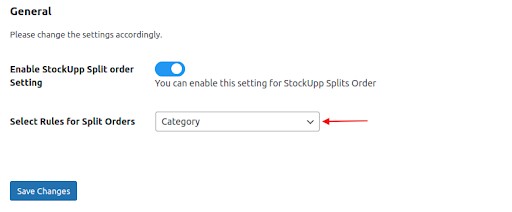
For Example:
- Look at the example where the user chooses the “Category” rule. If a user adds two products to their cart, one from the “Kitchen Crockery” category and another one from the “Furniture” category.
- It will be split into 3 orders ID

After placing the order, the order section in the backend of WordPress looks like this.
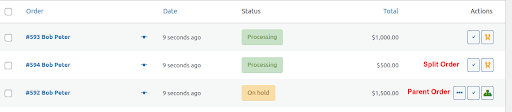
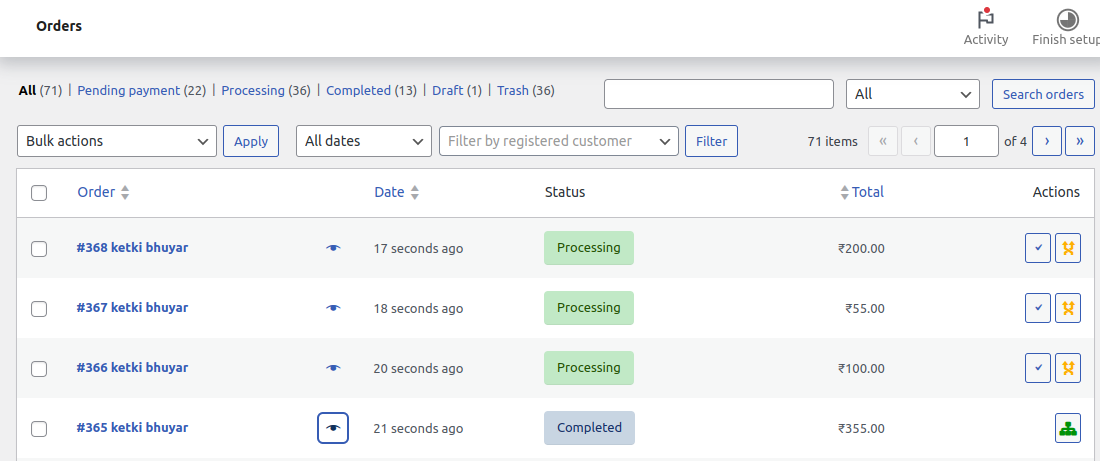
As you can see in the images above.
- The main order or parent order is represented by the green color icon.
- A split order is represented by the orange color symbol.
Note: From Screen Options Make sure that “Actions” option is enabled to see green and orange symbols for parent and split order.
- Product – If you select a “Product” rule then the order can be split on the basis of the number of different products.
For Example: - Look at an example where the user chooses the “By Product” rule. If a user adds a number of different products then the order will be split that number of times.
- If a user adds 3 products to the cart then the order will be split 3 times with the name of that product.

After placing the order, the order section in the backend of WordPress looks like this.
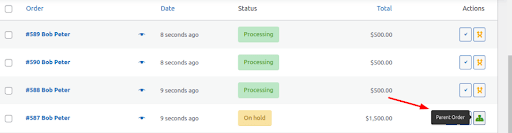
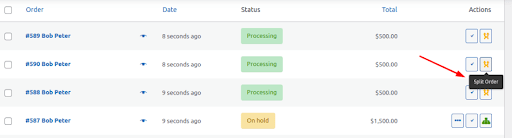
It generated different order ids dependent on the product, as well as a single primary order that contained all of the products.
- Stock Status (Instock, Backorder products): If you select a “Stock Status” rule then the order can be split on the basis of stock status.
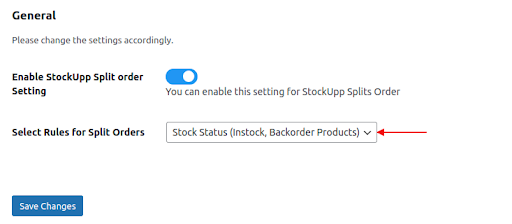 For Example:
- I have 2 products in the cart one product status is in-stock and another product status is back order then order will be split into 2 times.


After placing the order, the order section in the backend of WordPress looks like this.
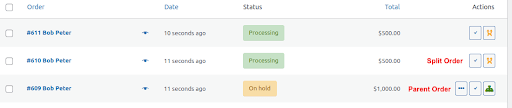
- Stock Quantity: If you select a “Stock Quantity” rule then the order can be split on the basis of Stock Quantity.After selecting the rule “Stock Quantity” you can see the below screen
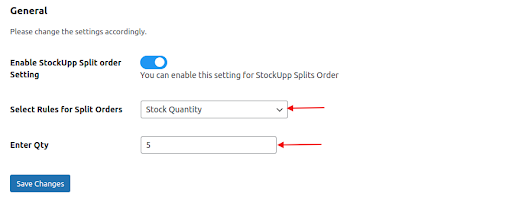
This rule will split an order basis on the stock quantity.
For Example:
- Quantity was set to 5. I have four items in my shopping cart.
- The first product has a quantity of two, the second product has a quantity of two, the third product has a quantity of six, and the fourth product has a quantity of seven.
- The order will then be split twice. It will split an order with less than 5 items in one order and more than 5 items in one order.
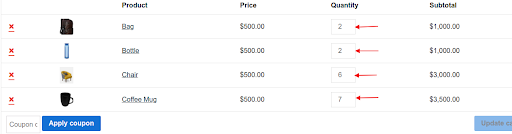
After placing the order, the order section in the backend of WordPress looks like this.

- Split Per line Item: If you select a “Split Per line Item” rule then the order can be split Seperatly based on each line item Quantity. After selecting the rule “Split Per line Item” you can see the below screen.
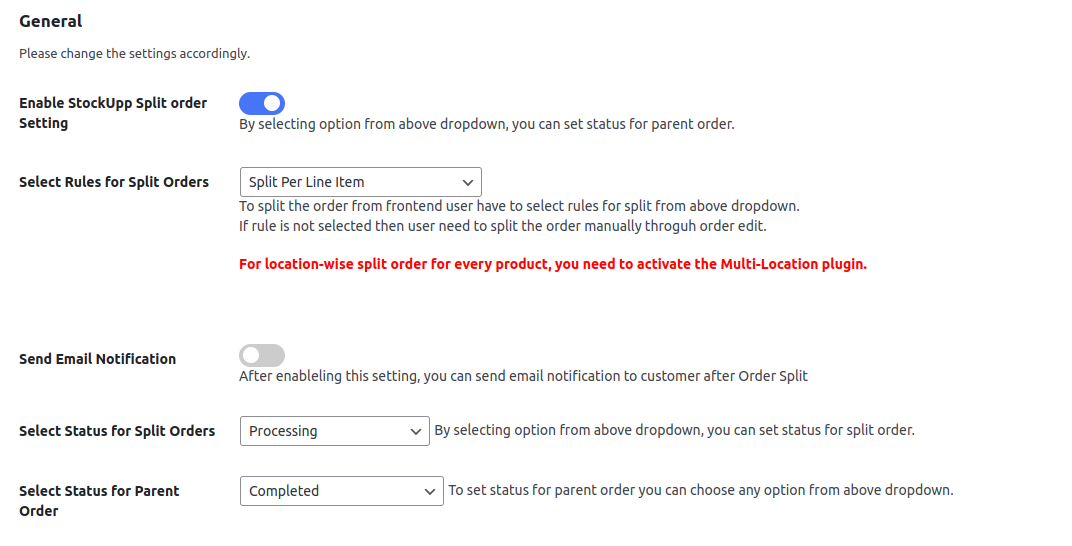
This rule will split an order basis split per every line item.
For Example:
- I have 3 products in the cart every product having quantity 1 then order will be split into 4 times.
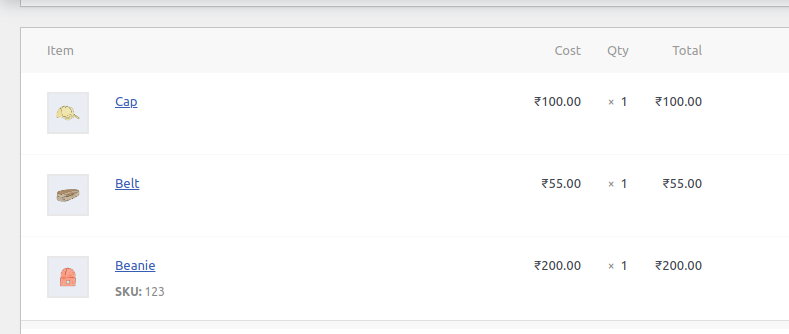
After placing the order, the order section in the backend of WordPress looks like this.
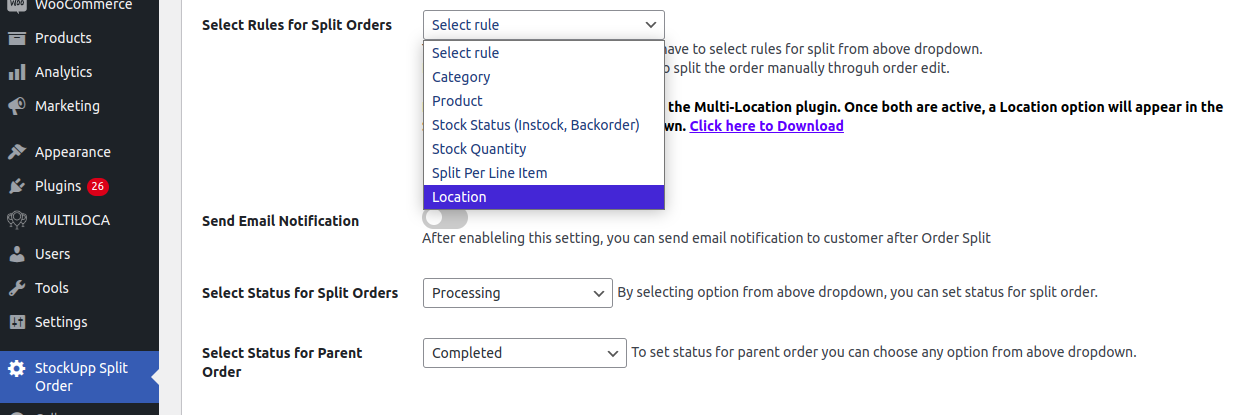
- Location: If you select a “location” rule then the order can be split based on Location wise. first Priority for location rule is that need to activate the “Multilocation Plugin”. After selecting the rule “location” you can see the below screen.
- For Example:
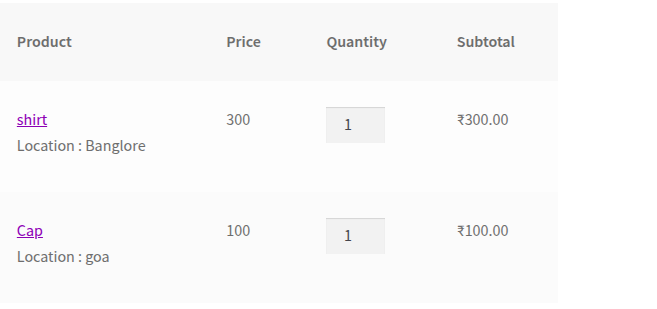
- Look at an example where the user chooses the “Location” rule. If a user adds a number of different products then the order will be split that number of times based on location wise.
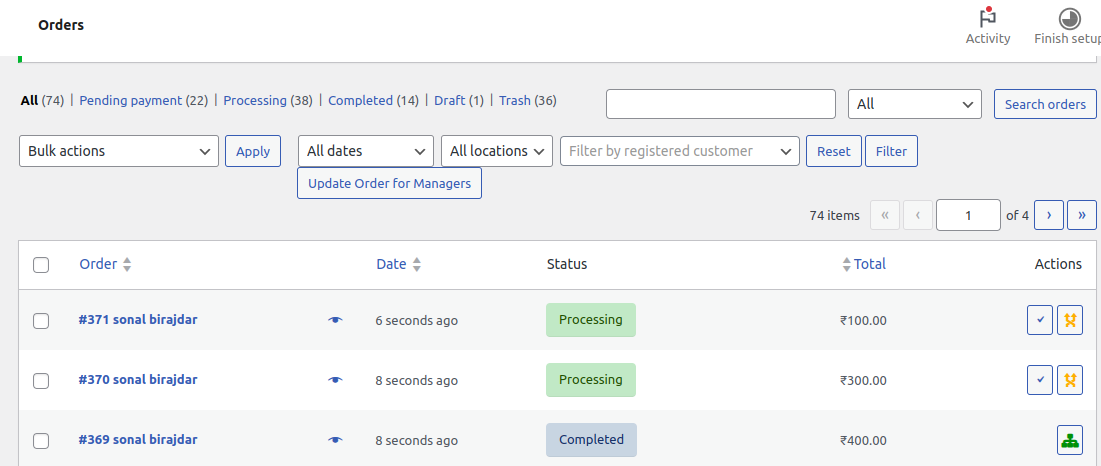
- If a user adds 2 products to the cart then the order will be split 2 times with the location of that product.
After placing the order, the order section in the backend of WordPress looks like this.
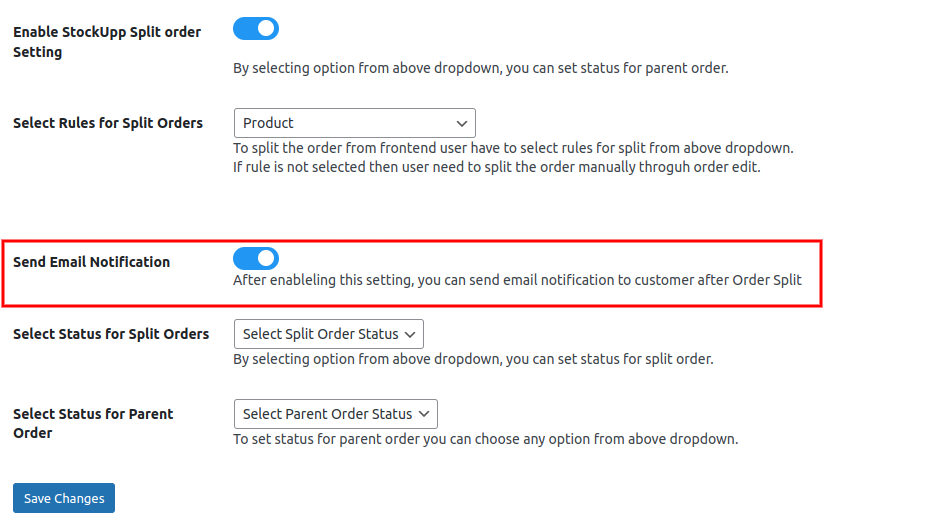
4. Send Email Notification:- After enabling this option, users can receive emails for their respective split orders.
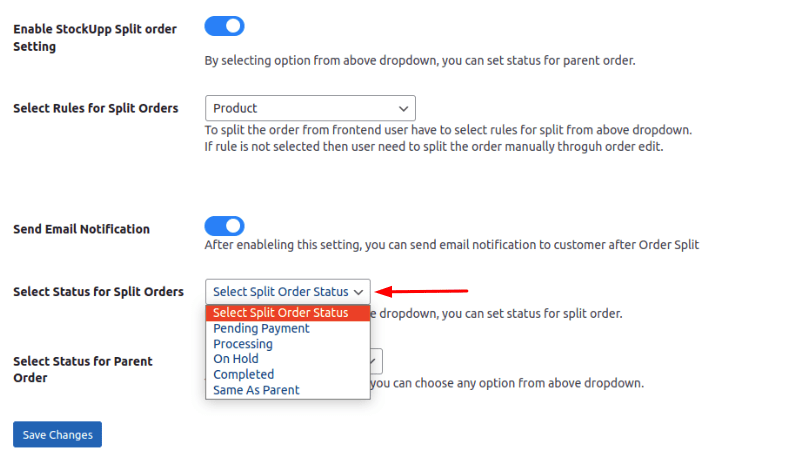
5. Select status for Split orders: Choose an order status for the split order. The split order status will be displayed based on your selection.
For example, if you select “Processing” as the split order status, the split order’s processing order status will be displayed in the back end after the order is split.
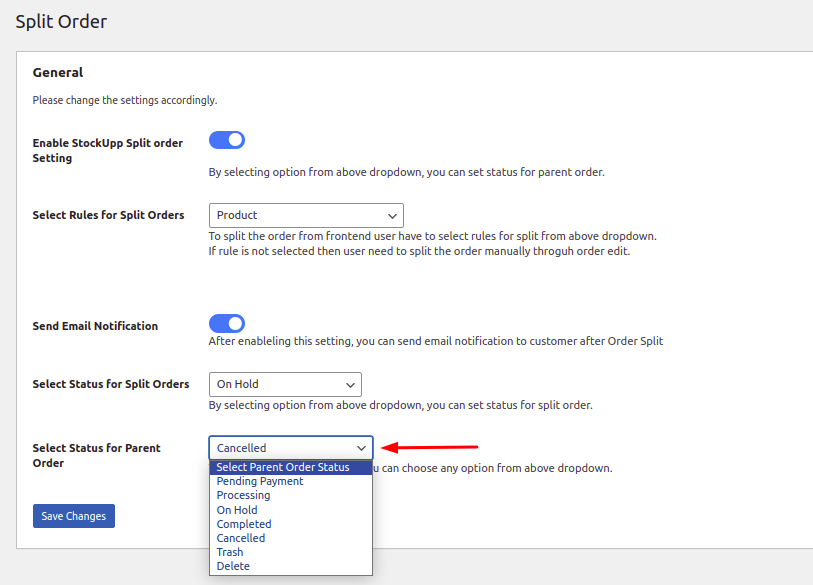
6. Select status for Parent Orders: Choose an order status for the parent order. The parent order status will be displayed based on your selection.
For Example
If you select “Completed” as the Parent order status, you will see the Completed order status for the parent order in the back end.
After placing the order you can see the order status on the order page.

After the end user places the order, the thank you page will display the details of the Main order and Split order, as shown in the image below.
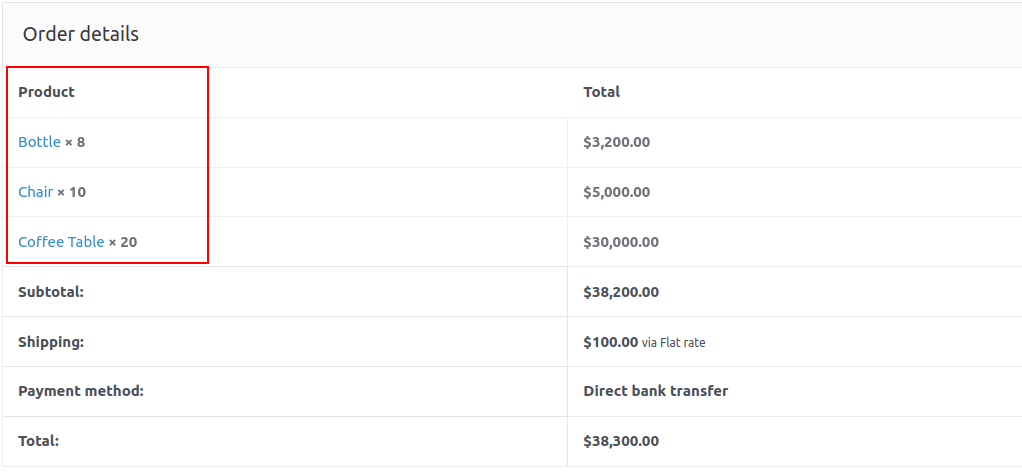 Details of Main Order (Parent Order)
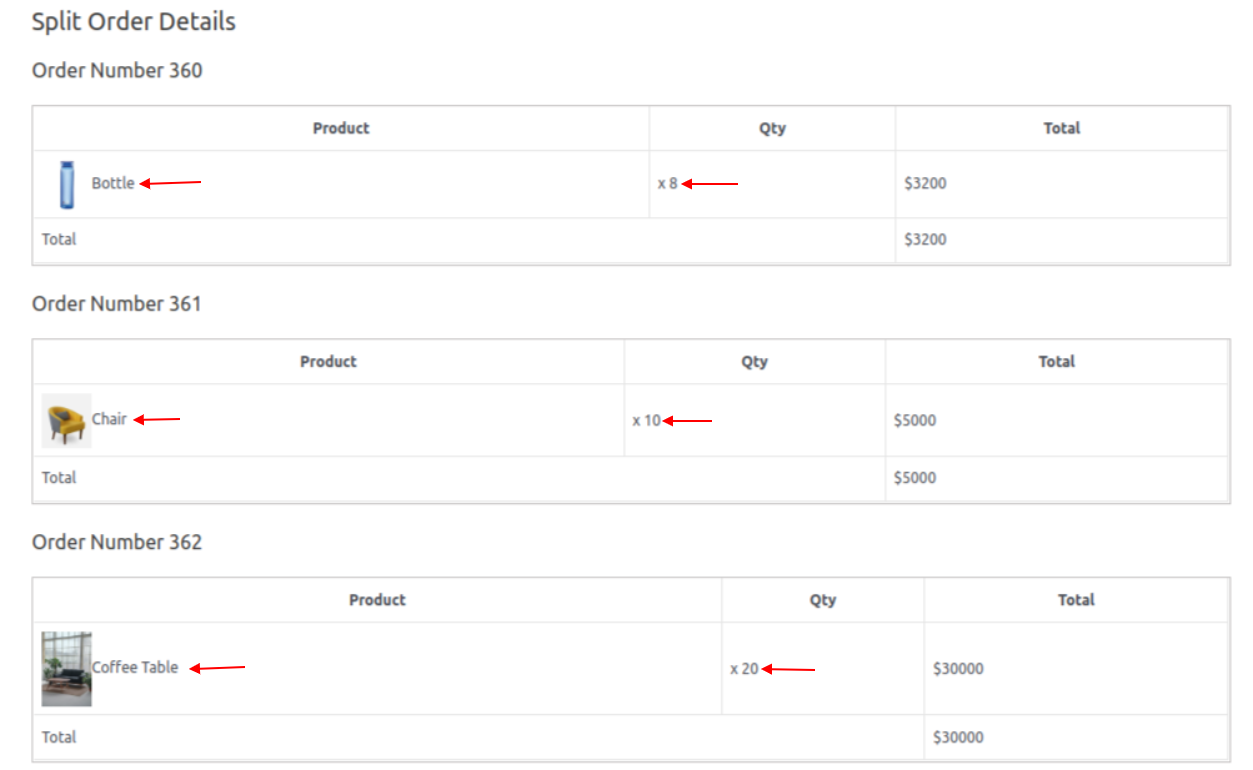 Details of Split order (child order)