
- Let’s have a look at an illustration to see how it functions. Click on “Split Shipping Address For WooCommerce ”

- You can see the below screen with the field as
- Enable: Enable the setting. The plugin will not work unless you enable this setting.
- Select Rule Type: You can choose any one option from the drop-down for the shipping address should be divided
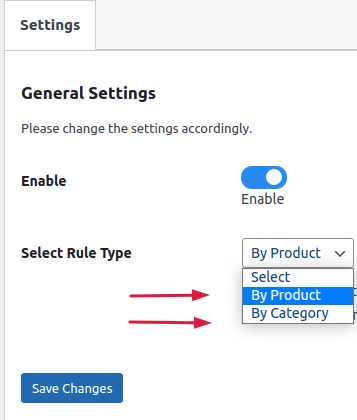
- By Product – If you select a “By Product” rule then the address can be split on the basis of the number of different products.
For Example:
Look at an example where the user chooses the “By Product” rule. If a user adds a number of different products then the shipping address will be split that number of times.
If a user adds 2 products to the cart then the shipping address will be split 2 times with the name of that product.
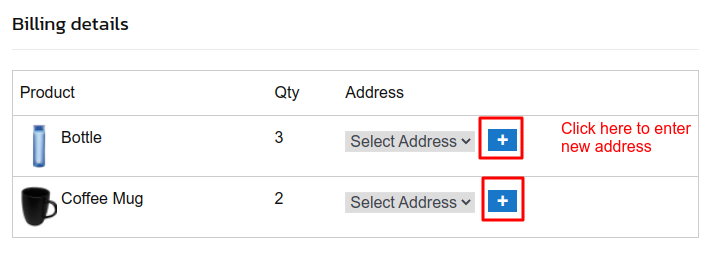 Fill up separate addresses
You can fill out separate addresses for each product after clicking on the “+” icon in the above image screen.
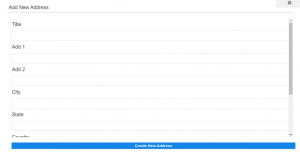 Address Detail
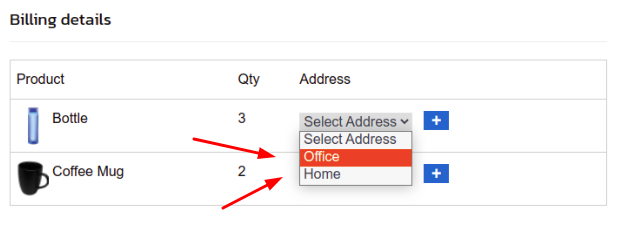 Select the Saved Address
As you can see from the below image.
- The order has been placed by product.
- On the order edit page, you can see the below the shipping address information “Current order has split shipping address by-product”
- On the same page, you can see how the address is separated by the product name
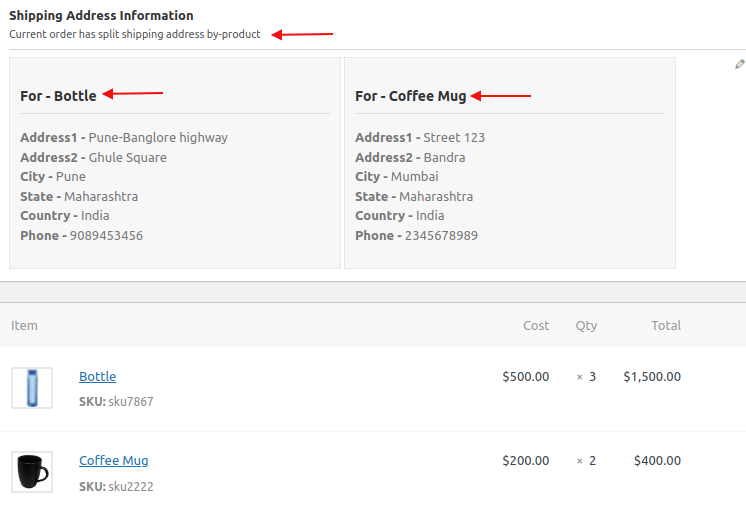
Backend Order details – By Product
- By Category: If you select a “By Category” rule then the address can be split on the basis of product category.
For Example:
- Look at the example where the user chooses the “By Category” rule. If a user adds two products to their cart, one from the “Kitchen Crockery” category and another one from the “Uncategorized” category.
- When you hover your mouse on the product quantity it displays the name of the product
- On the checkout, the page address will be split by the name of the category of the product.The shipping address will be split 2 times.
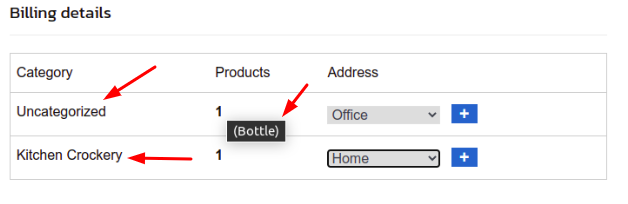
Split Address By Category
As you can see from the below image.
- The order has been placed by Category.
- On the order edit page, you can see the below the shipping address information “Current order has split shipping address by category”
- On the same page, you can see how the address is separated by the Product Category.
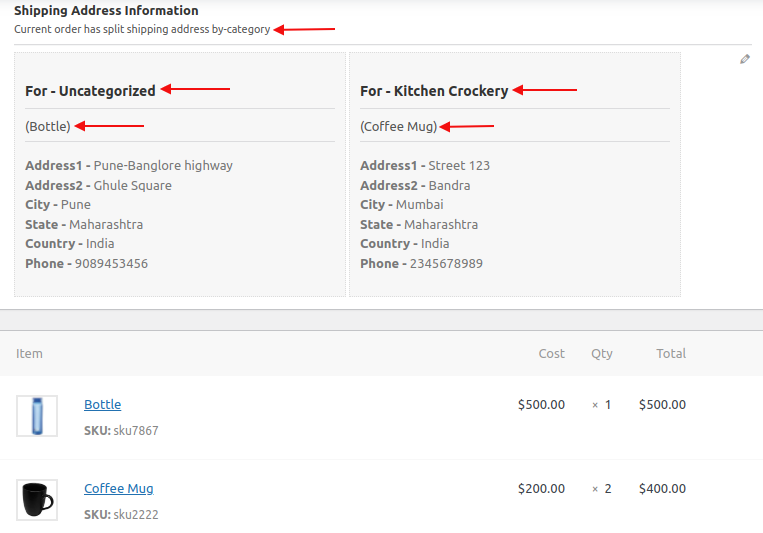 Backend Order details – By Category