
Once you installed and activated the WhatsCamp – WhatsApp Campaign & Marketing Plugin for WooCommerce . It will appear like the below image in the left pane of your WordPress backend

Image 1
Dashboard
Dashboard will displayed the Count of the user lists, Active Campaign Count, Campaign Completed Count, Sent Messages count.
Users Lists : In the User List all user list count will be displayed that we have created.
Active Campaign : In Active Campaign all the active campaigns list count will be displayed that we have created.
Completed : In Completed the completed count will be displayed. Completed status will be displayed in the campaigns list after message is sent.
Message : Sent message count will be displayed.
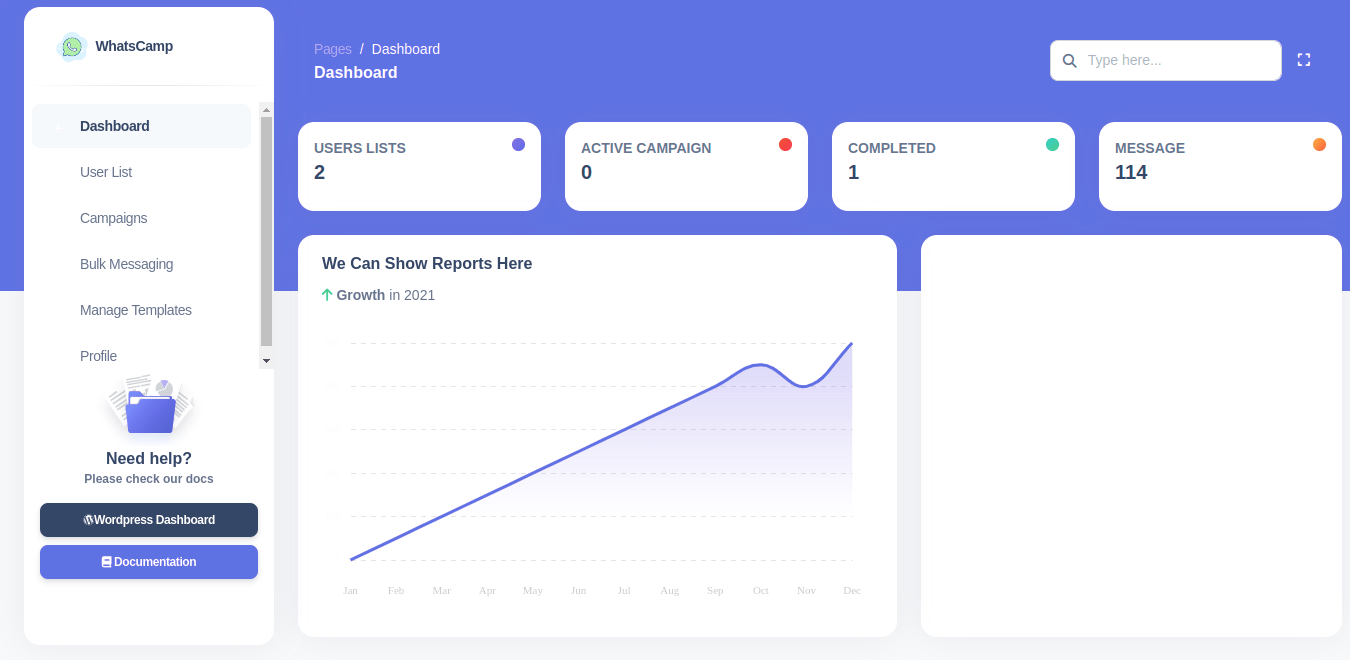
Image 2
User List
The administrator can create user list with the two types.
- User list Via CSV : Admin can create user list using CSV.
CSV File Format should like below image.
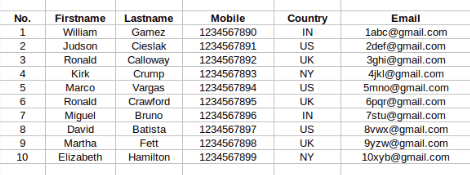
Image 3
To add the User List click on the Add New Button.
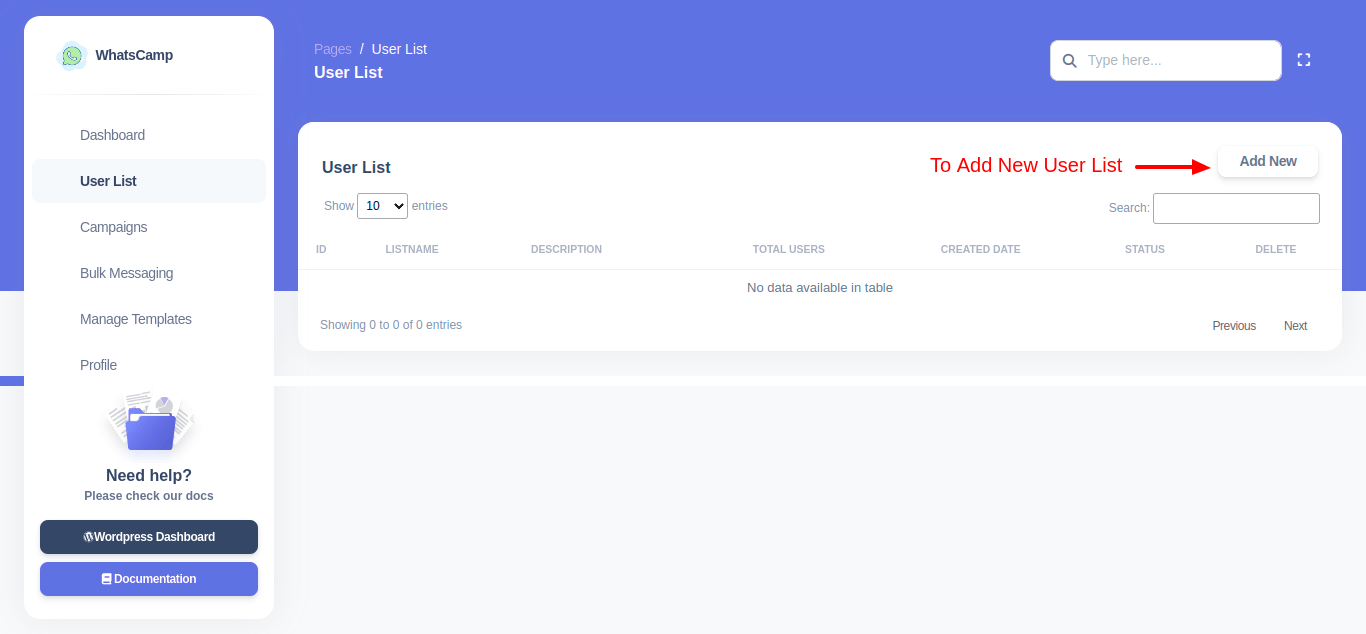
Image 4
Enter all the information. Choose the CSV file. Click on Create user List Button.
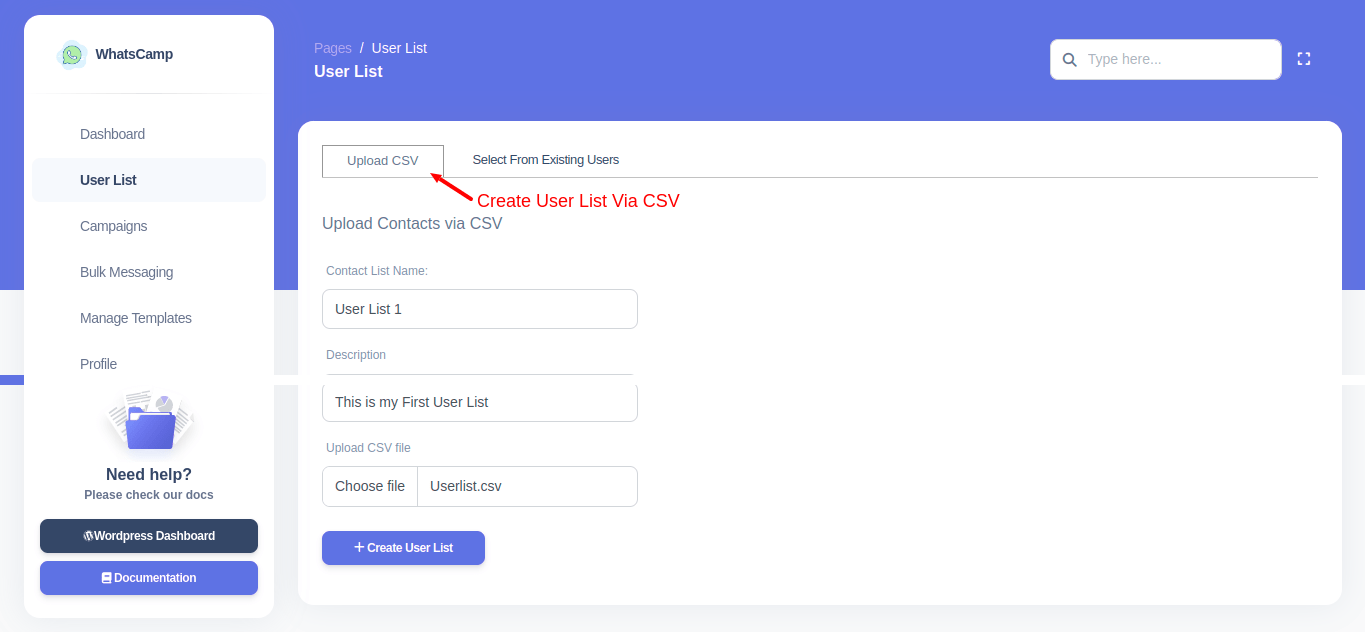
Image 5
2. User list Via Existing User : Admin can generate a user list by selecting Existing Users. The list of existing users will be displayed below the list name and description fields.
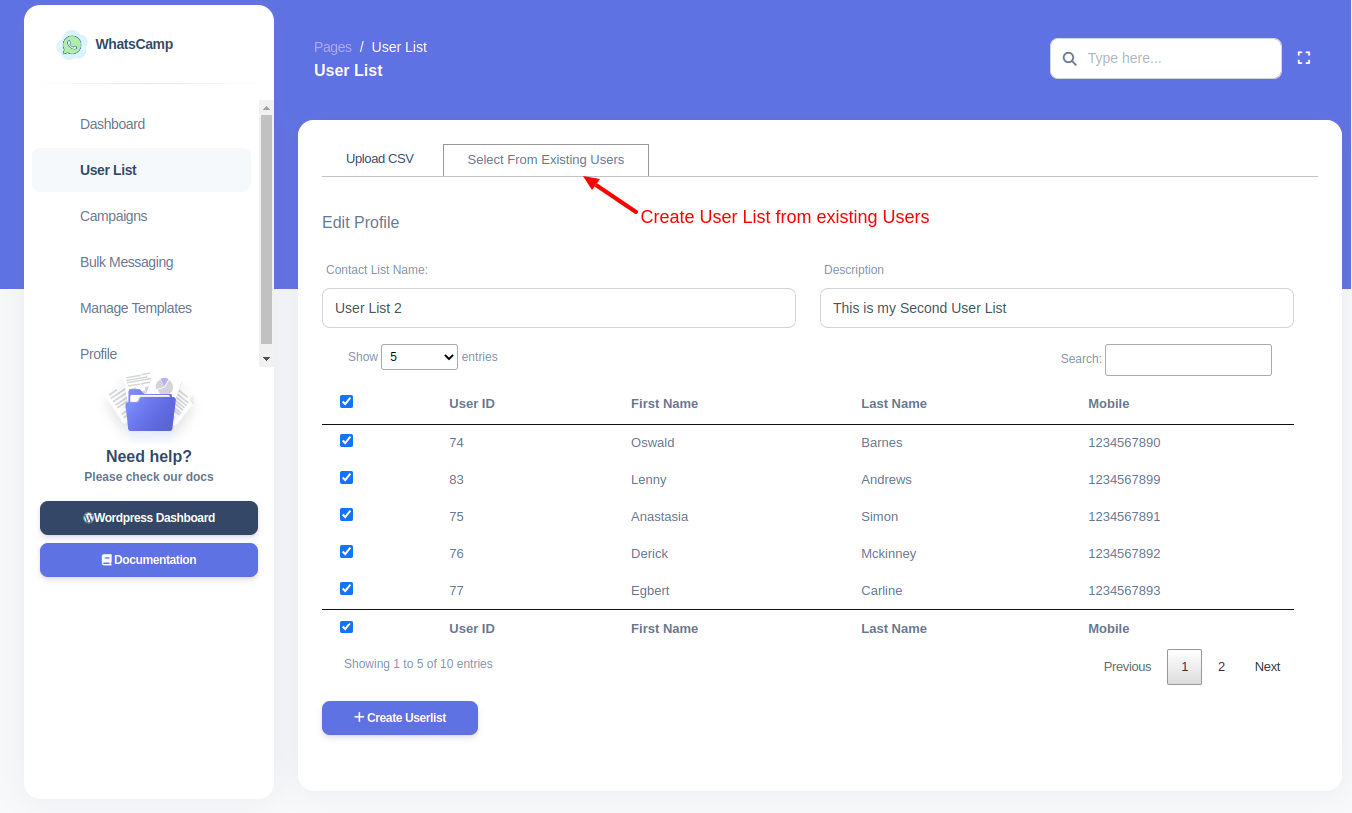
Image 6
Created user lists are displayed in the user lists along with the users count.
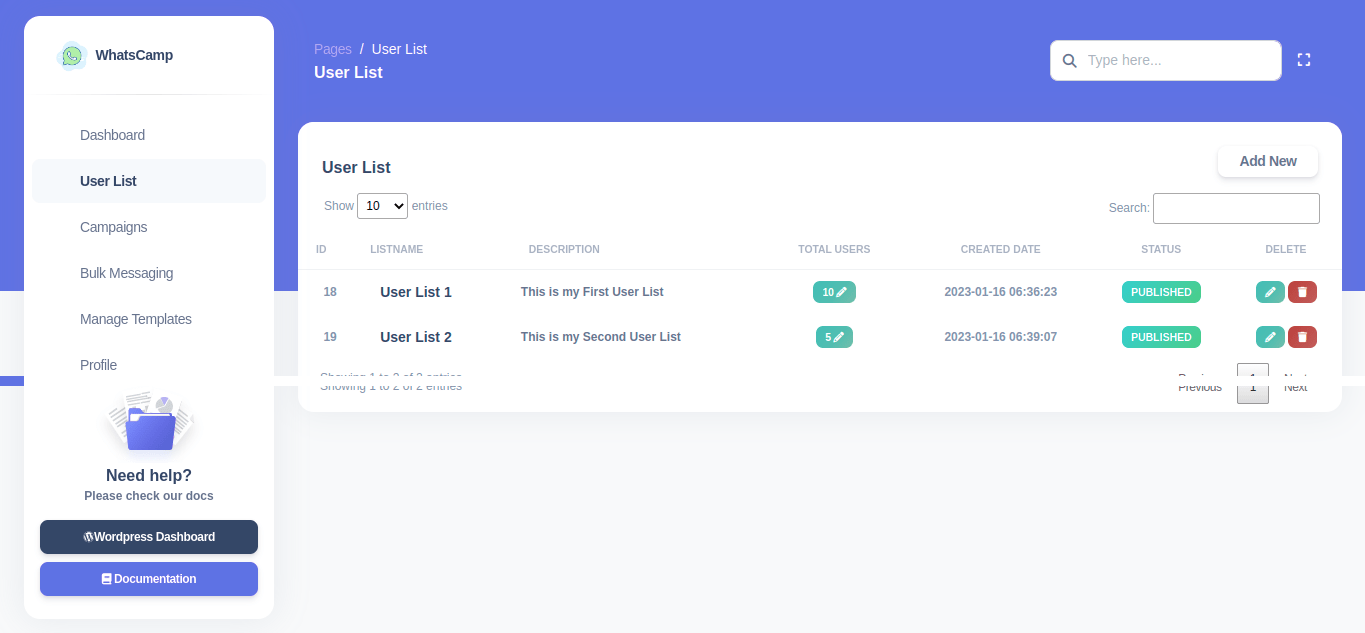
Image 7
Campaigns
To add the campaigns click on the Add New button.
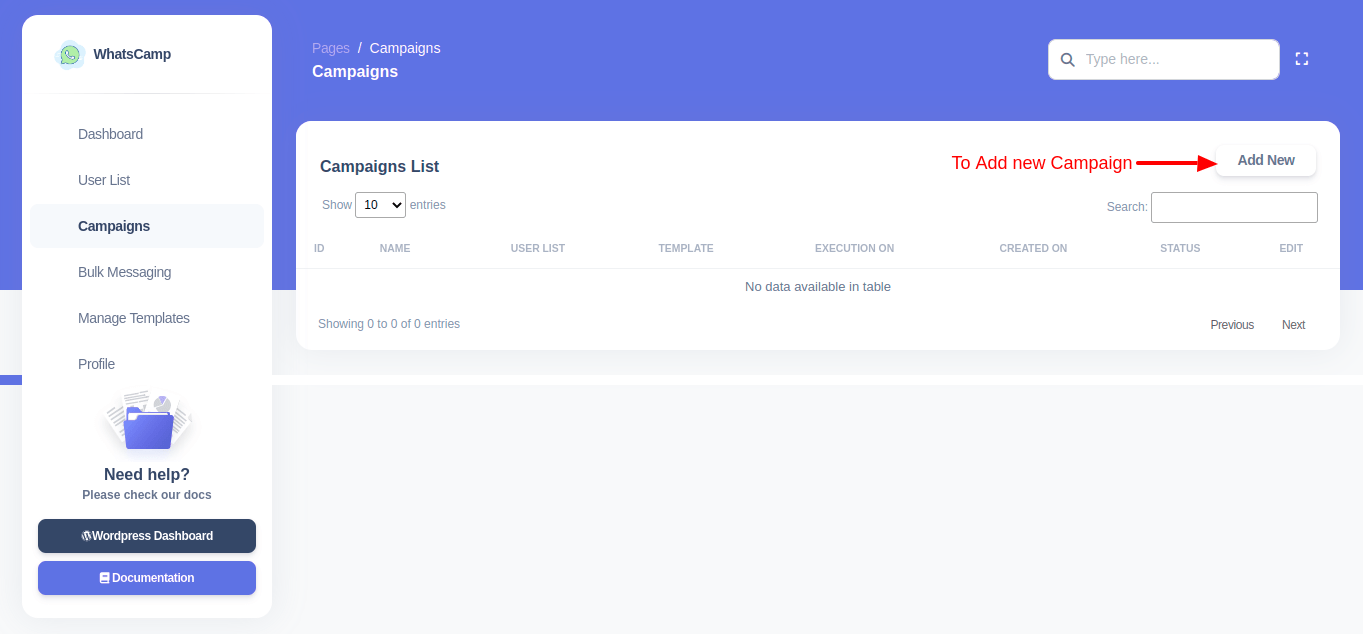
Image 8
The administrator can create campaigns using the campaign name. The created message template can be selected by the campaign admin. He can choose the date and time to send the message.
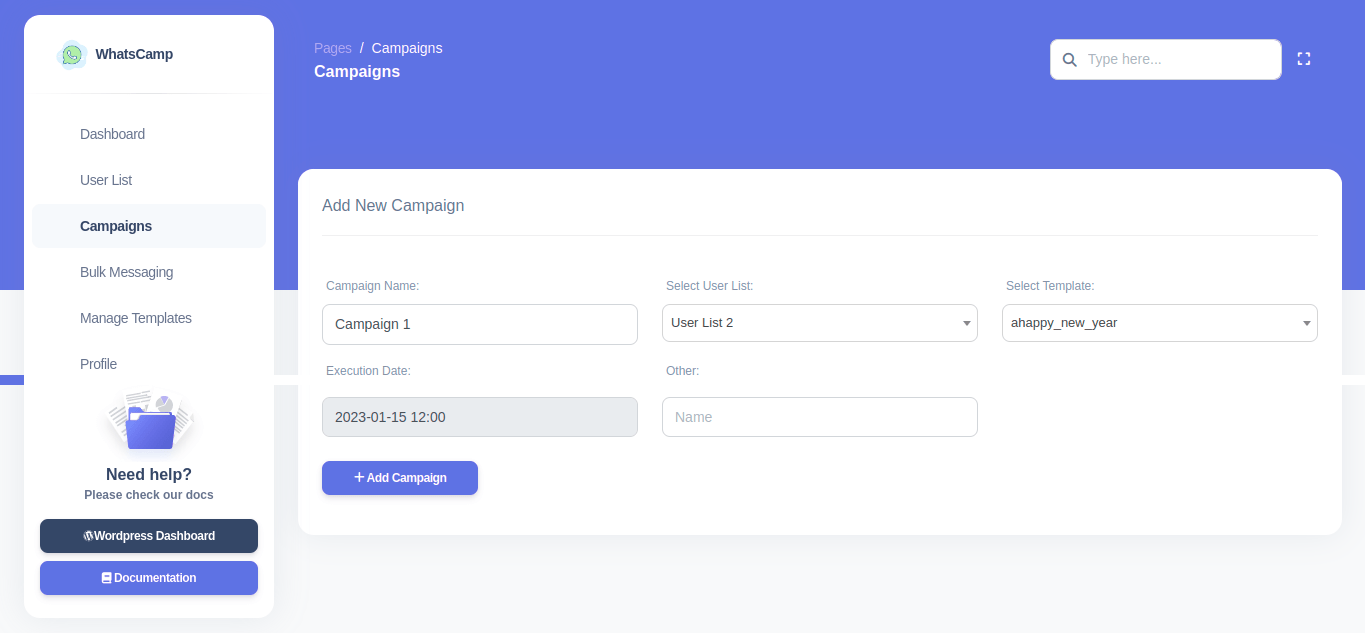
Image 9
Created campaigns lists are displayed in the campaigns along with the User List.
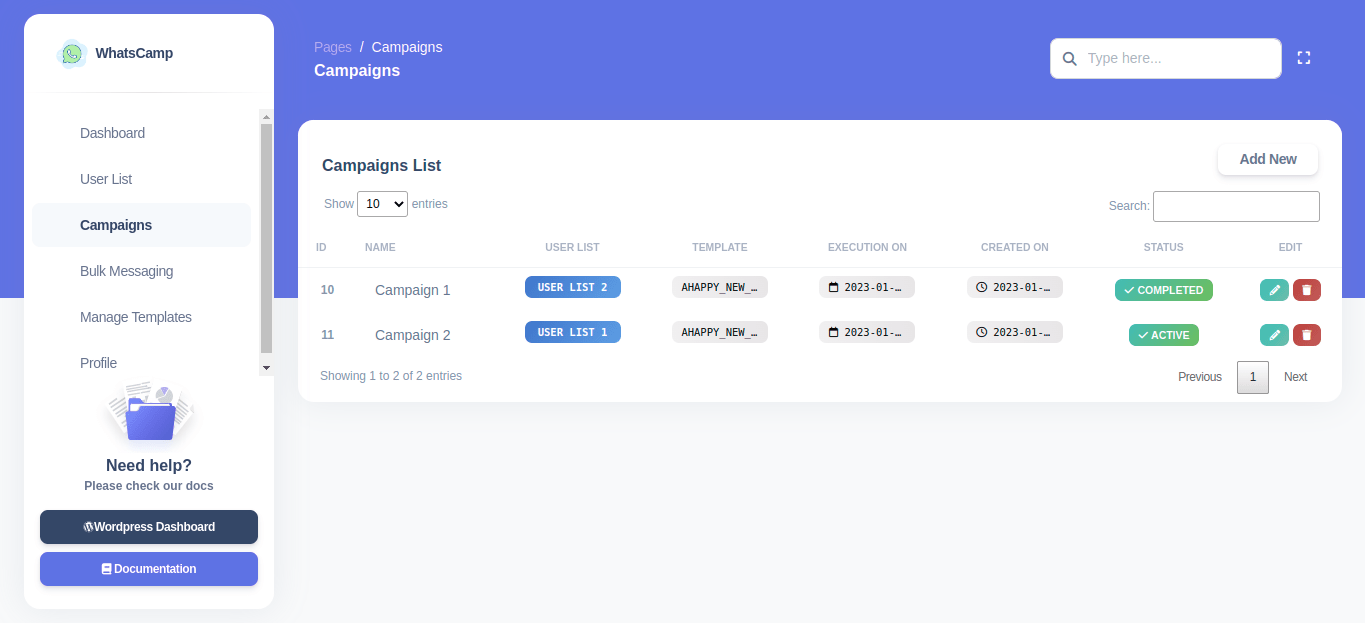
Image 10
Bulk Messaging
Bulk messages save time, optimize resource use, and are a great tool for business-customer interaction. Random sending messages by the second. We can send messages in bulk by selecting the User List and the message Template.
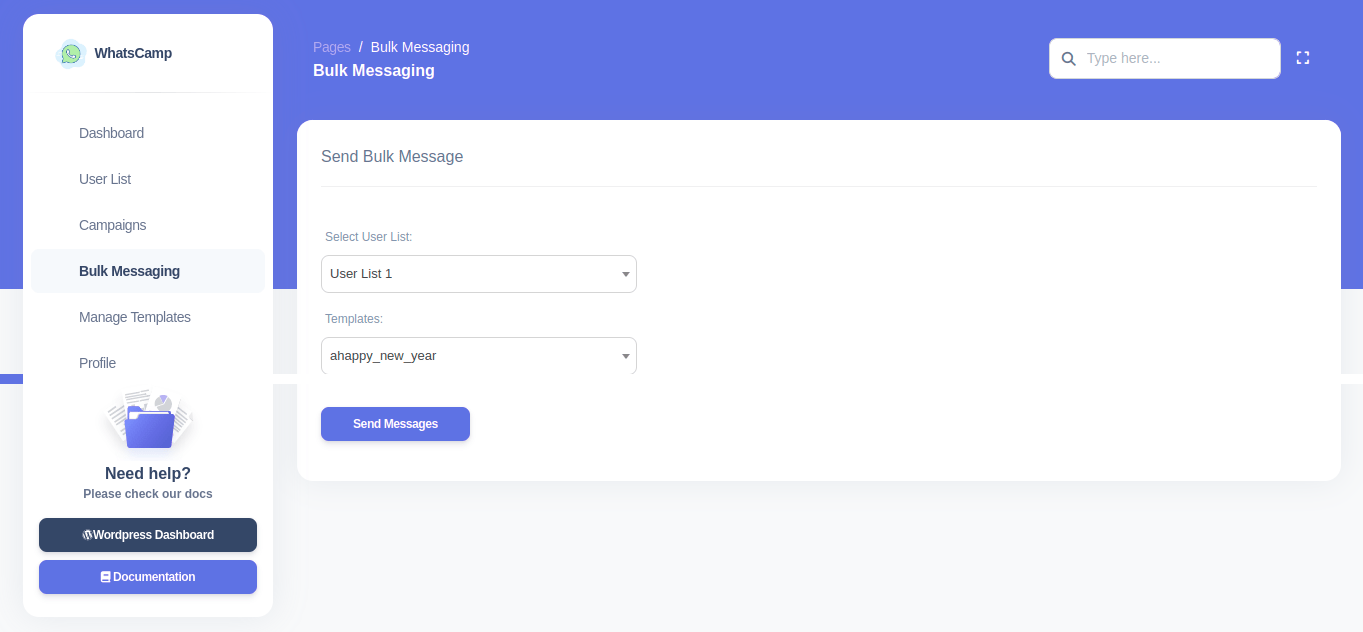
Image 11
Profile
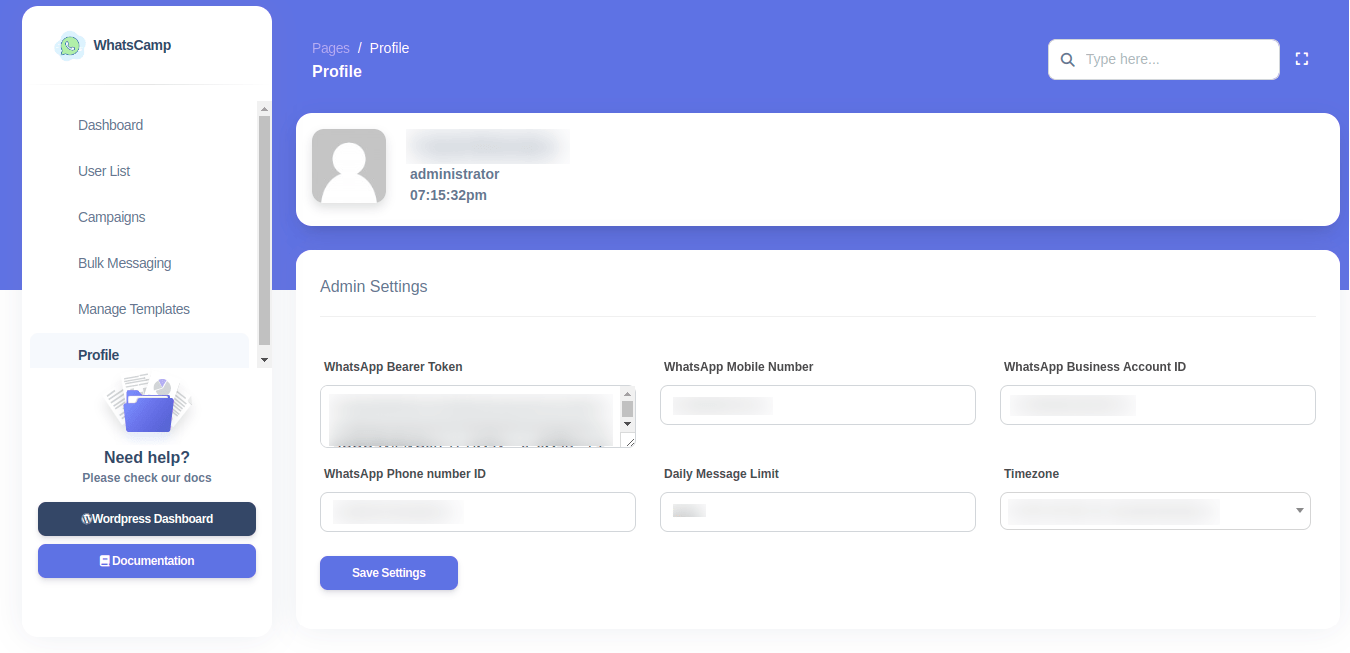
Image 12
WhatsApp Bearer Token : Enter your unique WhatsApp Bearer Access Token.
WhatsApp Mobile Number : Enter your WhatsApp mobile number for your business.
WhatsApp Business Account ID : Enter your unique WhatsApp Business ID
WhatsApp Phone number ID : Enter your WhatsApp Mobile Number ID
Daily Message Limit : Admin can set the daily message limit.
To go to the WordPress click on WordPress Dashboard. You will Redirected to the WordPress Dashboard.
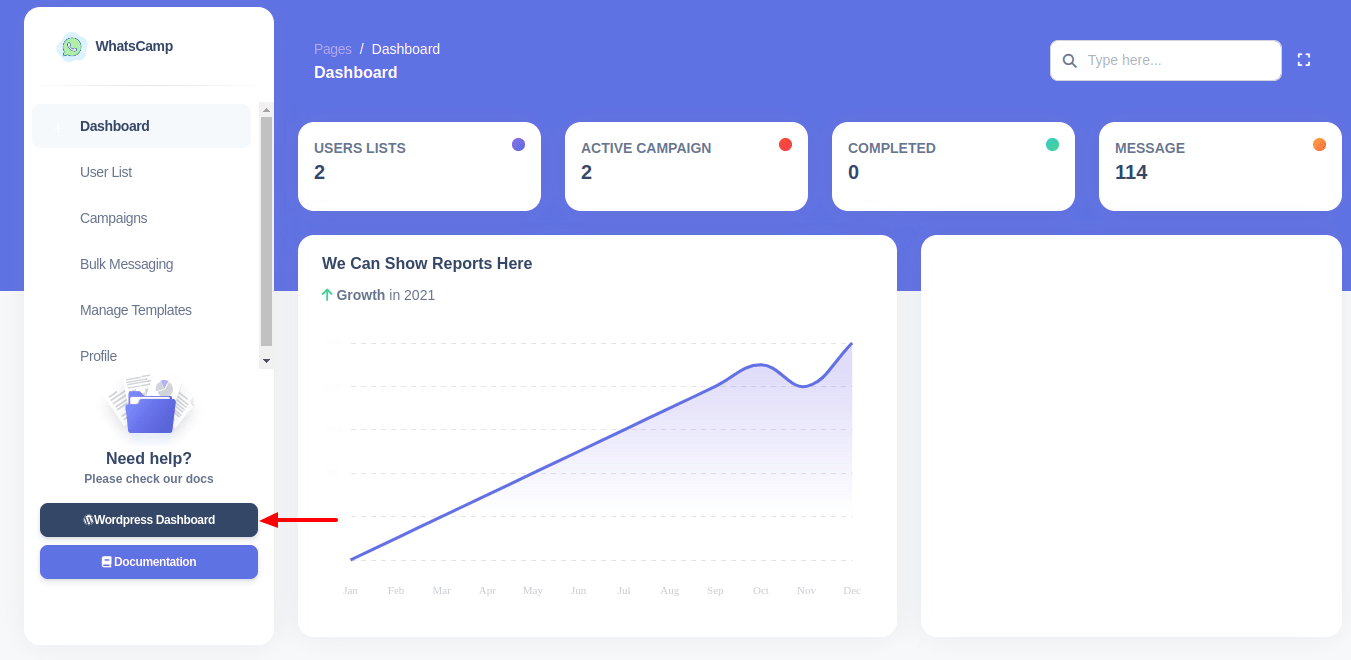
Image 13