1. The Plugin Includes two tabs – and

2. To
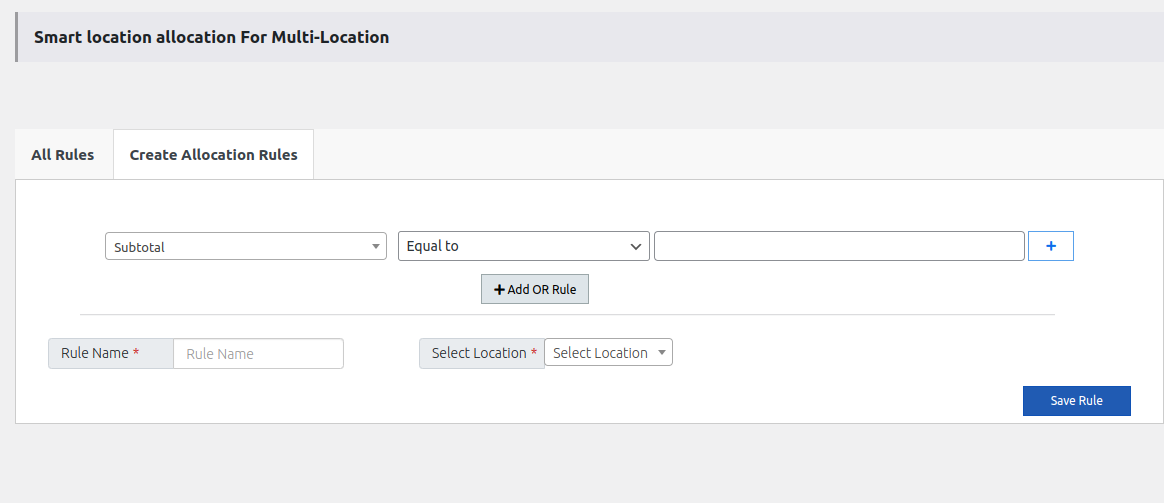
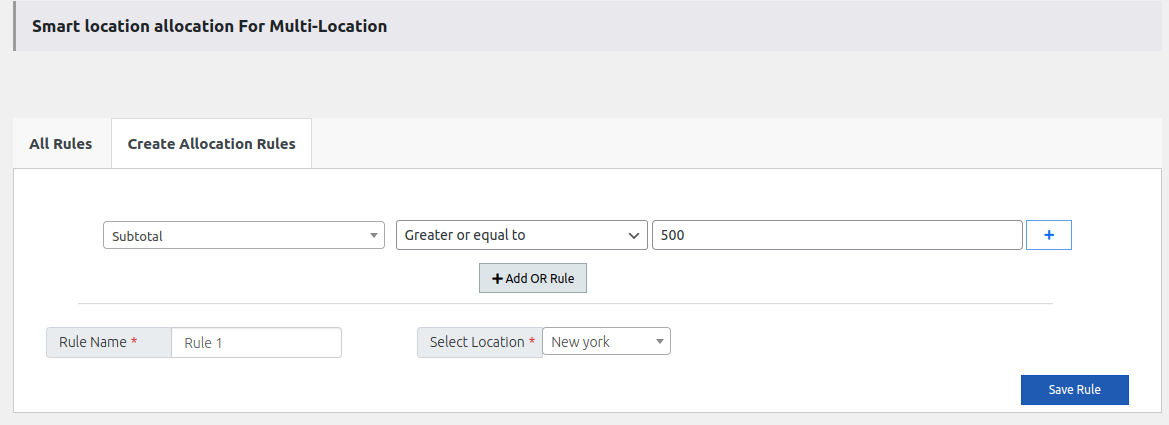
3. Click on the ‘Save Rule’ button
4. Let’s take an example where the Subtotal is greater than 500 then the New York location should be set.
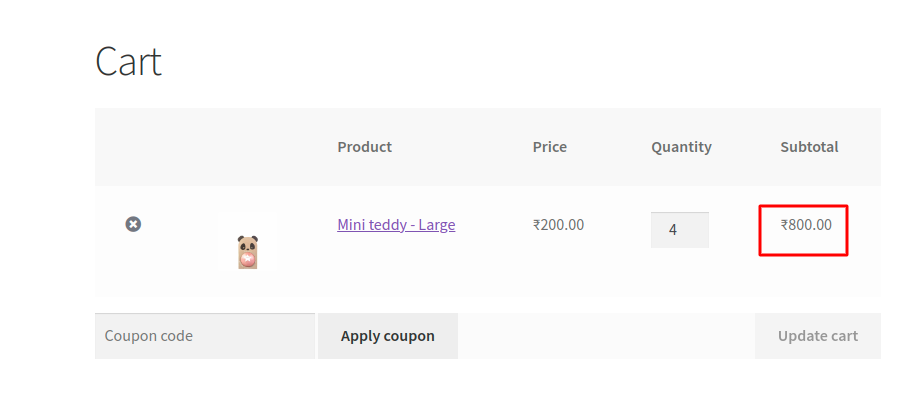
5. Go to the Shop Page and place one order whose subtotal is greater than 500
6. Login to the WordPress Acount
7. Go to the woocommerce
8. Click on Orders
9. Click on the Recently placed order
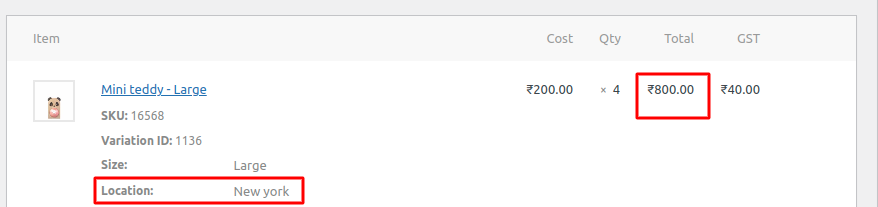
10. You will see the location According to the Created rule