
Once successfully installed and activated, the Quoteble – Inquiry & Request a Quote plugin for WooCommerce will appear in the left pane of your WordPress backend, as illustrated in the image below.

Image :- Quoteble – Inquiry & Request a Quote plugin for WooCommerce
To utilize the Quoteble – Inquiry & Request a Quote plugin for WooCommerce, navigate to the plugin’s Settings by clicking on “Quoteble – Inquiry & Request a Quote” and then selecting “Settings.” From there, simply check the box to enable the price proposal setting.
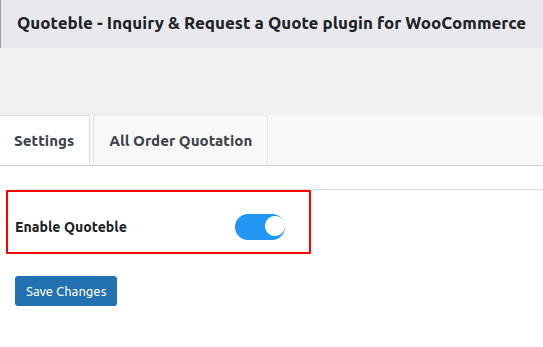
Image: Setting tab
To view all orders that have been submitted for quotation using the Quoteble – Inquiry & Request a Quote plugin for WooCommerce, click on “Quoteble – Inquiry & Request a Quote” and then select “All Order Quotation.” This section will display all of the submitted orders.

Image : All Order Quotation tab
To observe the functionality of this plugin, follow these steps: go to the WordPress frontend, select any product and add it to your cart as usual, then proceed to the regular checkout page.
At the checkout page, you’ll notice a section labeled “Send Quote.” By clicking on this option, a text field will appear below it, allowing users to submit price estimates or negotiate prices for individual products.
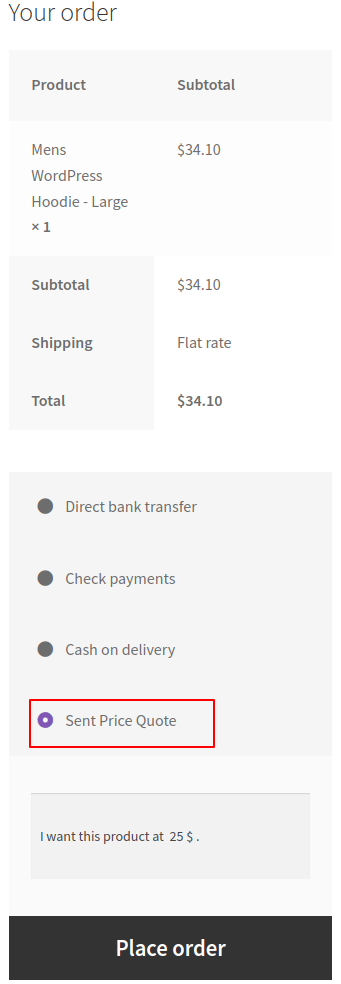
Image : Send Quote on your Regular Checkout
After successfully submitting a quote request, it will be displayed in the WordPress backend as shown below, with the quote status indicated as “Sent Quote.”

Image: wp backend
In the right pane below, you’ll find a dedicated chat section for Admin to End User. This chat box enables the admin to receive messages sent by users and communicate with them seamlessly.

Image:- Admin Chat section
If the admin and the user come to an agreement on the price, the admin can accept the quote by clicking on the “Accept” button.

Image: After admin “Accept” the quote
Now, let’s explore the “My Account” section available to end-users. Within this section, users can engage in chat with the admin, pay for their order, and manage all of their quotes.
To do that, Users need to navigate My account > Quotation

Image: Quotation section on frontend for user
Clicking on the “Reply” button will open a dedicated chat section, as shown in the image below. Through this section, users can suggest prices for individual products and communicate efficiently with administrators.

Image : Users’s chat box
The image below illustrates that the chat history between the user and the admin is visible in the user’s email inbox.

Image: Email notification about Chat
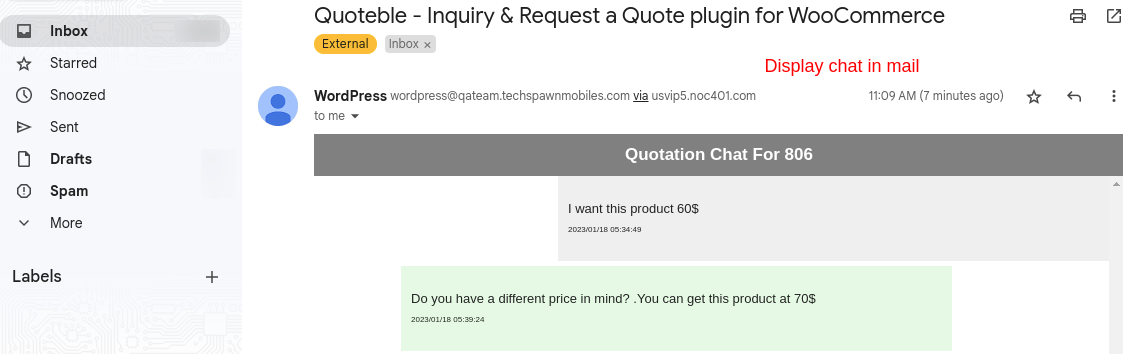
Image: Chat backup on Users’ email
Upon accepting the admin proposal, the user can proceed to the payment page by clicking the “Pay” button. At the payment page, the user can use the standard WC payment method to complete the payment process.