
Quickbook Payments Set Up:
Setting up Quickbooks Payments is a bit of a winding process, as Quickbooks requires an app for your store to connect to. You’ll need to create your own app in the developer console to connect your store to Quickbooks Payments. We’ll walk you through these steps and how to get your app credentials.
Create Your Intuit App:
First, you’ll need to create a developer account with Intuit. This is entirely free, but we’ll need it to set up a connection app with Intuit. You can create one here or log into an existing account if you have one.
- Click on “My Hub”, then click on “App Dashoboard”.
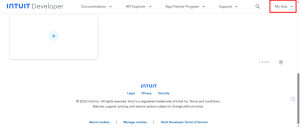
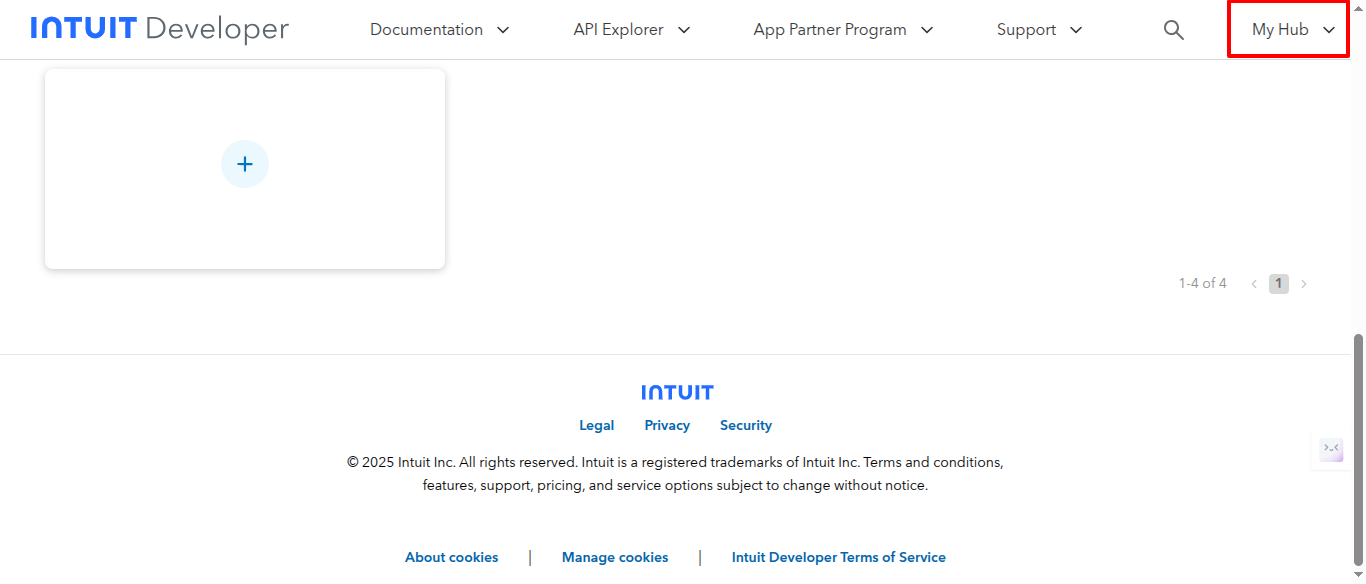
Image 01
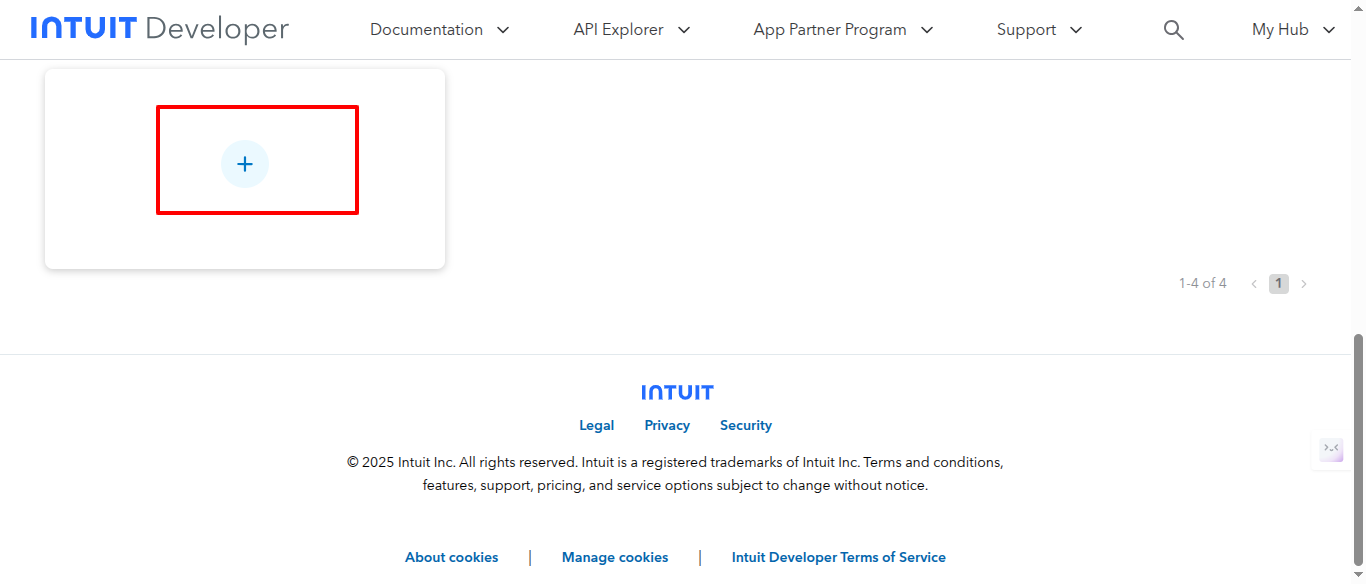
2. Click on ” + ” icon to create the new App.
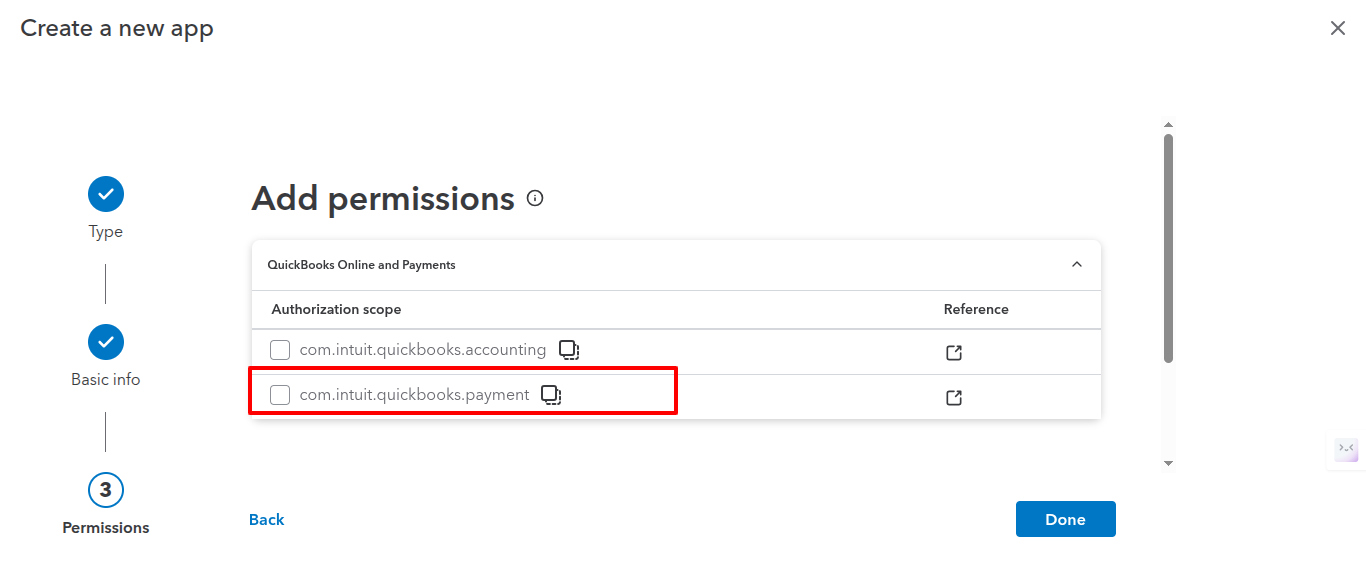
3. Fill all the details while creating the App and then check Payment permission and Click on “Done” and then Click on “Open App”.
Note : Do not select “QuickBooks accounting”API.
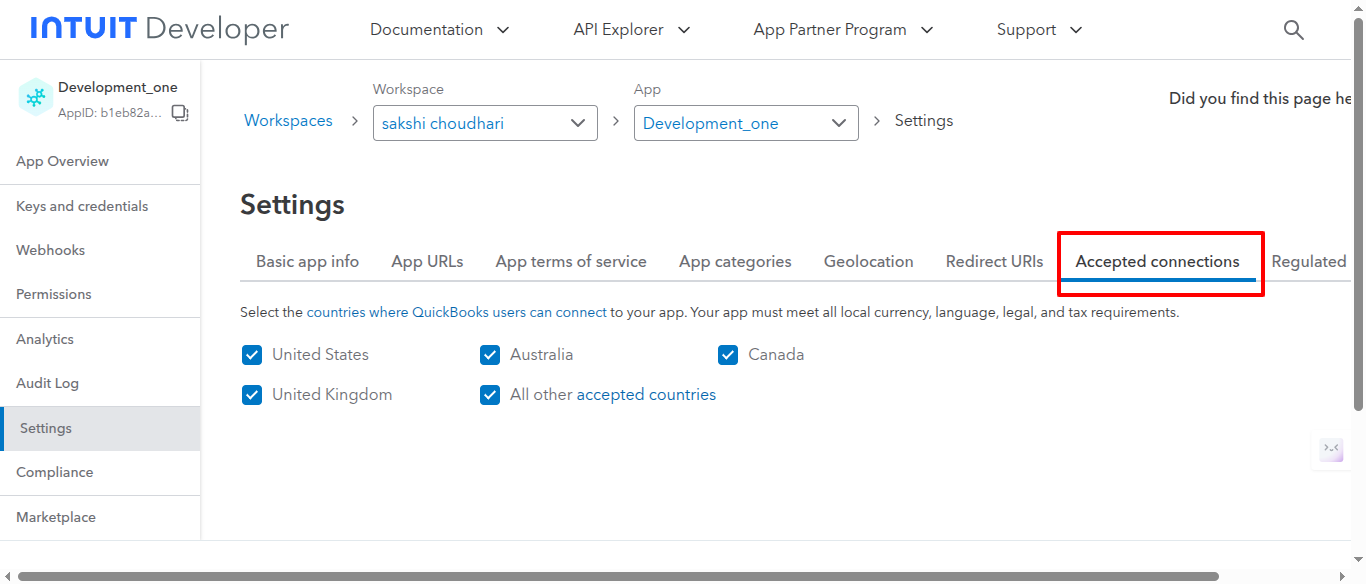
4. In App, Go to Settings / Accepted connections, Accept connections only from your country.
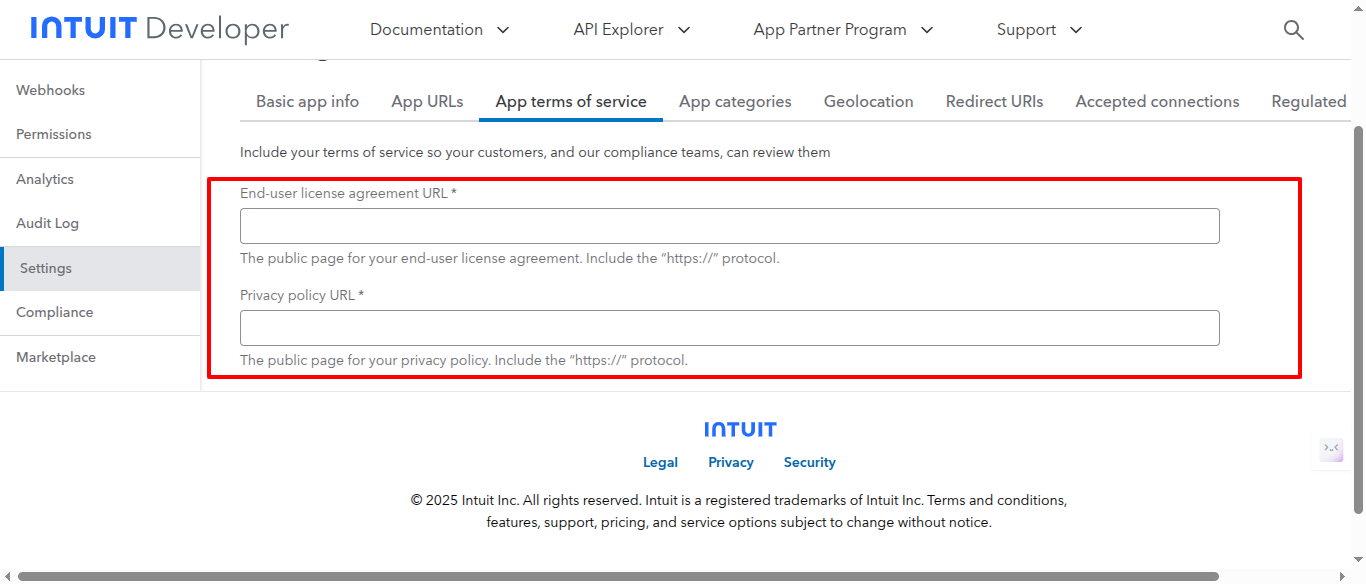
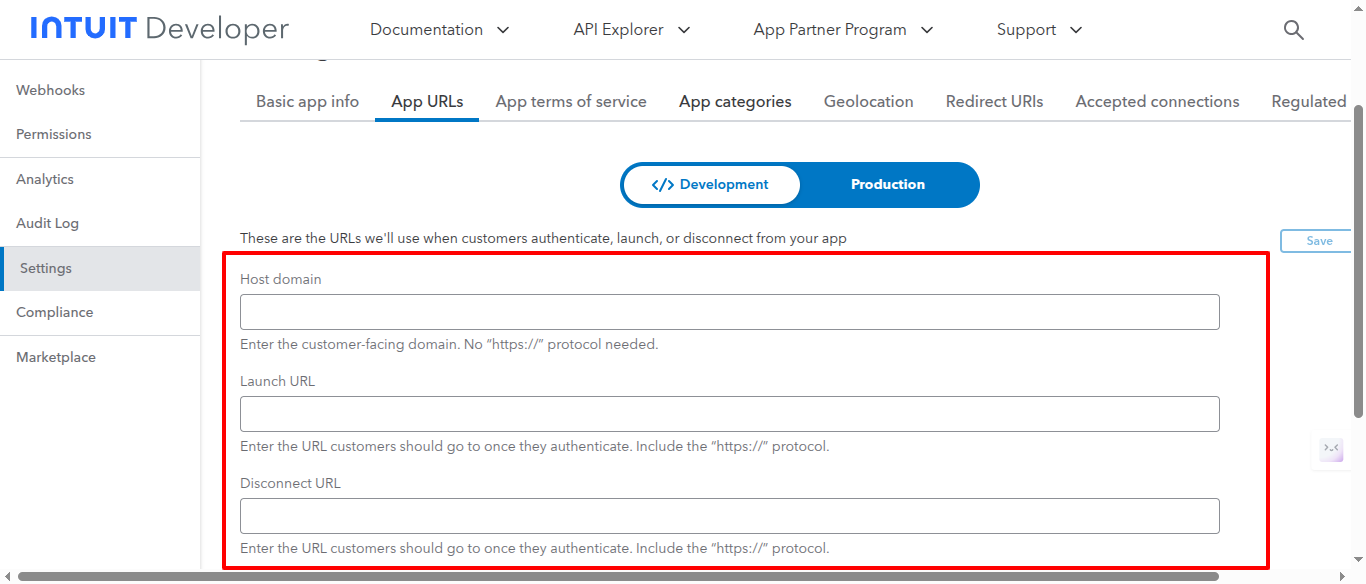
5. In Settings , Go to “App URLs” and “App terms of service” and fill out all the details. In App URLs you can use your homepage, store URL, or whatever you’d like. Launch and disconnect URL doesnt really matter as they are optional.
7. Once you’ve save all the information, Go to “Keys and credentials” and copy the API credentials you have under “Keys” > “Development Keys” for testing mode and for live mode.
- If you see this:
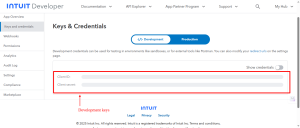
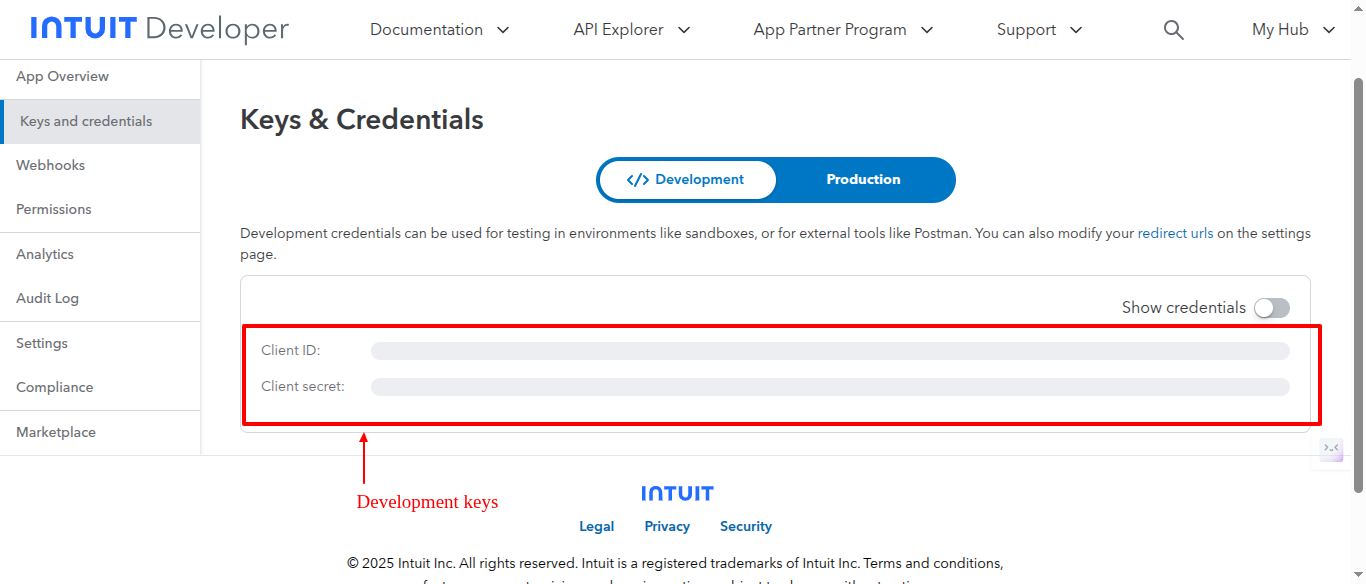
Paste the Development “Client Id” and “Client Secret Key” credentials into the plugin settings “ Test Client Id” and “ Test Client Secret Key”, save them and you’re ready to connect!
And copy your Redirect URL from your plugin setting and Paste your Redirect URL in Redirect URL section.
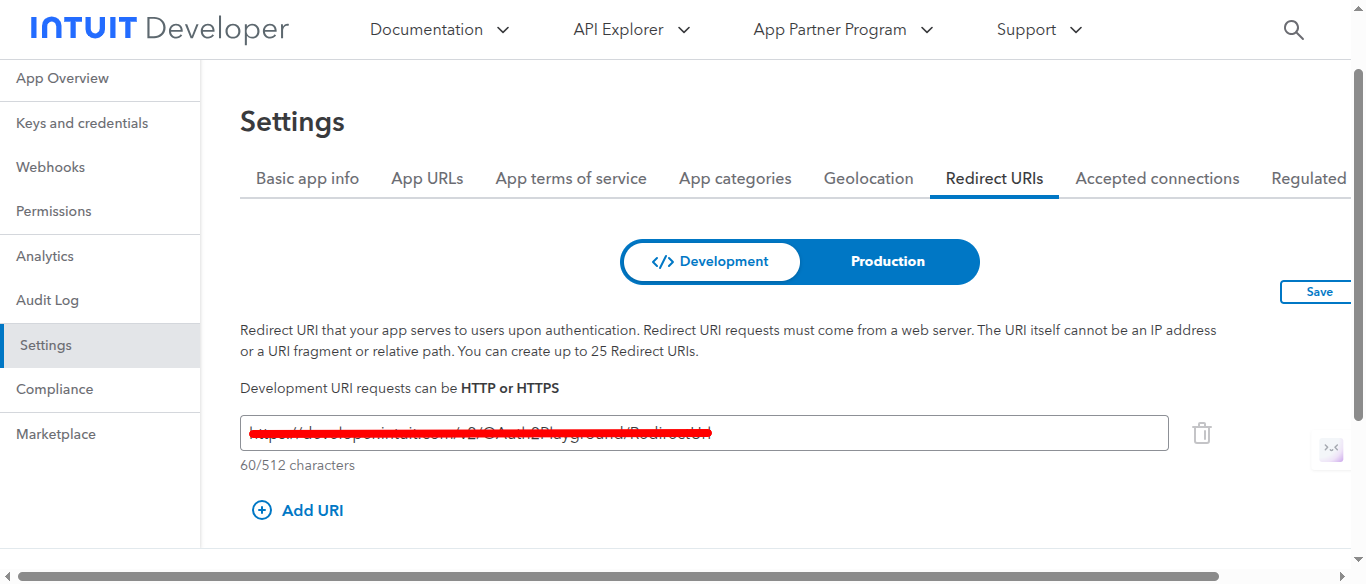
- If you see this:
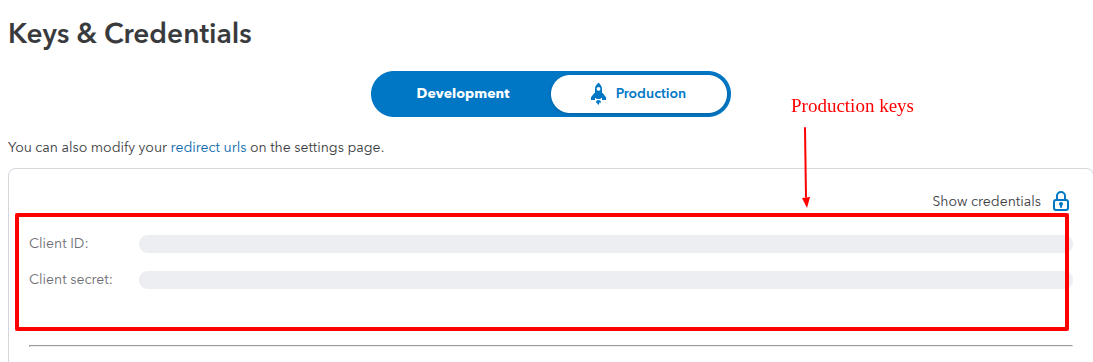
Paste the Production “Client Id” and “Client Secret Key” credentials into the plugin settings “Live Client Id” and “ Live Client Secret Key”, save them and you’re ready to connect!
And copy your Redirect URL from your plugin setting and Paste your Redirect URL in the Redirect URL section.
Connect to Intuit for Credit card and Echeck:
Once you’ve entered your app’s Live Client ID / Test Client ID and Live Client Secret key / Test Client Secret key in your plugin, you can save your settings.
- Before the setting save plugin setting page looks like below.
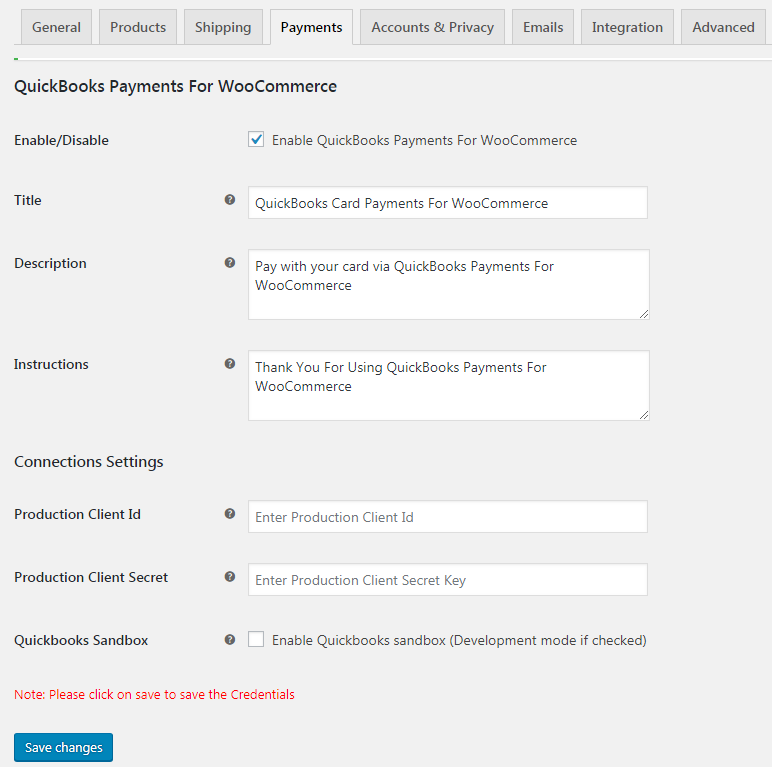
Note: Please Enter Client ID and Client Secret and Click on Save Changes
Note: If you want to use Development mode (Sandbox) then check “Quickbooks Sandbox” Checkbox for development mode.
- After the setting saves, You’ll now be able to connect to Intuit, as the plugin’s “Connect To Quickbook” button will enable.
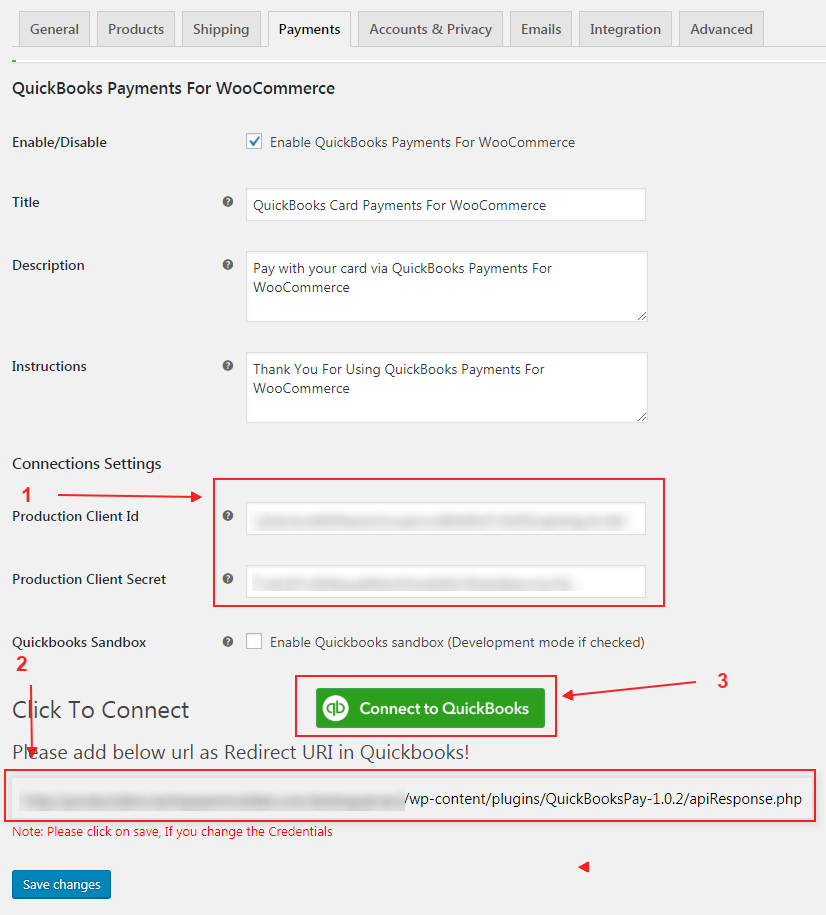
- Please enter Client ID and Client Secret
- Copy link generated here and paste it into App Redirect link (intuit application created)
- Click on the Connect QuickBooks button.
Click “Connect to Quickbooks” button to connect to intuit. If your credentials are correct, you’ll be able to connect to your new app.
Click “Connect” to do so.
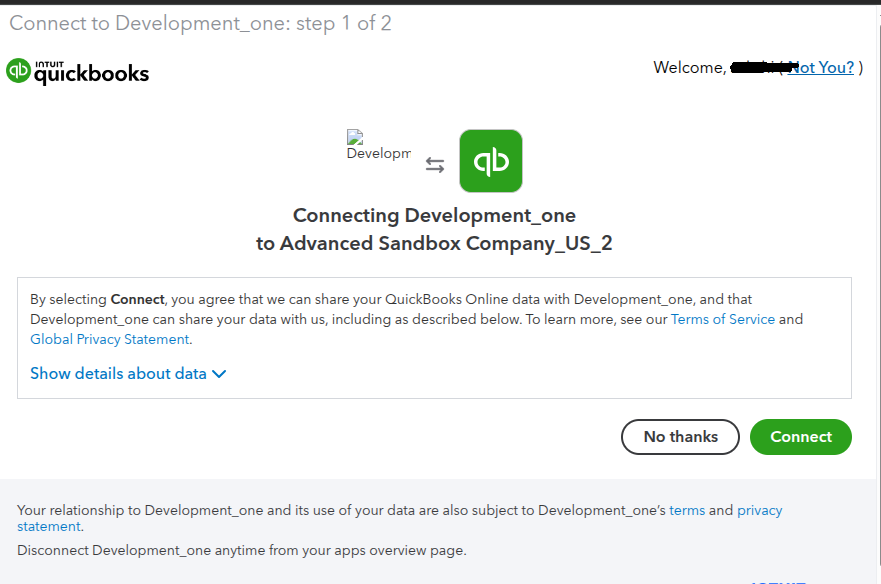
Connected to your app.
All done! Now you can configure the other plugin settings and process payments.
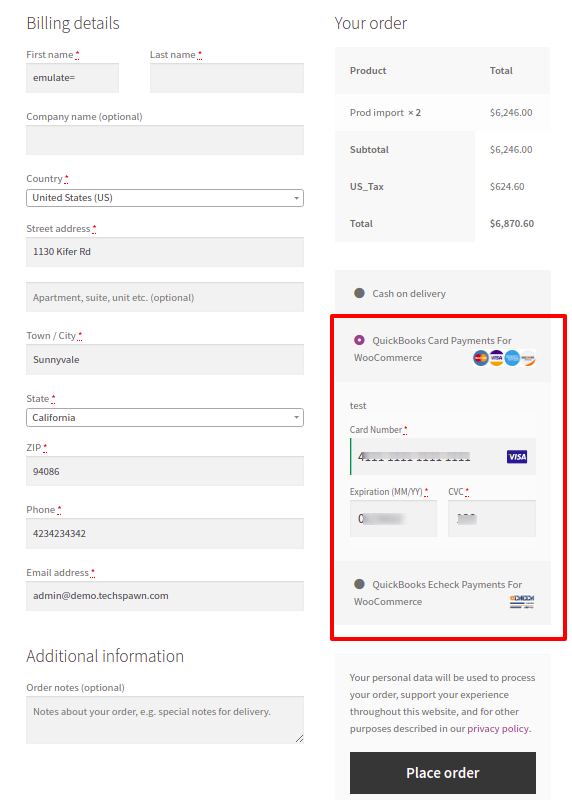
QuickBooks Payment for WooCommerce On Checkout Page: Card Payment:
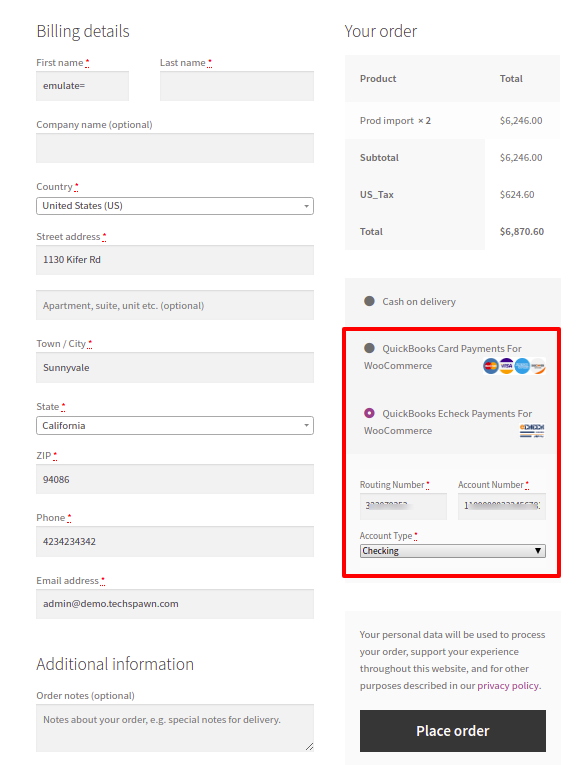
QuickBooks Payment for WooCommerce On Checkout Page: E-Check Payment
Extension Settings:
- Enable / Disable – This will enable the gateway to be used by customers to checkout.
- Title – This is the text shown for the payment during checkout and on the Order Received page
- Description – This is the text shown under the title during checkout. Limited HTML is allowed. If you enable test mode, this section will also display a notice along with test credit card numbers.
- Instructions – This is the text shown on the thank you page.
- Production Client Id – This is the Production Client ID for your Intuit app.
- Production Client Secret Key – This is the Production Client Secret key for your Intuit app.
- QuickBooks Payment for WooCommerce Sandbox – This is the checkbox for switching the live( Production)and test( Sandbox ) mode. If you Enable QuickBooks Payment for WooCommerce sandbox (Sandbox mode if checked).
- Development Client Id – This is the Sandbox Client ID for your Intuit app.
- Development Client Secret Key – This is the Sandbox Client Secret key for your Intuit app.