
Two of your stores hold the same desk. One has four left, the other has one. A shopper twenty minutes from the second store buys the single unit, then drives to the first, because that is the address the confirmation email gave. The count in Odoo was right the whole time.
That is the gap this module closes: not counting stock, but telling a shopper where the count is. In odoo inventory management terms nothing was broken. The storefront answered a location question with one company-wide number, and a number without an address is not something a customer standing in a car park can act on.
Multiloca – Multi Location is a TechSpawn Solutions module that turns Odoo’s stock locations into something a shopper can use: which store or warehouse holds the exact variant they selected, whether they can choose the location before they order, what the page says about the quantity, and what happens when the nearest one runs out.
What follows is the module capability by capability, then the six steps to get it running. Where a section depends on your own Odoo data – location naming, receipt dates, mail settings – it says so, because those are the parts that break a launch rather than the display options.
The upstream work, meaning item data, purchase scheduling and warehouse rules, belongs to what an ERP system covers rather than to a storefront module. Multiloca claims only the customer-facing layer.
Product availability by location: show stock for the variant the shopper picked
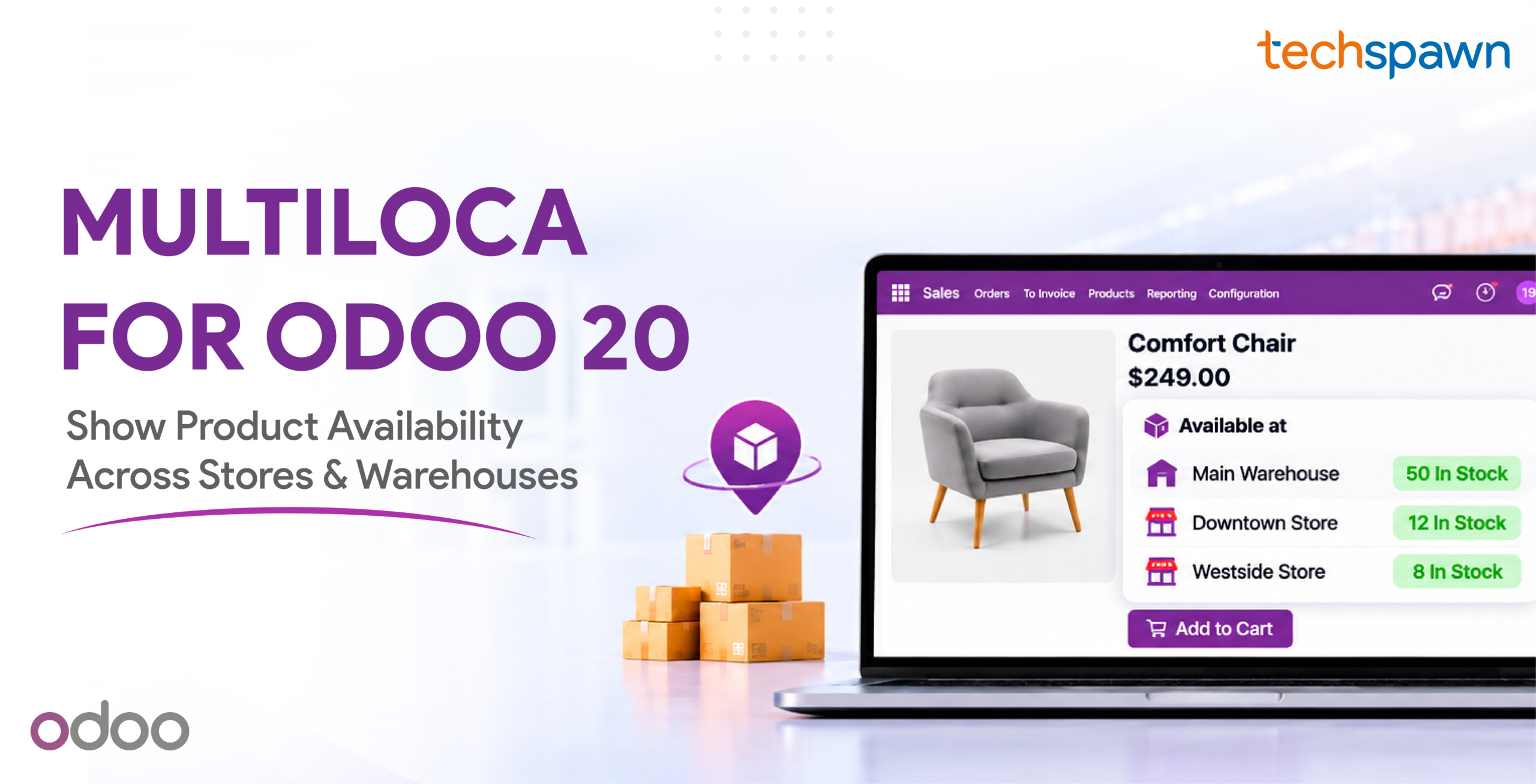
The product page lists the locations that hold the product, with availability for the exact variant the shopper has selected rather than a figure for the template.
That qualifier is the entire feature. Take a desk offered as a white top with custom legs and the same white top with steel legs. The custom-leg version sits in two stores; the steel-leg version sits in one warehouse. Select custom legs and the page shows two locations. Switch the variant to steel legs and the availability changes with it, so the cards always describe the item the shopper is about to buy.
Anything less specific produces the wrong answer at the worst moment. A page that shows one summed number for the parent product tells a shopper the desk is available when the finish they want is in a warehouse four hundred kilometres away, and the phone call that follows is not a sales call.
Because the availability on those cards comes from Odoo’s own stock, the accuracy of the feature is the accuracy of your inventory records, not of the module. Variant-level stock discipline is the same work described in tracking stock levels in Odoo, and it is worth checking before launch that each variant carries stock at the locations you expect to display.
Location selection before ordering: let the shopper choose the shelf
The location is selectable on the product page, presented as buttons, as radio options or as a dropdown. The choice then follows the cart and the sales order line, which is the part that matters operationally: the location recorded on the order is the one the shopper picked, not one an operator assigns afterwards while reading an email.
Eligible deliveries can also be grouped by source location. Once shoppers can steer an order toward a store, the delivery methods offered at checkout need to be able to fulfil from the location they chose – a store that accepts the order but cannot ship from the chosen site has moved the failure rather than removed it. Where your delivery setup needs adjusting to match, that is standard Odoo customization work and worth scoping before the page goes live.
Presenting the same setting three ways is not decoration. Buttons suit two or three locations and read well on a phone; radio options suit a short list where every location needs its address visible; a dropdown keeps the page compact when you run ten. The choice is per store, so a chain can keep the product page short without hiding local stock.
Flexible stock display: decide how much the page says
Availability can be shown as exact quantities or as custom wording such as Available, Low Stock or Ready to Ship, with low-stock thresholds deciding where the wording changes.
Both options are defensible and they answer different questions. Exact quantities tell a shopper precisely what is on the shelf; they also publish your stock position to anyone who cares to read it. Wording keeps the page persuasive without disclosing the count, and lets a store with two units and a store with two hundred read the same way to a customer.
Three further controls decide how much of the page the block occupies. Unavailable locations can be hidden or disabled, the number of locations shown can be limited, and the block can sit above or below Add to Cart.
Hiding and disabling are not the same decision. Disabling keeps the location visible with its state attached, which tells a shopper that a store near them exists and is temporarily out. Hiding removes it entirely, which shortens the list but also removes the reason to come back. Pick deliberately rather than accepting a default, because the two settings produce visibly different pages and different support questions – the shipping-cost and stock-cover arguments behind multi-location selling are set out in the advantages of multi-location inventory management.
Friendly store names and details: write what the customer reads
Each location carries a customer-facing identity: a recognisable name such as Downtown Store or North Pickup Point, plus an address, a phone number, an image, business hours and pickup availability.
The friendly name is deliberately separate from the record behind it. Changing what shoppers read does not alter the internal inventory location, so a warehouse registered under an internal label can present as North Pickup Point on the storefront, and renaming it later is a copy change rather than a data migration. That separation is what lets the customer-facing layer be edited by the people who talk to customers.
Everything in this section is setup work, and it is the section most often finished late. A recognisable name, a phone number someone answers, one honest photograph and hours that are actually kept are worth more than any toggle on the page. They belong in the Odoo implementation plan rather than in the last afternoon before launch.
Store locator and distance search: help people find the nearest shelf
A store locator presents locations as cards and on a map, with a filter by country and a distance search. Distance search uses the shopper’s current location after the browser asks permission, and distances display in kilometres or miles. A store picker in the header is optional.
The country filter is the control that keeps a long list usable. A retailer with locations in three countries does not want a German shopper scrolling past outlets in Ireland to find the one in Hamburg.
Distance search has a dependency worth planning for: it only knows where the shopper is once the browser prompt is accepted, and a shopper who declines gets the country filter and the card list instead. That is a reason to keep the cards complete on their own, with address and contact details, rather than treating the map as the only way in.
Kilometres or miles is a display setting, so set it per market rather than leaving the default. And the header picker, once enabled, becomes more than a locator convenience: it establishes which location the shopper is shopping from, which is what the next section builds on. Where the locator and the availability data have to reach storefronts or marketplaces that sit outside the Odoo website, that work is Odoo integration.
Stock visibility on shop and category pages: what a grid can carry
Status appears on the product cards themselves, so a category page answers the location question before a shopper opens anything.
Unavailable products can be handled four ways: they can display normally, carry a badge, be hidden, or be moved down the list. When the header store picker is in use, the inventory behind those cards is the selected location’s inventory, which means the choice a shopper made in the locator carries into browsing instead of being forgotten at the next click.
Hiding is the setting that needs the most thought. On a category page, hiding everything unavailable at the selected location can empty a grid for a shopper in a region where you hold nothing, which reads as a shop that has closed rather than a product that has sold out. Moving unavailable products down, or badging them and leaving them in place, keeps the catalogue visible while still telling the truth about the local shelf.
The same problem returns once the catalogue sells beyond the Odoo website. If the list also runs on Shopify or WooCommerce, those category pages need the same per-location truth, and that is a synchronisation question rather than a display one – the Odoo Shopify connector and the Odoo WooCommerce connector are the two Techspawn builds that carry it.
Restock alerts and incoming stock: answer the second question
A shopper who cannot get the item nearby asks one of two follow-ups: tell me when it is back, or when will it be back. Both are covered.
Restock subscriptions are taken per product and per location, so a subscription is a request for one variant at one store rather than a general interest in the catalogue. Cards can also show expected quantities and arrival dates for incoming stock, which turns a dead out-of-stock page into a date the shopper can plan around.
One prerequisite is easy to miss. Alerts are emails, and emails need a configured outgoing mail server in Odoo before any of them arrive. An alert nobody receives is worse than no alert, because the shopper believes a promise the system never made. Test the mail path with a real address before you announce the feature.
The arrival dates deserve the same scepticism. An expected quantity and date are only as good as the scheduled dates on your open receipts, so a confirmed order with no date behind it produces a confident-looking card with nothing under it. Getting receipts dated properly is ordinary Inventory configuration, covered in the Odoo 18 warehouse operations guide, and it is the difference between an estimate and a guess.
Getting started with Multiloca
Six steps, in order:
- Create warehouses and store contacts in Odoo.
- Add stock for the correct product variants and internal locations.
- Configure friendly names, addresses and store details.
- Open Settings → Multiloca and enable the required features.
- Save the settings and check a published product.
- Select a location, add the product to the cart and verify the location on the order.
The sequence is not arbitrary. Steps 1 and 2 are Odoo Inventory work and everything after them depends on that data being right. Steps 3 to 5 are the display layer. Step 6 is the only one that proves the whole chain end to end, because it is the only one that shows a location surviving from a product page into a sales order line – so if you test one thing before launch, test that one, on a variant that already has stock in more than one place.
If the first pass would be quicker with the team that wrote the module, Techspawn runs both the location taxonomy work and the surrounding build: Odoo ERP development takes on the naming, structure and delivery-method planning that the six steps assume.
For the WooCommerce side of the same product family, which is a separate build with its own feature set, see Multiloca for WooCommerce.
See Multiloca – Multi Location on the Odoo Apps Store →
Frequently asked questions
Does the product page show stock for the variant or for the whole product?
For the exact variant the shopper has selected. Availability updates when the variant changes, so a white desk with custom legs can show two stores while the steel-leg version of the same desk shows one warehouse.
Can a customer choose a location before ordering?
Yes. The location is selectable on the product page as buttons, radio options or a dropdown, and the choice follows the cart and the sales order line so the order carries the location the shopper picked. Eligible deliveries can be grouped by source location.
Can I hide a location, or limit how many appear?
Yes. Unavailable locations can be hidden or disabled, the number of locations shown can be limited, and the block can be positioned above or below Add to Cart. Quantities can be shown exactly or replaced with wording such as Available, Low Stock or Ready to Ship, using low-stock thresholds.
Does the name shoppers see have to match the internal Odoo location?
No. Each location has a customer-facing name such as Downtown Store or North Pickup Point, alongside its address, phone number, image, business hours and pickup availability, and changing that name does not alter the internal inventory location.
How does the distance search know where the shopper is?
It uses the shopper’s current location once the browser permission prompt is accepted, and displays distance in kilometres or miles. Locations can also be filtered by country, and a header store picker is optional.
What does the restock alert feature need in order to work?
A configured outgoing mail server in Odoo. Subscriptions are taken per product and per location, and the email is the delivery mechanism, so the mail path should be tested with a real address before the feature is announced.